
How to Block The Position of Icons on Desktop: A Step-by-step Guide
Are you tired of icons on your desktop moving around every time you change the resolution of your monitor? Do you wish there was a way to keep them in their designated places? Look no further! In this article, we will guide you through the process of blocking the position of icons on desktop for Windows and macOS.
Blocking Position Icons on Desktop: A Comfortable Function
In Windows, you can exploit some comfortable functions already included in the OS to block the position of icons on desktop. These functions ensure that icons always align to the grid, leaving them flawless even after resolution changes.
To take advantage of this feature, right-click an empty spot on your monitor, choose “Visualize” from the menu, and select the option to “Align Icons to the Grid.” This will keep your icons in their designated positions, regardless of screen resolution changes.
Reicon: A Software Solution
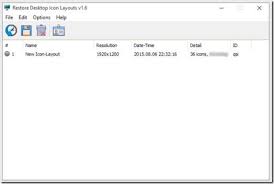
If you’re looking for a more advanced solution, consider using ReIcon. This freeware software is portable and compatible with all Windows systems. It allows you to save and restore layouts, making it easy to block the position of icons on desktop.
To use ReIcon:
- Download and install the software from its official website.
- Extract the ZIP file and run the executable program.
- Place the icons on your desktop in their desired positions.
- Use ReIcon to save the layout by clicking on the button with the clock icon.
- To restore the layout, launch ReIcon and select the saved layout.
Blocking Position Icons on Desktop: A Macos Solution
If you’re a Mac user, don’t worry! You can also block the position of icons on desktop using built-in functions in macOS.
To do so:
- Place your desired icons on the desktop.
- Right-click an empty spot and select “Order for” from the menu.
- Choose to align the icons to the grid or order them according to specific criteria, such as name, type, or modification date.
- To block the position of icons without allowing them to be reordered, click on an empty spot and select the option to place icons automatically.
Blocking Position Icons on Desktop: A Function For Smartphones And Tablets
While blocking the position of icons on desktop is not possible on Android devices using traditional means, there are still ways to achieve this functionality.
To block the position of icons on your smartphone or tablet:
- Open the Settings app.
- Navigate to the Home screen settings section.
- Toggle the switch to “Block layout” to prevent icon movement.
Note that this feature may not be available on all Android devices, and the process may vary depending on your device’s version.
Conclusion
Blocking the position of icons on desktop is a simple yet effective way to maintain organization on your computer or device. By using built-in functions in Windows, macOS, or even mobile operating systems, you can ensure that your icons stay put, even after changes in screen resolution. Whether you’re using ReIcon for advanced functionality or relying on built-in features, there’s a solution out there for you.
Frequently Asked Questions (FAQs)
- What is The Purpose of Blocking Position Icons on Desktop?
The primary goal of blocking position icons on desktop is to maintain organization and prevent icon movement due to changes in screen resolution.
- How Can I Block The Position of Icons on Windows?
To block the position of icons on Windows, use the built-in function “Align Icons to the Grid” or employ a third-party solution like ReIcon.
- Can I Block The Position of Icons on Macos?
Yes, you can block the position of icons on macOS using the “Order for” menu option and selecting the “Place icons automatically” feature.
- How do I Prevent Icon Movement on Android Devices?
To prevent icon movement on Android devices, navigate to Settings > Home screen settings and toggle the switch to “Block layout.”
- What Are Some Benefits of Blocking Position Icons on Desktop?
The primary benefit of blocking position icons on desktop is maintaining organization and reducing visual clutter.
- Can I Use Reicon For Other Purposes Beyond Icon Management?
Yes, ReIcon can also be used to save and restore window layouts, making it a versatile tool for users.
- How do I Uninstall or Update Reicon?
To uninstall or update ReIcon, follow the software’s official instructions or consult its documentation.
- Can I Use Other Third-party Solutions Besides Reicon?
Yes, there are various third-party solutions available that can help with icon management and layout customization.


