
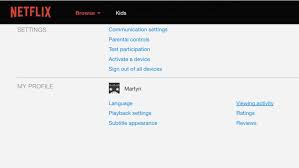
How to Erase The Chronology of Netflix on Various Devices
Are you tired of binge-watching TV shows and movies on Netflix without being able to delete your viewing history? Worry no more! In this comprehensive guide, we will walk you through the steps to erase the chronology of Netflix on various devices, including computers, smartphones, tablets, and TVs.
Why Erase Your Viewing History on Netflix?
Before we dive into the instructions, let’s briefly discuss why erasing your viewing history might be a good idea. If you’re worried about others seeing what you’ve been watching or if you want to keep your viewing habits private, deleting your history is a great solution.
Erasing The Chronology of Netflix on Computer
To erase the chronology of Netflix on your computer, follow these steps:
- Open Netflix: Launch the Netflix website and sign in with your account credentials.
- Click on The Profile Icon: Click on your profile icon located at the top right corner of the page.
- Select “Account”: From the dropdown menu, select “Account”.
- Scroll Down to “Profiles”: Scroll down to the “Profiles” section and click on the profile you want to delete.
- Click on “Visualize”: Click on the “Visualize” button next to the “Activity” tab.
- Delete Individual Contents: To delete individual contents, click on the ban icon beside each item. Repeat this process for all items in your viewing history.
Erasing The Chronology of Netflix on Smartphone And Tablet
To erase the chronology of Netflix on your smartphone or tablet:
- Open The Netflix App: Launch the Netflix app and sign in with your account credentials.
- Tap on The Profile Icon: Tap on your profile icon located at the top right corner of the screen.
- Select “Manage Profiles”: Select “Manage Profiles”.
- Choose The Profile to Delete: Choose the profile you want to delete by tapping on it.
- Tap on The Three Dots: Tap on the three dots beside each item in your viewing history.
- Delete Individual Contents: To delete individual contents, tap on the “Remove” option.
Erasing The Chronology of Netflix on TV
To erase the chronology of Netflix on your TV:
- Open The Netflix App: Launch the Netflix app on your TV or streaming device.
- Highlight The Profile to Delete: Highlight the profile you want to delete by using your remote control.
- Select “Edit”: Select the “Edit” option.
- Tap on The Pencil Icon: Tap on the pencil icon beside each item in your viewing history.
- Delete Individual Contents: To delete individual contents, tap on the “Remove” option.
How to Erase The Entire Viewing History
If you want to erase the entire viewing history, follow these steps:
- Open Netflix on Computer: Open Netflix on your computer and sign in with your account credentials.
- Click on The Profile Icon: Click on your profile icon located at the top right corner of the page.
- Select “Account”: From the dropdown menu, select “Account”.
- Scroll Down to “Profiles”: Scroll down to the “Profiles” section and click on the profile you want to delete.
- Click on “Delete Profile”: Click on the “Delete Profile” option.
How to Create a New Profile
If you’re unable to erase your viewing history, try creating a new profile:
- Open Netflix on Computer: Open Netflix on your computer and sign in with your account credentials.
- Click on The Profile Icon: Click on your profile icon located at the top right corner of the page.
- Select “Account”: From the dropdown menu, select “Account”.
- Scroll Down to “Profiles”: Scroll down to the “Profiles” section and click on the “Add a Profile” option.
- Create a New Profile: Create a new profile by entering a name for it.
Conclusion
Erasing the chronology of Netflix is a simple process that can be completed on various devices, including computers, smartphones, tablets, and TVs. By following these steps, you’ll be able to delete your viewing history and keep your preferences private.
Frequently Asked Questions (FAQs)
- How Long Does it Take For my Profile to be Deleted?
A: The deletion process typically takes a few minutes to complete. - Will Deleting my Profile Also Delete All my Ratings And Preferences?
A: Yes, deleting your profile will also delete all your ratings and preferences. - Can I Recover Deleted Contents From my Viewing History?
A: No, once you’ve deleted an item from your viewing history, it cannot be recovered. - Will Deleting my Profile Affect my Account Credentials?
A: No, deleting your profile will not affect your account credentials. - How do I Know if my Profile Has Been Successfully Deleted?
A: After completing the deletion process, you’ll receive a confirmation message indicating that your profile has been deleted.
I hope this guide helps you understand how to erase the chronology of Netflix on various devices!


