
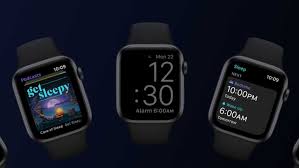
Monitoring Your Sleep With Apple Watch: A Step-by-step Guide
Are you curious about monitoring your sleep patterns using your Apple Watch? Look no further! This comprehensive guide will walk you through the process of configuring Sleep on Apple Watch, using the built-in app, and exploring other options to track your sleep.
Why Monitor Your Sleep With Apple Watch?
Monitoring your sleep can have a significant impact on your overall well-being. By tracking your sleep patterns, you can:
- Identify potential sleep disorders
- Improve the quality of your sleep
- Enhance your physical and mental health
Configuring Sleep on Apple Watch: A Step-by-step Guide
To start monitoring your sleep with Apple Watch, follow these simple steps:
- Ensure You Have Watchos 8 or Later: Before you begin, make sure your Apple Watch is running watchOS 8 or later.
- Install The Sleep App: Open the App Store on your iPhone and install the Sleep app from Apple.
- Open The Sleep App: Launch the Sleep app on your Apple Watch by tapping the Digital Crown.
- Enable Sleep Tracking: Swipe down to access the menu, then tap on “Sleep” to enable tracking.
- Set Your Sleep Schedule: Set your desired sleep schedule by choosing the times you want to go to bed and wake up.
Using The Sleep App on Apple Watch
Once you’ve enabled Sleep tracking, you can start monitoring your sleep patterns directly from your Apple Watch:
- View Sleep Data: Open the Sleep app on your Apple Watch to view data on your recent sleep sessions.
- See Phases of Sleep: The app displays charts showing the different phases of your sleep (Deep, Leading, REM, and Wake).
- Monitor Your Heart Rate And Respiratory Frequency: The app also tracks your heart rate and respiratory frequency while you’re sleeping.
Additional Features And Options
In addition to the built-in Sleep app, there are other options available for monitoring your sleep with Apple Watch:
- Autosleep App: This third-party app can automatically start tracking your sleep without needing to manually enable it.
- Sleepzy App: This app offers intelligent wake-up functionality and allows you to track your sleep patterns on your Apple Watch.
- Sleep Cycle App: This app helps you monitor your sleep cycles, facilitate better sleep, and visualize long-term trends.
Conclusion
Monitoring your sleep with Apple Watch is a simple yet powerful way to improve your overall health and well-being. By following the steps outlined in this guide and exploring additional features, you can gain valuable insights into your sleep patterns and take steps towards achieving better rest.
Frequently Asked Questions (FAQs)
- Q: What Are The System Requirements For Monitoring my Sleep With Apple Watch?
A: Ensure your Apple Watch is running watchOS 8 or later. - Q: Can I Monitor my Sleep on my Iphone as Well?
A: Yes, you can use the Sleep app on your iPhone to track your sleep data and explore additional features. - Q: Are There Any Third-party Apps Available For Monitoring my Sleep With Apple Watch?
A: Yes, there are several third-party apps available, such as AutoSleep, Sleepzy, and Sleep Cycle. - Q: How do I Enable or Disable Sleep Tracking on my Apple Watch?
A: To enable or disable sleep tracking, open the Sleep app on your Apple Watch, then swipe down to access the menu and tap on “Sleep.” - Q: Can I Customize Notifications And Alerts Within The Sleep App?
A: Yes, you can customize notifications and alerts by accessing the Settings app on your iPhone. - Q: How do I View my Sleep Data in More Detail?
A: To view detailed sleep data, open the Health app on your iPhone and navigate to the “Sleep” section.
I hope this comprehensive guide has helped you understand how to monitor your sleep with Apple Watch!


