
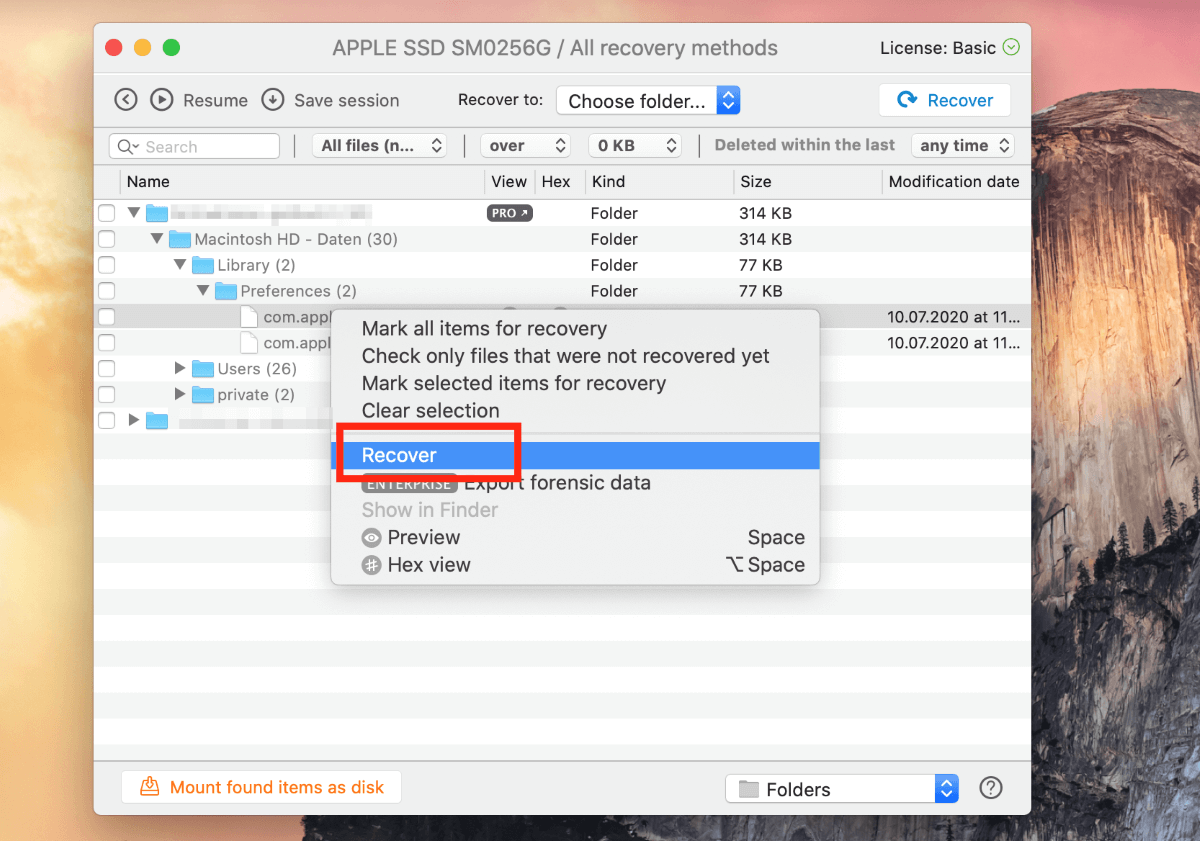
How to Recover Erased Files on Mac: A Step-by-step Guide
Are you struggling to recover erased files on your Mac? Don’t worry, we’ve got you covered! In this article, we’ll show you how to recover deleted files on Mac using various methods.
What Happens When You Delete a File on Mac?
When you delete a file on Mac, it doesn’t completely disappear. Instead, the file is moved to the Trash folder, where it remains for 30 days before being permanently deleted. This means that if you’ve erased a file by accident, there’s still a chance of recovering it.
Method 1: Using Time Machine
Time Machine is a built-in feature on Mac that allows you to create automatic backups of your data. If you’ve configured Time Machine to back up your Mac regularly, you can use it to recover deleted files.
To recover erased files using Time Machine:
- Go to the Apple menu and select “System Preferences.”
- Click on “Time Machine” and then click on the “Select Backup Disk” button.
- Select the backup disk that contains the files you want to recover.
- Navigate to the folder where the deleted file was located.
- Look for the versions of the file that were backed up by Time Machine.
- Right-click (or Control-click) on the file and select “Restore” to restore it.
Method 2: Using Freeware
If you don’t have a backup using Time Machine or if you’re looking for alternative solutions, there are several freeware options available to recover deleted files on Mac.
- Photorec: PhotoRec is a free and open-source software that can recover deleted photos, videos, and other files from your hard drive, SSD, or USB drives.
- Disk Drill: Disk Drill is another popular freeware option that can recover deleted files, including those erased by accident or due to formatting.
Method 3: Using Paid Software
If you’re willing to pay for a software solution, there are several paid options available to recover deleted files on Mac.
- Easeus Data Recovery Wizard: EaseUS Data Recovery Wizard is a professional-grade software that can recover deleted files from your hard drive, SSD, or external drives.
- Lazesoft Mac Data Recovery: Lazesoft Mac Data Recovery is another paid option that can recover deleted files from your Mac and other devices connected to it.
Tips And Precautions
Before attempting to recover erased files on Mac, keep in mind the following tips and precautions:
- Stop using your Mac immediately to prevent overwriting of the deleted file.
- Use a data recovery software that’s specifically designed for Mac to avoid damaging your hard drive or SSD.
- Be patient and allow the software to scan your hard drive or SSD thoroughly to increase the chances of recovering deleted files.
Conclusion
Recovering erased files on Mac is possible with the right tools and techniques. Whether you use Time Machine, freeware options like PhotoRec and Disk Drill, or paid software like EaseUS Data Recovery Wizard or Lazesoft Mac Data Recovery, you can recover your deleted files with ease. Just remember to follow the tips and precautions outlined above to ensure a successful recovery process.
Frequently Asked Questions (FAQs)
- Q: Can I Recover Deleted Files on my External Hard Drive?
A: Yes, most data recovery software options, including Time Machine, can recover deleted files from external hard drives. - Q: How Long Does it Take to Recover Erased Files on Mac?
A: The time it takes to recover erased files depends on the size of your hard drive or SSD and the complexity of the scan process. - Q: Will Using a Data Recovery Software Damage my Mac’s Hard Drive or Ssd?
A: As long as you use a reputable and specifically designed data recovery software for Mac, there should be no risk of damaging your hard drive or SSD. - Q: Can I Recover Deleted Files on Mac Without Paying For Software?
A: Yes, you can recover deleted files using freeware options like PhotoRec or Disk Drill, but these options may have limitations compared to paid software. - Q: How do I Prevent Deleting Files by Accident in The Future?
A: To avoid deleting files by accident, consider using a cloud storage service, making regular backups with Time Machine, and being cautious when deleting files on your Mac. - Q: What if my Hard Drive or Ssd is Damaged or Corrupted? Can I Still Recover Erased Files?
A: If your hard drive or SSD is damaged or corrupted, it may be challenging to recover deleted files using data recovery software. In such cases, you may need professional help from a data recovery service. - Q: Are There Any Risks Associated With Using Data Recovery Software on my Mac?
A: As long as you use reputable and specifically designed data recovery software for Mac, the risk of damaging your hard drive or SSD is minimal. - Q: Can I Recover Deleted Files From my Iphone or Ipad?
A: Yes, some data recovery software options, including EaseUS Data Recovery Wizard and Lazesoft Mac Data Recovery, can recover deleted files from your iPhone or iPad.


