
How to Open Zip Files on Iphone: A Step-by-step Guide
Are you tired of struggling to open ZIP files on your iPhone? Look no further! In this article, we’ll show you how to easily open and manage ZIP files on your Apple device.
As a smartphone user, it’s common to encounter ZIP files, especially when downloading or sharing files. However, if you’re not familiar with the process, it can be frustrating. That’s why we’ve put together this comprehensive guide to help you navigate the world of ZIP files on iPhone.
What Are Zip Files?
Before we dive into the nitty-gritty, let’s quickly cover what ZIP files are. A ZIP file is a compressed file that contains one or more files or folders. It’s like a digital container that holds multiple items together. ZIP files are commonly used for sharing and downloading files, especially when dealing with large amounts of data.
Why Can’t I Open Zip Files on Iphone?
If you’re trying to open a ZIP file on your iPhone but can’t seem to do it, don’t worry – it’s not a problem specific to your device. The issue lies in the fact that iPhone doesn’t come with a built-in feature to open and manage ZIP files. However, we’ve got some excellent solutions for you below.
Solution 1: Using The “Files” App
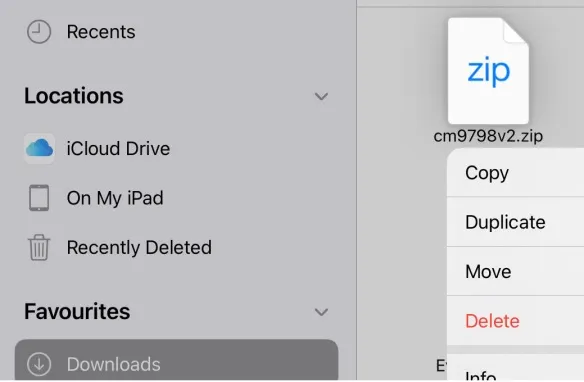
The first solution is to use the pre-installed “Files” app on your iPhone. Yes, you read that right – it’s an app that comes with your device! To access it, follow these simple steps:
- Open the “Settings” app and go to “Safari”
- Turn on the switch next to “Documents and Media” under the “Media & Files” section
- Launch the “Files” app from your home screen
Using the “Files” app is a straightforward way to open, create, and manage ZIP files. Here’s how:
- Tap on the “Files” app icon
- Navigate to the folder where you want to save the ZIP file
- Tap on the “+” icon to create a new folder or select an existing one
- Choose the ZIP file you want to open or create
- Select the desired action, such as opening or creating a new folder
That’s it! Using the “Files” app is a breeze and takes care of most of your ZIP-related needs.
Solution 2: Downloading Third-party Apps
If the “Files” app doesn’t meet your requirements, there are plenty of third-party apps available that can help you manage ZIP files on iPhone. Some popular options include:
- IZip
- WinZip
- Documents
These apps offer a range of features, from basic file management to advanced compression and encryption tools.
Let’s take a closer look at each app:
Izip
The iZip app is a free download that offers an intuitive interface for opening, creating, and managing ZIP files. It supports various formats, including ZIP, RAR, and 7-Zip. You can also use it to upload and share files directly from the app.
To get started with iZip:
- Download and install the app
- Launch the app and tap on the “Open” button
- Select the ZIP file you want to open or create
Winzip
The WinZip app is another popular choice for managing ZIP files on iPhone. It offers advanced features, such as password protection and encryption. You can also use it to share files with others.
To get started with WinZip:
- Download and install the app
- Launch the app and tap on the “Open” button
- Select the ZIP file you want to open or create
Documents
The Documents app is a free download that offers an easy-to-use interface for managing files, including ZIP archives. You can also use it to upload and share files directly from the app.
To get started with Documents:
- Download and install the app
- Launch the app and tap on the “Open” button
- Select the ZIP file you want to open or create
Conclusion
Opening ZIP files on iPhone doesn’t have to be a chore! With these solutions, you can easily manage your compressed files using either the built-in “Files” app or third-party apps like iZip, WinZip, and Documents.
Remember to always download and install apps from trusted sources, such as the App Store. Be cautious of potential security risks when installing third-party apps.
We hope this guide has helped you navigate the world of ZIP files on iPhone. Happy file managing!
Faqs
- What is a Zip File?
A ZIP file is a compressed file that contains one or more files or folders. - Why Can’t I Open Zip Files on my Iphone?
The issue lies in the fact that iPhone doesn’t come with a built-in feature to open and manage ZIP files. - Which App Should I Use to Open Zip Files?
You can use either the built-in “Files” app or third-party apps like iZip, WinZip, and Documents. - How do I Download And Install Third-party Apps on my Iphone?
Download and install apps from trusted sources, such as the App Store. - What Are Some Popular Third-party Apps For Managing Zip Files on Iphone?
Some popular options include iZip, WinZip, and Documents. - Can I Use These Apps to Share Files With Others?
Yes, many of these apps offer features to upload and share files directly from the app. - Are There Any Security Risks Associated With Installing Third-party Apps?
Be cautious of potential security risks when installing third-party apps from untrusted sources. - What Should I do if I’m Experiencing Issues With a Zip File on my Iphone?
Try reinstalling the “Files” app or contacting Apple support for assistance.


