
How to Insert Grades at The Bottom of a Page in Different Software
Congratulations! You have finally finished all your exams and are ready to pursue your degree. However, you still need to accomplish one big task: Typing your thesis and defending it in front of the commission. Don’t worry, this guide will help you understand how to insert grades at the bottom of a page in different software.
Understanding The Importance of Grades
Grades are an essential requirement for each thesis, and they must be presented correctly. In this article, we will explore how to insert grades at the bottom of a page in various software, including Microsoft Word, PowerPoint, Pages, and more.
Inserting Grades in Microsoft Word
If you use Microsoft Word to create your documents, follow these steps:
- Open your document on PC or Mac.
- Click on the “Home” tab in the top menu bar.
- Click on the “References” button and select “Insert Grade at Bottom of Page.”
- Type your grade in the blank field that appears at the bottom of the page.
Alternative Method: Using Keyboard Shortcuts
If you prefer using keyboard shortcuts, press “Alt+Ctrl+F” (Windows) or “Option+Command+F” (Mac) to insert a grade at the bottom of the page.
Modifying Grades And Layout
You can modify the location of the grades by going to the “Home” tab and clicking on the little arrow in the section “Grades at Bottom of Page.” From there, you can choose the position, layout, and format of your grades.
Inserting Grades in Powerpoint
To insert grades at the bottom of a page in PowerPoint:
- Open your presentation on PC or Mac.
- Click on the slide where you want to insert the grade.
- Click on the “Home” tab and select “Insert” > “Grade at Bottom of Page.”
- Type your grade in the blank field that appears at the bottom of the slide.
Alternative Method: Using Powerpoint’s Insert Menu
You can also use PowerPoint’s insert menu by going to “Home” > “Insert” > “Header and Footer” and selecting “Page at Bottom.” From there, you can type your grade and choose its position and formatting.
Inserting Grades in Pages
To insert grades at the bottom of a page in Pages:
- Open your document on Mac or iPhone/iPad.
- Click on the “Home” tab and select “Insert” > “Grade at Bottom of Page.”
- Type your grade in the blank field that appears at the bottom of the page.
Alternative Method: Using Pages’ Insert Menu
You can also use Pages’ insert menu by going to “Home” > “Insert” > “Notice at Bottom of Page.” From there, you can type your grade and choose its position and formatting.
Common Questions And Answers
Here are some frequently asked questions about inserting grades at the bottom of a page:
Q: What is the difference between grades and references?
A: Grades are used to provide additional information or explanations, while references are used to cite external sources.
Q: How do I format my grades correctly?
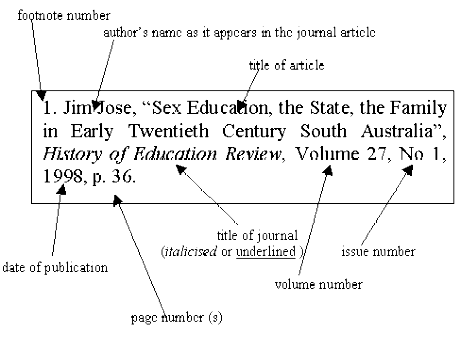
A: The correct formatting for grades depends on your university’s guidelines. However, in general, you should include the author’s name, title of the work, and page number (if applicable).
Conclusion
Inserting grades at the bottom of a page is an essential requirement for many academic documents. In this article, we have explored how to do so in different software, including Microsoft Word, PowerPoint, Pages, and more. Remember to follow your university’s guidelines and formatting rules when inserting grades.
Faqs
Q: What is the best software to use for creating academic documents?
A: The best software depends on your specific needs and preferences. However, Microsoft Word, PowerPoint, and Pages are popular choices among academics.
Q: How do I cite external sources in my document?
A: To cite external sources, use a consistent citation style (e.G., MLA, APA, or Chicago) and include the author’s name, title of the work, and page number (if applicable).
Q: Can I insert grades at the bottom of a page in online versions of Microsoft Word and PowerPoint?
A: Yes, you can insert grades at the bottom of a page in online versions of Microsoft Word and PowerPoint. However, be aware that some features may not be available in these versions.
Q: How do I modify the layout or formatting of my grades?
A: To modify the layout or formatting of your grades, go to the “Home” tab and click on the little arrow in the section where you inserted the grade.
Q: Can I use keyboard shortcuts to insert grades at the bottom of a page?
A: Yes, you can use keyboard shortcuts (Alt+Ctrl+F for Windows or Option+Command+F for Mac) to insert a grade at the bottom of a page.


