
How to Connect Alexa to Various Devices: A Step-by-step Guide
Are you looking to upgrade your home’s smart technology? One way to do this is by connecting Amazon’s Alexa to various devices in your home. In this article, we will show you how to connect Alexa to different devices such as a TV, conditioner, lights, Chromecast, and more.
Connecting Alexa to Devices: Why It Matters
Before we dive into the step-by-step guide, let’s quickly discuss why connecting Alexa to devices is important. With the increasing demand for smart homes, it’s essential to have a seamless and convenient way to control various devices in your home. Connecting Alexa to these devices allows you to do just that.
Connecting Alexa to Devices: A Step-by-step Guide
Here are the steps to connect Alexa to different devices:
Connecting Alexa to Wifi
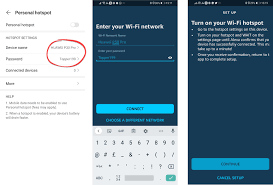
To start using Alexa, you need to connect it to a WiFi network. Here’s how to do it:
- Go to the device settings and select WiFi.
- Choose your WiFi network from the list of available networks.
- Enter your WiFi password and click “Connect.”
Connecting Alexa to Pc
You can also use Alexa as a Bluetooth speaker, allowing you to stream music or audio from your PC.
- Go to your device settings and select Bluetooth.
- Put your Echo device in pairing mode.
- Select your Echo device from the list of available devices.
- Enter the pairing code displayed on the screen.
- Confirm that you want to connect the devices.
Connecting Alexa to Tv
If you have a smart TV, you can use Alexa to control it.
- Open the Amazon Alexa app on your smartphone or tablet.
- Select the “Settings” icon (gear).
- Select “Device Settings.”
- Choose your TV from the list of available devices.
- Enter the pairing code displayed on the screen.
Connecting Alexa to Conditioner
If you have a smart conditioner, you can use Alexa to control it.
- Open the Amazon Alexa app on your smartphone or tablet.
- Select the “Skills” icon (gear).
- Search for the skill associated with your conditioner.
- Install and enable the skill.
- Follow the prompts to connect your conditioner to Alexa.
Connecting Alexa to Lights
If you have smart lights, you can use Alexa to control them.
- Open the Amazon Alexa app on your smartphone or tablet.
- Select the “Skills” icon (gear).
- Search for the skill associated with your light bulbs.
- Install and enable the skill.
- Follow the prompts to connect your lights to Alexa.
Connecting Alexa to Chromecast
Unfortunately, there is no direct way to connect Alexa to a Chromecast device. However, you can use a Fire TV and a voice remote control to stream content to your TV.
- Purchase a Fire TV stick or cube.
- Connect the Fire TV to your TV using an HDMI cable.
- Download and install the Amazon Alexa app on your smartphone or tablet.
- Select the “Skills” icon (gear).
- Search for the skill associated with your Fire TV device.
- Install and enable the skill.
Connecting Alexa to Fastweb
If you have a router from Fastweb, you can use Alexa to control it.
- Open the Amazon Alexa app on your smartphone or tablet.
- Select the “Skills” icon (gear).
- Search for the skill associated with your Fastweb router.
- Install and enable the skill.
- Follow the prompts to connect your router to Alexa.
Connecting Alexa to Spotify
You can use Alexa to control your Spotify account.
- Open the Amazon Alexa app on your smartphone or tablet.
- Select the “Skills” icon (gear).
- Search for the skill associated with Spotify.
- Install and enable the skill.
- Follow the prompts to connect your Spotify account to Alexa.
Connecting Alexa to Youtube
You can use Alexa to control your YouTube channel or playlist.
- Open the Amazon Alexa app on your smartphone or tablet.
- Select the “Skills” icon (gear).
- Search for the skill associated with YouTube.
- Install and enable the skill.
- Follow the prompts to connect your YouTube account to Alexa.
Conclusion
Connecting Alexa to various devices in your home can be a great way to enhance your smart technology experience. With this step-by-step guide, you should be able to easily connect Alexa to devices such as TVs, conditioners, lights, Chromecast, and more.
Frequently Asked Questions (FAQs)
-
Q: How do I connect my Echo device to a WiFi network?
A: To connect your Echo device to a WiFi network, go to the device settings and select WiFi. Choose your WiFi network from the list of available networks, enter your WiFi password, and click “Connect.” -
Q: Can I use Alexa as a Bluetooth speaker?
A: Yes, you can use Alexa as a Bluetooth speaker by connecting it to your PC or smartphone. -
Q: How do I connect my TV to Alexa?
A: To connect your TV to Alexa, open the Amazon Alexa app on your smartphone or tablet and select the “Device Settings” option. Choose your TV from the list of available devices and enter the pairing code displayed on the screen. -
Q: Can I control my smart conditioner using Alexa?
A: Yes, you can control your smart conditioner using Alexa by installing the associated skill in the Amazon Alexa app. -
Q: How do I connect my lights to Alexa?
A: To connect your lights to Alexa, open the Amazon Alexa app and select the “Skills” icon (gear). Search for the skill associated with your light bulbs, install and enable it, and follow the prompts to connect your lights to Alexa. -
Q: Can I connect my Chromecast device directly to Alexa?
A: Unfortunately, there is no direct way to connect a Chromecast device to Alexa. However, you can use a Fire TV and a voice remote control to stream content to your TV. -
Q: How do I connect my Fastweb router to Alexa?
A: To connect your Fastweb router to Alexa, open the Amazon Alexa app on your smartphone or tablet and select the “Skills” icon (gear). Search for the skill associated with your Fastweb router, install and enable it, and follow the prompts to connect your router to Alexa. -
Q: Can I control my Spotify account using Alexa?
A: Yes, you can control your Spotify account using Alexa by installing the associated skill in the Amazon Alexa app.


