
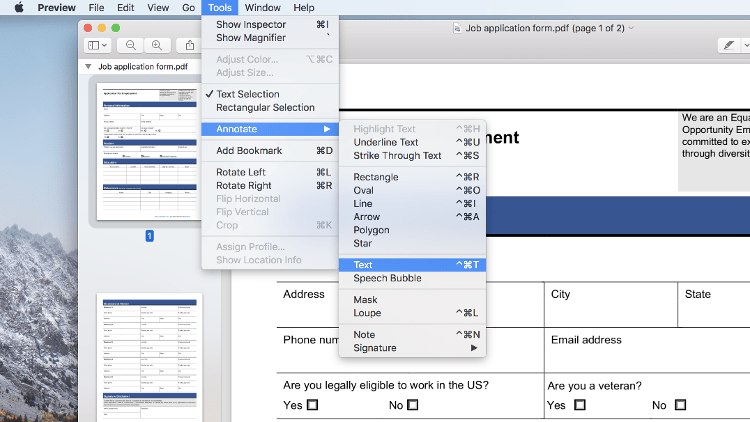
How to Edit a Pdf With Mac: A Step-by-step Guide
Are you struggling to edit a PDF file on your Mac? Look no further! In this article, we will guide you through the process of editing a PDF using various applications available for Mac.
What is a Pdf?
Before we dive into the editing process, let’s first understand what a PDF (Portable Document Format) is. A PDF is a file format that preserves the layout and formatting of a document, making it easy to share and view on any device.
Editing a Pdf With Trailer
The first application we will explore is Trailer, a free application developed by Apple for Mac users. Trailer allows you to visualize and modify PDFs easily.
- Open Trailers: Double-click on the Trailer icon in your Applications folder or right-click on it and select “Open” from the context menu.
- Select Your Pdf: Click on “File” > “Open with” > “Trailer” to open your PDF file in the application.
- Edit Your Pdf: Use the toolbar at the top of the screen to add annotations, highlights, or signatures to your document.
- Save Changes: Save your modified PDF by clicking on the “Floppy Disk” icon in the menu bar.
Editing a Pdf With Adobe Acrobat Reader
Adobe Acrobat Reader is another popular application for editing PDFs on Mac. While it’s not as user-friendly as Trailer, it offers advanced features and tools.
- Download And Install: Download and install Adobe Acrobat Reader from the official website.
- Open Your Pdf: Double-click on your PDF file to open it in Adobe Acrobat Reader.
- Edit Your Pdf: Use the “Tools” menu to access various editing tools, such as highlighting, underlining, and annotating text.
- Save Changes: Save your modified PDF by clicking on the “Floppy Disk” icon in the menu bar.
Editing a Pdf With Libreoffice
LibreOffice is a free and open-source productivity suite that allows you to edit PDFs on Mac.
- Download And Install: Download and install LibreOffice from the official website.
- Open Your Pdf: Double-click on your PDF file to open it in LibreOffice Draw.
- Edit Your Pdf: Use the “Insert” menu to add text, images, or other elements to your document.
- Save Changes: Save your modified PDF by clicking on the “File” > “Save As” menu.
Editing a Protected Pdf With Mac
If you need to edit a protected PDF file on your Mac, there are several options available.
- Ilovepdf: Use iLovePDF’s online service to convert and unlock your protected PDF.
- Qpdf: Try using QPDF, an ad-hoc software specifically designed for unlocking protected PDFs.
- Pdf Crack: Be cautious when using PDF Crack, as it may not be effective in all cases.
Conclusion
Editing a PDF on Mac is easier than you think! With Trailer, Adobe Acrobat Reader, and LibreOffice at your disposal, you can modify and enhance your PDF files with ease. Remember to save changes regularly to avoid losing any edits.
Frequently Asked Questions (FAQs)
- Q: Can I Edit a Pdf Using a Free Application?
A: Yes! Trailer is a free application developed by Apple for Mac users. - Q: What is The Difference Between Adobe Acrobat Reader And Libreoffice?
A: Adobe Acrobat Reader offers advanced features, while LibreOffice provides a more user-friendly interface. - Q: Can I Edit a Protected Pdf Using These Applications?
A: Yes! Use iLovePDF or QPDF to unlock your protected PDF before editing it with Trailer, Adobe Acrobat Reader, or LibreOffice. - Q: How do I Save Changes to my Edited Pdf?
A: Save changes regularly by clicking on the “Floppy Disk” icon in the menu bar. - Q: Can I Convert a Pdf Into Word Format Using These Applications?
A: Yes! Use iLovePDF or LibreOffice to convert your PDF into a Word document. - Q: Are There Any Risks Associated With Editing a Protected Pdf?
A: Be cautious when editing a protected PDF, as unauthorized modifications may be considered an offense. - Q: Can I Edit a Large Pdf File Using These Applications?
A: Yes! All three applications can handle large PDF files, but be prepared for potential performance issues. - Q: Are There Any Alternatives to Trailer, Adobe Acrobat Reader, And Libreoffice?
A: Yes! Consider other applications like iLovePDF or QPDF for specific tasks, such as converting PDFs or unlocking protected documents.
Additional Resources
For more information on editing PDFs with Mac, check out these additional resources:


