
How to Reset Your Iphone: A Step-by-step Guide
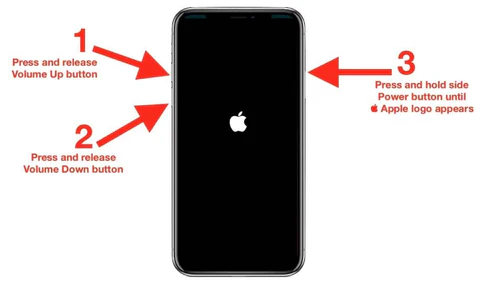
Are you tired of dealing with a slow or malfunctioning iPhone? Do you want to start fresh with a clean slate? Then it’s time to learn how to reset your iPhone! In this article, we’ll take you through the simple steps to reset your iPhone and get it running like new again.
Why Reset Your Iphone?
Resetting your iPhone can be beneficial in several ways. It can help:
- Fix software issues
- Improve performance
- Secure your personal data
- Prepare your phone for resale or gift-giving
Before You Begin: Backup Your Data
Before you start the reset process, make sure to back up all your important data, including contacts, photos, and apps. This will ensure that you don’t lose any valuable information during the process.
Method 1: Reset Iphone Via Settings
To reset your iPhone using the settings app, follow these steps:
- Open the Settings app
- Tap on “General”
- Select “Transfer or Reset iPhone”
- Choose “Erase All Content and Settings”
- Confirm by entering your Apple ID password
Method 2: Reset Iphone Using Itunes
Alternatively, you can reset your iPhone using iTunes:
- Connect your iPhone to your computer
- Open iTunes on your computer
- Select your iPhone from the list of devices
- Click on “Summary”
- Choose “Restore iPhone”
Method 3: Reset Iphone Using Icloud
If you have enabled Find My iPhone, you can reset your iPhone remotely using iCloud:
- Go to icloud.Com/find
- Sign in with your Apple ID and password
- Select your iPhone from the list of devices
- Click on “Erase iPhone”
- Confirm by entering your Apple ID password
What to Do After Resetting Your Iphone
After resetting your iPhone, you’ll need to set it up again from scratch. This means:
- Restoring your backup data
- Setting up a new passcode and Face ID/Touch ID
- Downloading any necessary software updates
- Reconfiguring your email accounts and other settings
Tips And Tricks
Here are some additional tips to keep in mind when resetting your iPhone:
- Use the “Erase All Content and Settings” option only if you’re sure you want to delete all data on your phone.
- If you have a passcode, make sure to enter it correctly during the reset process.
- Take this opportunity to update your iPhone’s operating system for the latest security patches.
Conclusion
Resetting your iPhone can be a straightforward process if you follow these steps. Remember to backup your data first, and then choose the method that works best for you. If you’re still unsure about how to reset your iPhone, feel free to ask for help from Apple support or visit their official website for more information.
Frequently Asked Questions (FAQs)
Here are some additional questions and answers related to resetting your iPhone:
- Q: How Long Does it Take to Reset my Iphone?
A: The reset process typically takes around 10-15 minutes. - Q: Can I Reset my Iphone Without Losing Data?
A: Yes, but you’ll need to back up your data first and then restore it after resetting the phone. - Q: What Happens if I Lose my Apple ID Password?
A: You can reset your Apple ID password on the official Apple website or through the Apple Support app.
Conclusion
In conclusion, resetting your iPhone is a simple process that can help fix software issues, improve performance, secure your personal data, and prepare your phone for resale or gift-giving. By following these steps, you’ll be able to start fresh with a clean slate and get the most out of your iPhone.


