
How to Delete Facebook Account From Android: A Step-by-step Guide
Are you tired of Facebook’s endless newsfeed, annoying notifications, or just want to take a break from the social media giant? Whatever your reason, deleting your Facebook account is easier than ever on your Android device. In this article, we will walk you through the simple steps to deactivate or permanently delete your Facebook account.
Why Delete Your Facebook Account?
Before we dive into the deletion process, let’s talk about why you might want to delete your Facebook account in the first place. Maybe you’re concerned about online privacy and security, or perhaps you just don’t use the platform anymore. Whatever your reason, deleting your Facebook account can be a liberating experience.
Deactivating Your Facebook Account
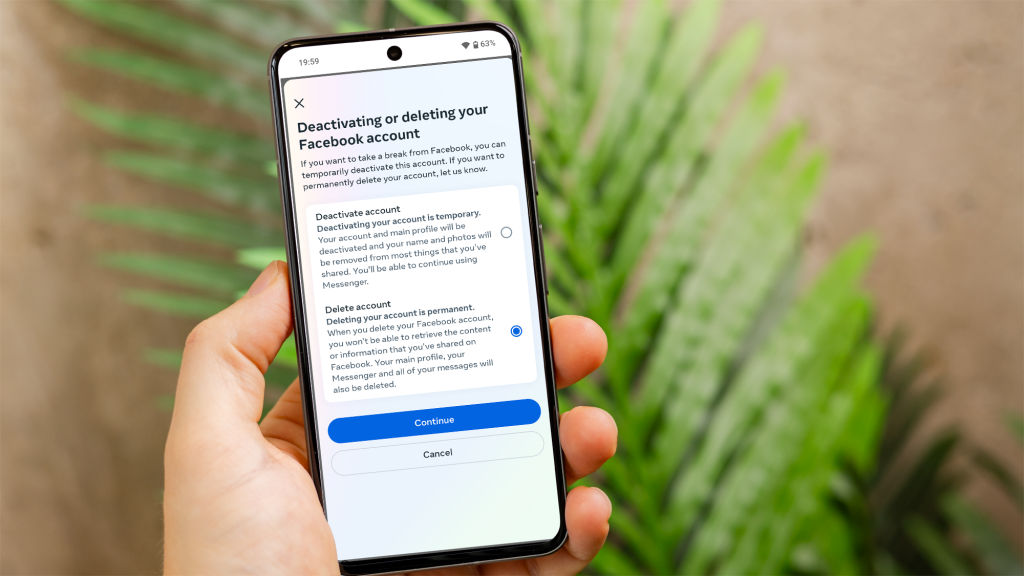
Before we dive into deletion, let’s cover deactivation first. Deactivating your Facebook account is reversible and allows you to take a temporary break from the social media giant. This way, you can preserve your account while still having time off from it. To deactivate your Facebook account:
- Open The Facebook App: Start by opening the Facebook app on your Android device.
- Access Your Account Settings: Tap on your profile picture in the top right corner and select “Settings & Privacy.”
- Select “Account Settings”: From there, choose “Account Settings.”
- Scroll Down to Deactivation or Elimination: Scroll down to the bottom of the page and select “Deactivation or elimination.”
- Tap on “Deactivate Account”: Tap on the option that says “Deactivate Account.” Enter your password when prompted.
- Confirm Deactivation: Confirm your deactivation request by tapping “Continue.”
Deleting Your Facebook Account Permanently
If you’re sure you want to delete your Facebook account permanently, here’s how:
- Access Your Account Settings: Follow the same steps as above to access your account settings.
- Select “Deactivation or Elimination”: Scroll down and select “Deactivation or elimination.”
- Tap on “Delete My Account”: Tap on the option that says “Delete my account.”
- Confirm Delete Account Request: Confirm your delete request by tapping “Continue.” Enter your password when prompted.
- Wait For 30 Days: Wait for 30 days before logging back into Facebook to reactivate your account.
Disabling The Facebook App
If you’re not interested in deleting your Facebook account but rather want to disable the app on your device, follow these steps:
- Access Your App Drawer: Open your Android’s app drawer.
- Find And Long-press Facebook App: Find the Facebook app icon and long-press it until a menu appears.
- Select “Uninstall”: Select “Uninstall” from the menu to delete the app.
Removing Specific Content
If you’re looking to remove specific content, such as a photo or post, follow these steps:
- Access Your Facebook Profile: Log in to your Facebook profile on Android.
- Select The Content You Want to Delete: Find and select the piece of content you want to delete (e.G., A photo).
- Tap “Delete”: Tap the “Delete” option.
Erasing Specific Facebook History
If you’re looking to erase specific Facebook history, such as search history or logins:
- Access Your Facebook Profile: Log in to your Facebook profile on Android.
- Select “Your History”: Find and select the type of history you want to erase (e.G., Searches).
- Tap “Delete”: Tap the “Delete” option.
Deleting a Facebook Page
If you’re looking to delete a Facebook page:
- Access Your Facebook Profile: Log in to your Facebook profile on Android.
- Select The Page You Want to Delete: Find and select the page you want to delete.
- Tap Settings & Privacy > Access And Control > Deactivation And Elimination.
FAQs
Q: What happens if I deactivate my Facebook account?
A: When you deactivate your Facebook account, it will be temporarily suspended, but not deleted. You can reactivate it within 30 days by logging back into the app.
Q: Can I recover a deleted Facebook account?
A: No, Facebook accounts cannot be recovered once they are permanently deleted.
Q: How do I delete specific content from my Facebook profile?
A: To delete specific content from your Facebook profile, access your profile on Android and select the type of content you want to delete. Tap “Delete” to confirm.
Q: What happens if I uninstall the Facebook app but don’t delete my account?
A: If you uninstall the Facebook app without deleting your account, you can reinstall it at any time and log back into your existing account.
Q: How do I delete a Facebook page permanently?
A: To delete a Facebook page permanently:
1. Access Your Facebook Profile.
2. Select the Page You Want to Delete.
3. Tap "Settings & Privacy" > "Access and control" > "Deactivation and elimination".
4. Choose to "Delete Page".
Q: Can I disable notifications for specific actions on Facebook?
A: Yes, you can disable notifications for specific actions on Facebook by going into your settings.
By following these simple steps, you’ll be able to delete your Facebook account from Android or take a break with deactivation. Remember, it’s always a good idea to keep track of your online presence and ensure that your digital footprint is in line with your comfort level.


