
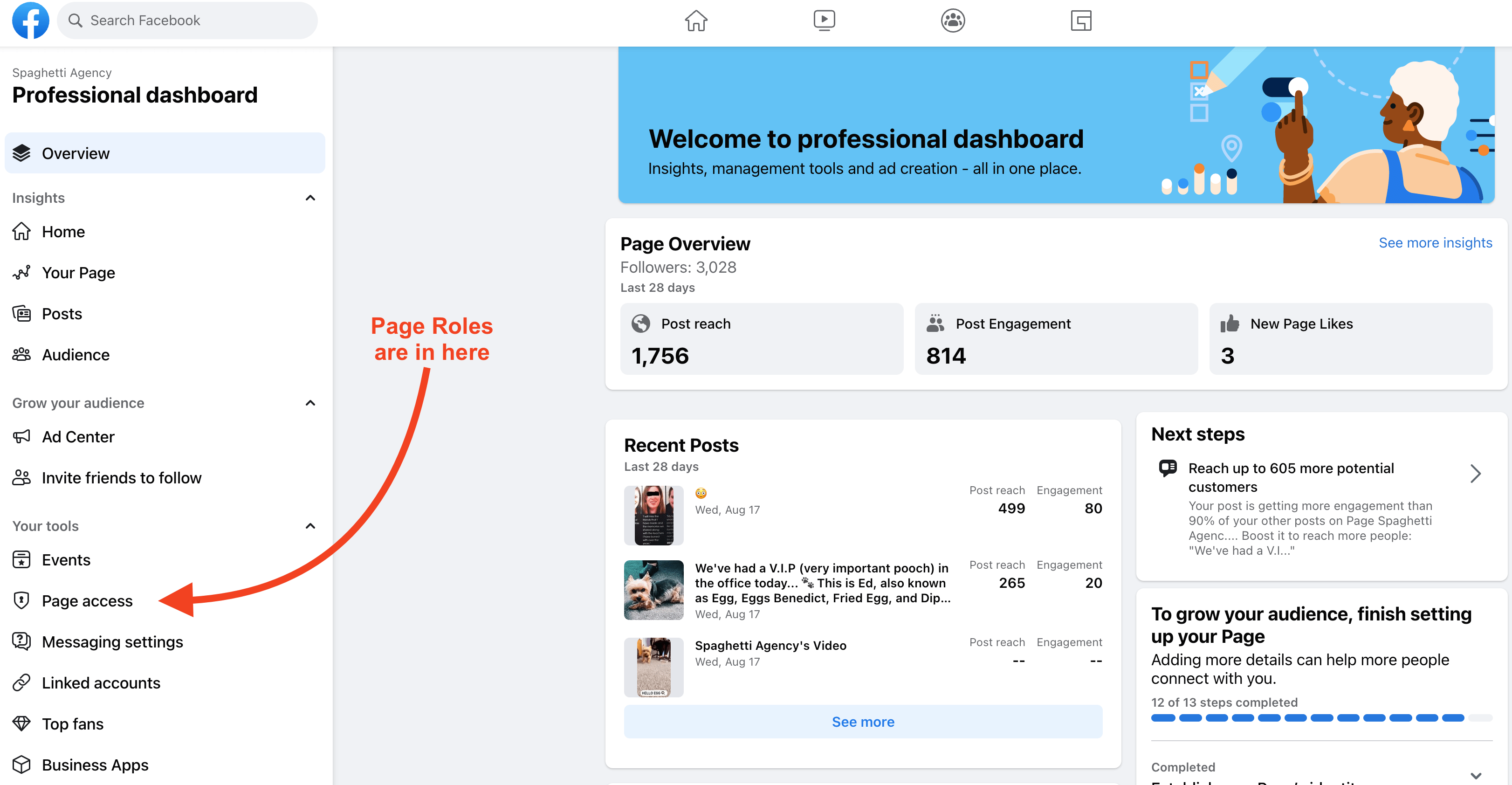
How to Appoint an Administrator on Facebook: A Step-by-step Guide
Are you tired of managing your Facebook cluster alone? Do you want to give someone else the power to help you run it smoothly? Look no further! In this article, we’ll show you how to appoint an administrator on Facebook, making it easier for you to manage your community and achieve your goals.
The Importance of Appointing an Administrator
Before we dive into the steps, let’s talk about why appointing an administrator is essential. As a cluster owner, you wear many hats – managing content, engaging with members, and keeping everything running smoothly. However, this can be overwhelming at times. By appointing an administrator, you’re delegating tasks to someone trustworthy who can help you manage the workload.
Benefits of Appointing an Administrator
- Reduces your workload by sharing responsibilities
- Allows for more focused attention on specific areas of management (e.G., Content creation, community engagement)
- Enables collaboration and teamwork within your cluster
- Helps ensure consistency in messaging and branding
Appointing an Administrator From a Smartphone or Tablet
To appoint an administrator from a smartphone or tablet, follow these steps:
- Open the Facebook app and access your account.
- Tap on the menu icon and select the cluster you want to manage.
- Tap on the “Manage” option and then select “People.”
- Find the person you want to appoint as an administrator and tap on the three dots next to their name.
- Select “Add as Administrator” from the menu.
Appointing an Administrator From a Computer
To appoint an administrator from a computer, follow these steps:
- Access your Facebook account through the official website.
- Click on the clusters tab and select the cluster you want to manage.
- Click on the “Members” option and then find the person you want to appoint as an administrator.
- Click on the three dots next to their name and select “Add as Administrator.”
Additional Options For Managing Your Cluster
- Moderators: You can also appoint moderators who will help manage your cluster, but they won’t have the same level of access as administrators.
- Administrative Roles: Facebook allows you to assign specific roles to users, such as content creators or event organizers. This way, you can delegate tasks without granting full administrator privileges.
Conclusion
Appointing an administrator on Facebook is a straightforward process that can greatly benefit your cluster’s management. By following these steps and understanding the different administrative roles available, you’ll be able to delegate tasks effectively and achieve your goals more efficiently.
Frequently Asked Questions (FAQs)
- Q: What Are The Benefits of Appointing an Administrator on Facebook?
A: Appointing an administrator reduces your workload, enables collaboration, ensures consistency in messaging and branding. - Q: How do I Appoint an Administrator From a Smartphone or Tablet?
A: Open the Facebook app, access your account, tap on the menu icon, select the cluster, tap on “Manage,” then “People,” find the person you want to appoint, and tap on “Add as Administrator.” - Q: How do I Appoint an Administrator From a Computer?
A: Access your Facebook account through the official website, click on the clusters tab, select the cluster, click on “Members,” find the person you want to appoint, and click on “Add as Administrator.” - Q: What Are The Different Administrative Roles Available on Facebook?
A: You can assign specific roles such as content creators or event organizers without granting full administrator privileges. - Q: Can I Have Multiple Administrators on my Cluster?
A: Yes, you can appoint multiple administrators to help manage your cluster.
By following these steps and understanding the different administrative roles available, you’ll be able to delegate tasks effectively and achieve your goals more efficiently.


