
Unlocking The Full Potential of Your Smart Tv: A Comprehensive Guide to Connecting Iphone
Are you tired of missing out on the amazing features of your Smart TV? Do you want to take your viewing experience to the next level by connecting your iPhone? Look no further! This article will walk you through the step-by-step process of linking your iPhone to your Smart TV, exploring the various options available, and maximizing its potential.
Understanding Airplay
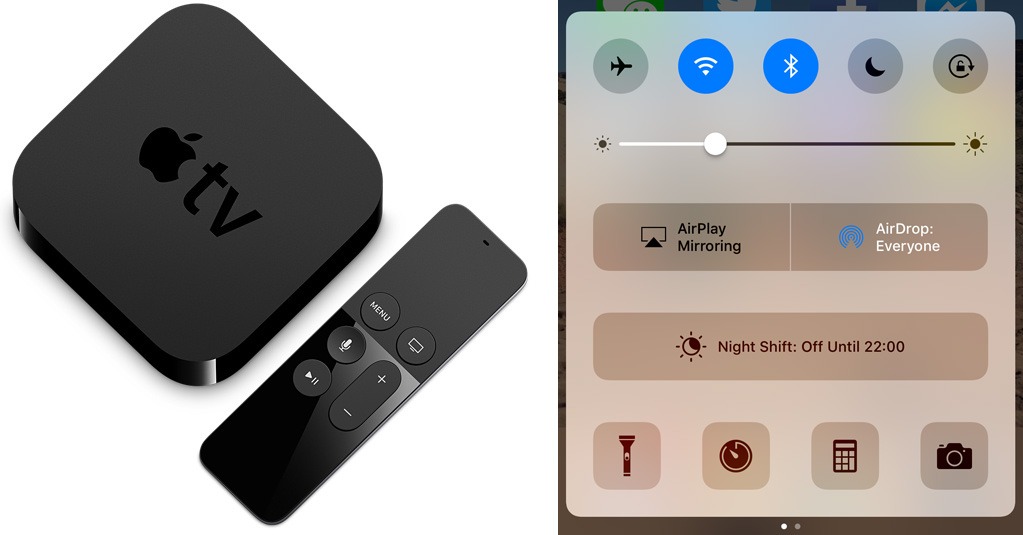
Before we dive into the nitty-gritty, let’s first understand what AirPlay is. Developed by Apple, AirPlay is a technology that allows users to stream content from their iOS devices (iPhone, iPad, iPod touch) to their Apple TV or other AirPlay-enabled devices. This feature enables seamless video and audio playback, making it perfect for watching movies, shows, or live events on the big screen.
Connecting Iphone to Smart Tv: A Step-by-step Guide
Now that we’ve covered the basics of AirPlay, let’s get started with connecting your iPhone to your Smart TV. Here are some easy-to-follow steps:
- Ensure Both Devices Are Connected to The Same Wi-fi Network: This is crucial for AirPlay to work smoothly.
- Open Settings on Your Iphone: Go to Settings > General > AirPlay & Handoff.
- Tap on Airplay: Select your Smart TV from the list of available devices.
- Enter The Code on Your TV: You may be prompted to enter a code displayed on your TV screen. Enter this code to complete the setup process.
Alternative Options: Google Cast, Dlna, And Chromecast
While AirPlay is an excellent option for connecting iPhone to Smart TV, there are other alternatives available:
- Google Cast: This technology allows users to stream content from their Android devices or Chrome browser to compatible TVs.
- Dlna: A system that enables users to stream audio and video content between devices on the same network.
- Chromecast: A popular streaming device that can connect your iPhone to any TV with an HDMI port.
Streaming Content: Tips And Tricks
Now that you’ve connected your iPhone to your Smart TV, it’s time to explore the various options for streaming content:
- Use Airplay Mirroring: This feature allows you to mirror your iPhone screen onto your TV.
- Choose The Right App: Select an app that supports AirPlay or Google Cast to stream content from your iPhone to your Smart TV.
Using Iphone as a Remote Control
Want to take control of your viewing experience? Use your iPhone as a remote control for your Smart TV!
- Download The Correct App: Get the official app for your Smart TV, such as LG’s ThinQ or Samsung’s SmartThings.
- Configure The App: Follow the on-screen instructions to set up the app and connect it to your TV.
Tips For Using Iphone With Your Smart TV
Here are some additional tips for using your iPhone with your Smart TV:
- Ensure Both Devices Are Updated: Make sure your iPhone and Smart TV have the latest software updates.
- Use a Stable Internet Connection: A strong Wi-Fi signal is essential for smooth streaming and AirPlay functionality.
Conclusion
Connecting your iPhone to your Smart TV has never been easier! With this comprehensive guide, you’ve learned how to unlock the full potential of your device. From understanding AirPlay to exploring alternative options and tips for using iPhone as a remote control, we’ve covered it all. So go ahead, give your viewing experience a boost, and enjoy the amazing features of your Smart TV with your iPhone!
Frequently Asked Questions (FAQs)
- Q: What is Airplay?
A: AirPlay is a technology developed by Apple that allows users to stream content from their iOS devices to their Apple TV or other AirPlay-enabled devices. - Q: How do I Connect my Iphone to my Smart TV Using Airplay?
A: Ensure both devices are connected to the same Wi-Fi network, open Settings on your iPhone, tap on AirPlay, and select your Smart TV from the list of available devices. - Q: Can I Use Google Cast With my Iphone?
A: Yes! You can stream content from your Android device or Chrome browser using Google Cast. - Q: How do I Use my Iphone as a Remote Control For my Smart Tv?
A: Download the official app for your Smart TV, configure it, and follow the on-screen instructions to set up the app and connect it to your TV.
Recommended Reading
- Apple’s Official Guide to Airplay: Learn more about AirPlay and its features.
- Google’s Official Guide to Google Cast: Discover how to use Google Cast with your Android device or Chrome browser.


