
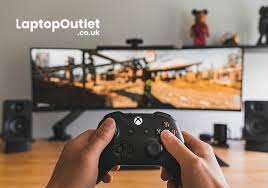
Xbox And Pc: The Ultimate Guide to Connection
Are you an Xbox enthusiast looking to elevate your gaming experience on the big screen? Or perhaps a PC gamer curious about exploring the world of Xbox games? Look no further! In this comprehensive guide, we’ll walk you through the process of connecting your Xbox console to your computer (PC), enabling seamless gameplay, and exploring the various features and benefits that come with it.
Connecting Your Xbox to Your PC
Before diving into the nitty-gritty details, let’s take a step back and understand why you’d want to connect your Xbox to your PC. With the rise of gaming on PCs, Microsoft has been working tirelessly to bridge the gap between their console and computer ecosystems. This connection allows for:
- Enhanced gameplay experience: By utilizing your PC’s superior processing power, you can enjoy smoother gameplay, higher graphics quality, and faster loading times.
- Expanded game library: With Xbox Game Pass for PC, you gain access to a vast library of games, including exclusive titles from the Xbox universe.
Now that we’ve covered the benefits, let’s get started with the connection process!
Step 1: Cable Connection (HDMI)
To connect your Xbox to your PC via HDMI:
- Locate the HDMI port on your Xbox console.
- Connect one end of an HDMI cable to the Xbox and the other end to your computer’s HDMI input.
- Ensure your TV or monitor is set to the correct HDMI input channel.
That’s it! Your Xbox should now be connected to your PC via a physical connection. But what if you want to explore more features, like streaming games from your Xbox console to your PC?
Step 2: Cable Connection (HDMI) – Additional Tips
If you’re using an older Xbox model or don’t have an HDMI cable handy:
- Utilize an HDMI adapter to connect your Xbox to your computer’s HDMI input.
- Consider upgrading to a more modern Xbox console with built-in HDMI capabilities.
Step 3: Wireless Connection (Bluetooth)
For wireless connectivity, you’ll need:
- A Bluetooth-enabled Xbox controller.
- Ensure your PC is set up for Bluetooth pairing.
- Pair the controller with your PC using the Bluetooth settings menu.
Your Xbox controller should now be wirelessly connected to your PC!
Step 4: Scheduling Acquisition (For Streaming Purposes)
If you’re looking to stream games from your Xbox console to your PC:
- Purchase a scheduling acquisition device (e.G., Elgato HD60 S+).
- Connect the device to both your Xbox and computer.
- Configure the device for streaming purposes using software like OBS or XSplit.
With this setup, you can stream games from your Xbox console to your PC, enjoying a seamless gaming experience!
Xbox Game Pass For Pc
Now that we’ve covered the connection process, let’s explore Xbox Game Pass for PC:
- Sign up for an Xbox Game Pass subscription on Microsoft’s official website.
- Download and install the Xbox app from the Microsoft Store.
- Launch the app, sign in with your account, and access the vast library of games.
You’re now ready to explore the world of Xbox games on your PC!
Controller Connection (For Wireless And Wired)
If you want to use your Xbox controller for wireless or wired connectivity:
- Utilize a Bluetooth-enabled Xbox controller.
- Ensure your PC is set up for Bluetooth pairing.
- Pair the controller with your PC using the Bluetooth settings menu.
Alternatively, connect your Xbox controller via USB for wired connection.
Your Xbox controller should now be connected to your PC!
Conclusion
Connecting your Xbox console to your PC opens up a world of possibilities for enhanced gameplay experiences, expanded game libraries, and wireless connectivity. With this comprehensive guide, you’re now equipped with the knowledge to bridge the gap between your Xbox and PC ecosystems. Happy gaming!


