
The Hidden Dangers of Sharing Photos Online: How to Remove Metadati From Your Images
Are you aware that when you share photos online, you’re also sharing sensitive information about yourself? The metadati embedded in your images can reveal more than just the date and time they were taken. In this article, we’ll explore how to remove metadati from your photos on computer, smartphone, and tablet.
What Are Metadati?
Metadati are additional data recorded by the camera or device when a photo is taken. This information can include:
- The name and type of camera used
- Date and time the photo was taken
- Location where the photo was taken (if GPS coordinates were embedded)
- Details on the program used to edit the photo
Why Remove Metadati?
Removing metadati from your photos is essential for maintaining your online privacy. When you share photos, you’re essentially sharing this sensitive information with others. This can be especially problematic if you’ve shared photos of yourself or loved ones in sensitive locations.
How to Remove Metadati on Computer
There are several ways to remove metadati from your photos on computer:
Windows Functionality
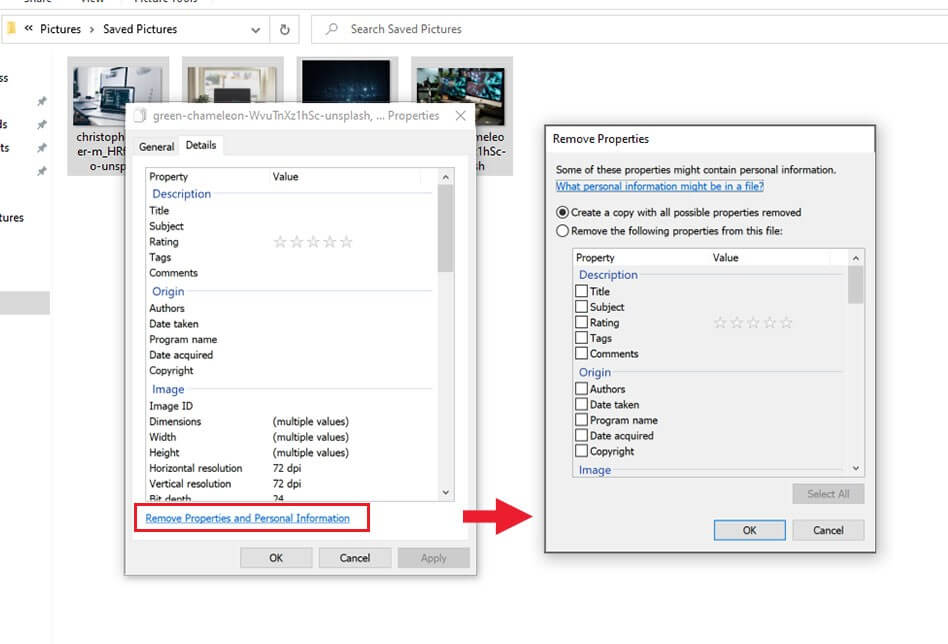
If you’re using Windows, you can use the built-in functionality to remove metadati from your photos. To do this:
- Right-click on the photo you want to edit and select “Properties.”
- In the window that appears, click on the “Details” tab.
- Select the option to create a copy of the photo without metadati.
Macos Functionality
If you’re using MacOS, you can use the Photos app to remove metadati from your photos. To do this:
- Open the Photos app and select the photo you want to edit.
- Click on the “Edit” button in the top-right corner of the window.
- Select the option to conceal location.
Third-party Apps
If you’re not comfortable using built-in functionality, there are third-party apps available that can help you remove metadati from your photos. Some popular options include:
- Image Metadata Stripper (available for Windows and MacOS)
- Exif Tag Remover (available for Windows)
How to Remove Metadati Online
If you’ve already shared photos online, don’t worry! You can use online services to remove metadati from your images. One popular option is VerExifOnline.
- Go to the VerExifOnline website and select the photo you want to edit.
- Click on the “Choose File” button and select the photo from your computer or upload it directly from the web.
- Select the option to remove metadati and click “Process.”
How to Remove Metadati on Smartphone And Tablet
Removing metadati from your photos on smartphone and tablet is a bit more complex than on computer, but still possible using third-party apps.
Android App: Photo Exif Editor — Metadata
If you’re using an Android device, you can use the Photo Exif Editor — Metadata app to remove metadati from your photos. To do this:
- Download and install the app from the Google Play Store.
- Open the app and select the photo you want to edit.
- Tap on the “EXIF” option in the top-right corner of the window.
- Select the data you want to remove (e.G., Date, time, location) and tap “OK.”
Ios App: Photos
If you’re using an iOS device, you can use the built-in Photos app to remove metadati from your photos. To do this:
- Open the Photos app and select the photo you want to edit.
- Tap on the “Edit” button in the top-right corner of the window.
- Select the option to conceal location.
Conclusion
Removing metadati from your photos is a crucial step in maintaining your online privacy. By following the steps outlined in this article, you can ensure that sensitive information about yourself isn’t shared with others when you post photos online.
Frequently Asked Questions (FAQs)
- What Are Metadati?
Metadati are additional data recorded by the camera or device when a photo is taken. - Why Remove Metadati From my Photos?
Removing metadati helps maintain your online privacy and prevents sensitive information about yourself from being shared with others. - How do I Remove Metadati on Computer?
You can use built-in functionality (Windows) or third-party apps (MacOS, Windows). - Can I Remove Metadati Online?
Yes, you can use online services like VerExifOnline to remove metadati from your photos. - How do I Remove Metadati on Smartphone And Tablet?
You can use third-party apps like Photo Exif Editor — Metadata (Android) or the built-in Photos app (iOS). - Is Removing Metadati a One-time Process?
No, you should regularly check and remove metadati from your photos to maintain your online privacy.
I hope this article has been helpful in educating you on the importance of removing metadati from your photos!


