
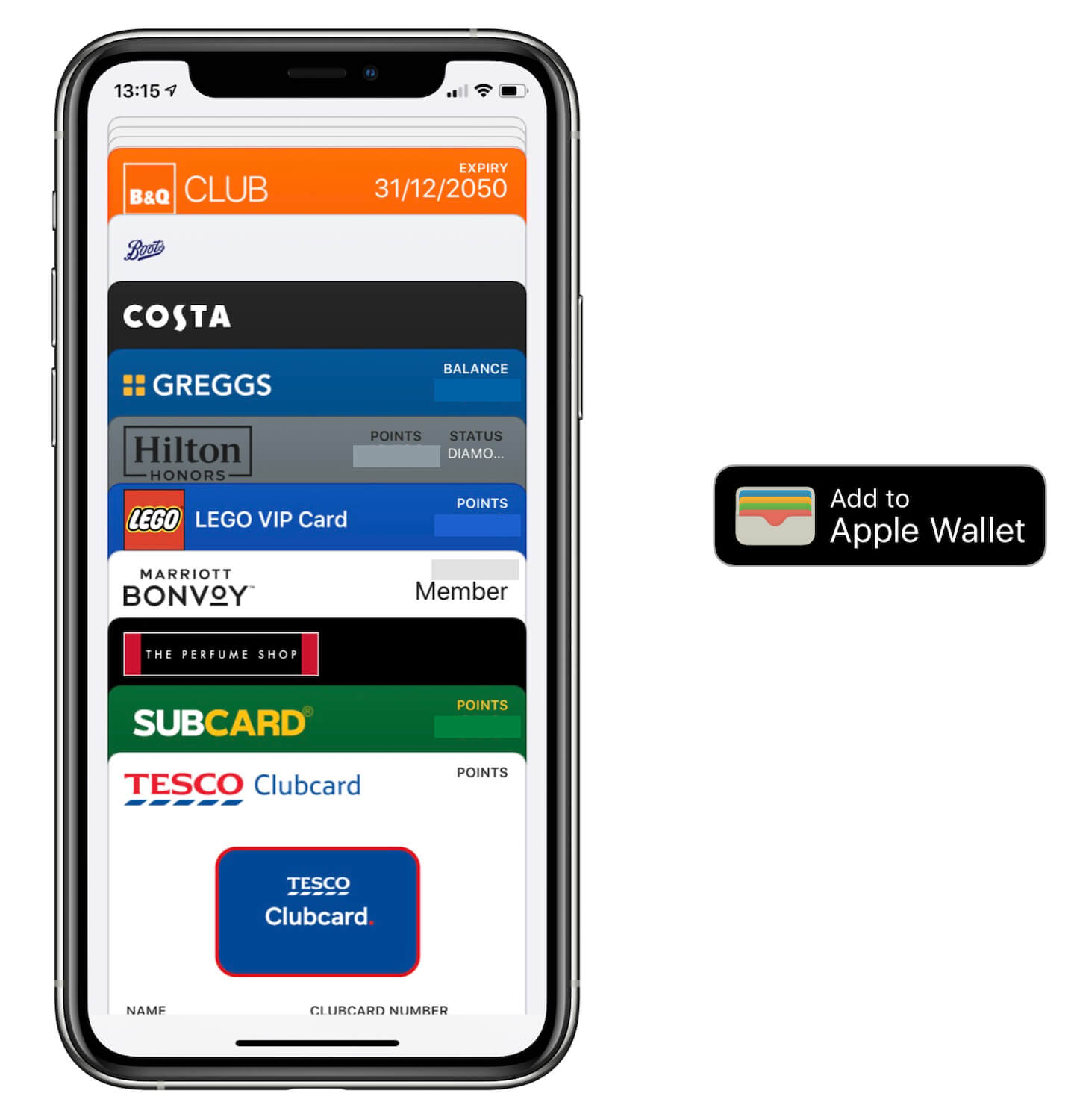
Adding Cards to Your Digital Wallet: A Comprehensive Guide
Are you tired of carrying multiple cards with you everywhere you go? Do you want to simplify your payment process and keep all your cards in one place? Look no further! In this article, we will guide you through the process of adding cards to your digital wallet, whether it’s Google Wallet or Apple Wallet.
What is a Digital Wallet?
A digital wallet is an application on your smartphone that allows you to store your credit/debit cards, loyalty cards, and even tickets for public transportation. With a digital wallet, you can make payments, check balances, and access exclusive offers all in one place.
Benefits of Using a Digital Wallet
Using a digital wallet has numerous benefits, including:
- Convenience: No need to carry multiple cards with you.
- Security: All your cards are stored securely on your phone.
- Easy Access: Access your cards and loyalty programs with just a few taps.
- Exclusive Offers: Get exclusive discounts and rewards from participating merchants.
How to Add Cards to Google Wallet
To add cards to Google Wallet, follow these steps:
- Open the Google Wallet app on your Android device.
- Tap on the “+” icon at the top right corner of the screen.
- Select “Add Card” from the menu.
- Enter the details of the card you want to add, including the name, number, expiration date, and security code.
- Review the terms and conditions and tap on “Save”.
How to Add Cards to Apple Wallet
To add cards to Apple Wallet, follow these steps:
- Open the Apple Wallet app on your iPhone or iPad.
- Tap on the “+” icon at the bottom of the screen.
- Select “Add Card” from the menu.
- Use the camera to scan the card details or enter them manually.
- Review the terms and conditions and tap on “Save”.
How to Add Fidelity Cards to Google Wallet
To add fidelity cards to Google Wallet, follow these steps:
- Open the Google Wallet app on your Android device.
- Tap on the “+” icon at the top right corner of the screen.
- Select “Add Card” from the menu.
- Choose the type of card you want to add (e.G., Loyalty card).
- Enter the details of the card, including the name and barcode.
- Review the terms and conditions and tap on “Save”.
How to Add Fidelity Cards to Apple Wallet
To add fidelity cards to Apple Wallet, follow these steps:
- Open the Apple Wallet app on your iPhone or iPad.
- Tap on the “+” icon at the bottom of the screen.
- Select “Add Card” from the menu.
- Use the camera to scan the card details or enter them manually.
- Review the terms and conditions and tap on “Save”.
How to Add Carriage Cards to Google Wallet
To add carriage cards to Google Wallet, follow these steps:
- Open the Google Wallet app on your Android device.
- Tap on the “+” icon at the top right corner of the screen.
- Select “Add Card” from the menu.
- Choose the type of card you want to add (e.G., Public transportation).
- Enter the details of the card, including the name and barcode.
- Review the terms and conditions and tap on “Save”.
How to Add Carriage Cards to Apple Wallet
To add carriage cards to Apple Wallet, follow these steps:
- Open the Apple Wallet app on your iPhone or iPad.
- Tap on the “+” icon at the bottom of the screen.
- Select “Add Card” from the menu.
- Use the camera to scan the card details or enter them manually.
- Review the terms and conditions and tap on “Save”.
How to Add Embark Cards to Google Wallet
To add embark cards to Google Wallet, follow these steps:
- Open the Google Wallet app on your Android device.
- Tap on the “+” icon at the top right corner of the screen.
- Select “Add Card” from the menu.
- Choose the type of card you want to add (e.G., Airline ticket).
- Enter the details of the card, including the name and barcode.
- Review the terms and conditions and tap on “Save”.
Tips And Tricks
- Make sure to review the terms and conditions before adding a card to your digital wallet.
- Keep all your cards updated and secure in your digital wallet.
- Use exclusive offers and rewards from participating merchants.
Conclusion
In conclusion, adding cards to your digital wallet is a simple and convenient process. Whether you’re using Google Wallet or Apple Wallet, follow the steps outlined above to add fidelity, carriage, embark, and other types of cards to your digital wallet. With all your cards in one place, you’ll never have to worry about carrying multiple cards again.
Frequently Asked Questions (FAQs)
Q: What is a digital wallet?
A: A digital wallet is an application on your smartphone that allows you to store your credit/debit cards, loyalty cards, and even tickets for public transportation.
Q: How do I add cards to Google Wallet?
A: To add cards to Google Wallet, follow the steps outlined above.
Q: How do I add cards to Apple Wallet?
A: To add cards to Apple Wallet, follow the steps outlined above.
Q: Can I add multiple types of cards to my digital wallet?
A: Yes, you can add multiple types of cards, including fidelity, carriage, embark, and others.
Q: Are all cards compatible with digital wallets?
A: Not all cards are compatible with digital wallets. Check with your card issuer to see if they support digital wallets.
Q: How do I access exclusive offers from participating merchants?
A: Access exclusive offers by checking the terms and conditions of each card in your digital wallet.
Q: Is my digital wallet secure?
A: Yes, your digital wallet is secure, but make sure to review the terms and conditions before adding a card.


