
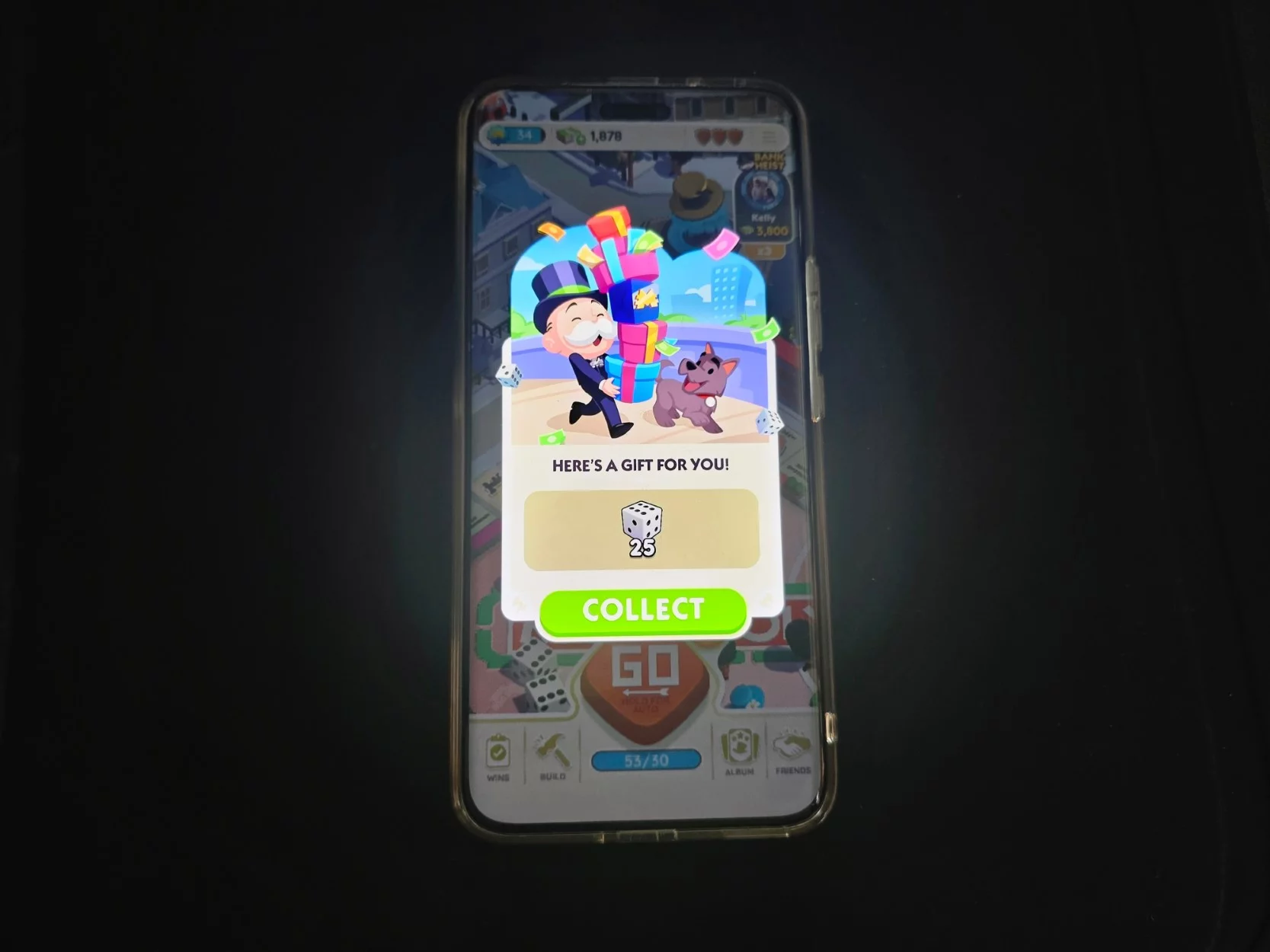
How to Mandate a Link to Monopoly Go on Facebook
Are you an avid fan of the classic game of Monopoly? Do you want to share your love for the game with friends and family on Facebook? Look no further! In this article, we will guide you through the simple steps of mandating a link to Monopoly Go on Facebook.
What is Monopoly Go?
Monopoly Go is a mobile gaming application that allows users to play the classic game of Monopoly with friends. The app has gained immense popularity worldwide, and its unique features make it an exciting way to socialize and compete with others.
Benefits of Sharing The Link on Facebook
Sharing the link to Monopoly Go on Facebook offers several benefits:
- You can earn rewards for each friend who downloads the app using your unique referral link.
- Your friends will be able to access exclusive features, such as achieving thresholds that grant 20, 60, and 100 dice freely.
How to Share The Link on Facebook
To share the link on Facebook, follow these steps:
- Download The App: First, download the Monopoly Go app on your Android device from the Google Play Store or an alternative store.
- Access The Friends Section: Once installed, access the Friends section within the app.
- Select The Invite Option: From the menu options, select the “Invite” option to share the link with friends.
Method 1: Sharing Via Messenger
To share the link directly on Facebook using Messenger:
- Tap on the Colleague button and confirm the connection.
- If your Facebook account is already linked, tap on the Continue button with your name.
- Select the Forward button to send the invitation to friends.
- Add a personal message if desired.
Method 2: Copying And Sharing Manually
Alternatively, you can copy the link manually and share it directly on Facebook:
- Access the Friends section and select the Invite option.
- Tap on the Copy button to obtain the referral link.
- Share the copied link on your Facebook profile or forward it via Messenger.
Can I Discontinue The Link?
Yes, you can discontinue the link at any time by following these steps:
- Access Settings: Access the settings within Monopoly Go by tapping on the three horizontal lines (☰) in the top-right corner.
- Select Colleague Account: Select the “Colleague account” option from the menu.
- Choose Disconnect: Choose the “Disconnect” option relative to Facebook and confirm your decision.
By following these simple steps, you can mandate a link to Monopoly Go on Facebook and share it with friends and family.
Conclusion
Sharing the link to Monopoly Go on Facebook offers numerous benefits, including earning rewards for each friend who downloads the app using your unique referral link. By following the simple steps outlined in this article, you can share the link directly on Facebook or copy and paste it manually. If needed, you can also discontinue the link at any time by accessing the settings within Monopoly Go.
Faqs
Here are some frequently asked questions regarding mandating a link to Monopoly Go on Facebook:
- How do I Access The Friends Section in Monopoly Go?
Accessing the Friends section within Monopoly Go is straightforward. Download and install the app, then navigate to the menu options. - Can I Share The Link Directly on my Profile on Facebook?
Yes, you can share the link directly on your Facebook profile by following Method 1: Sharing via Messenger. - How do I Discontinue The Link at Any Time?
You can discontinue the link at any time by accessing the settings within Monopoly Go and selecting the “Disconnect” option relative to Facebook. - Are There Any Specific Requirements For Sharing The Link on Facebook?
To share the link, your Facebook account must be linked to Monopoly Go.
I hope this article has provided you with a comprehensive understanding of how to mandate a link to Monopoly Go on Facebook and shared useful information about the game itself.


