
Connecting Your Phone to LG Tv: A Comprehensive Guide
Are you looking for ways to connect your phone to your LG TV without using a cable? You’ve come to the right place! In this article, we will explore various methods to mirror your phone’s screen onto your LG TV, ensuring seamless entertainment and convenience.
Why Connect Your Phone to LG Tv?
Before we dive into the nitty-gritty of connecting your phone to your LG TV, let’s quickly discuss why you might want to do so. With the increasing popularity of smartphones and smart TVs, it’s no surprise that people are looking for ways to connect their devices for a more immersive experience. By mirroring your phone’s screen onto your LG TV, you can:
- Enjoy your favorite movies and shows on a bigger screen
- Share photos and videos with family and friends
- Play games on a larger display
- Access various apps and streaming services directly from your TV
Method 1: LG Screen Share (Android)
LG Screen Share is a built-in feature on most LG TVs that allows you to mirror your Android phone’s screen onto the TV. To use this method:
- Ensure both your phone and TV are connected to the same Wi-Fi network.
- Open the Settings app on your phone and go to Connections and sharing > Projection.
- Select the option to project the screen from your phone to the LG TV.
- On your TV, select the Screen Share icon and follow the on-screen instructions.
Method 2: Chromecast (Android/iOS)
Chromecast is a popular streaming device that allows you to cast content from your phone or tablet onto your TV. To use this method:
- Ensure both your phone and TV are connected to the same Wi-Fi network.
- Download and install the Google Home app on your phone.
- Open the app and select the Chromecast icon.
- Follow the on-screen instructions to connect your phone to the Chromecast device.
Method 3: Airplay (iOS)
AirPlay is a feature built into Apple devices that allows you to stream content from your iPhone or iPad onto your LG TV. To use this method:
- Ensure both your phone and TV are connected to the same Wi-Fi network.
- Open the Control Center on your phone and select the AirPlay icon.
- Select the option to share your screen from your phone to the TV.
- On your TV, select the AirPlay icon and follow the on-screen instructions.
Method 4: Dlna (Android/iOS)
DLNA is a technology that allows you to stream content from your phone or tablet onto your LG TV without using a cable. To use this method:
- Ensure both your phone and TV are connected to the same Wi-Fi network.
- Download and install the iMediShare app on your phone (available for Android and iOS).
- Open the app and select the option to share content from your phone to the TV.
- On your TV, select the DLNA icon and follow the on-screen instructions.
Method 5: LG Thinq (Android/iOS)
LG ThinQ is a smart TV platform that allows you to control various functions on your TV using your smartphone. To use this method:
- Download and install the LG ThinQ app on your phone.
- Open the app and select the option to connect your phone to the TV.
- Follow the on-screen instructions to establish a connection between your phone and TV.
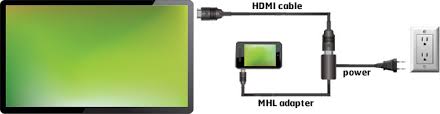
Connecting With Cable: Usb to Hdmi
If you’re not comfortable using wireless methods, you can still connect your phone to your LG TV using a cable. To do so:
- Acquire a USB-C to HDMI adapter or a Lightning to AV digital adapter (depending on your phone’s type).
- Connect the adapter to your phone’s USB port.
- Plug the other end of the adapter into an available HDMI port on your TV.
- Ensure both devices are connected to the same power source.
Conclusion
In conclusion, connecting your phone to your LG TV has never been easier! With these five methods, you can enjoy a seamless entertainment experience without worrying about cables or wires. Whether you prefer wireless methods like LG Screen Share, Chromecast, AirPlay, DLNA, or LG ThinQ, or using a cable with a USB-C to HDMI adapter, there’s an option for everyone.
Frequently Asked Questions (FAQs)
- What Devices Are Compatible With LG Screen Share?
LG Screen Share is compatible with most Android phones and tablets running Android 4.4 Or later versions.
- Can I Use Chromecast on my Iphone?
Yes, you can use Chromecast on your iPhone by downloading the Google Home app and following the on-screen instructions.
- Do I Need to Subscribe to a Streaming Service For Airplay to Work?
No, you don’t need to subscribe to a streaming service for AirPlay to work. However, some services may require a subscription or one-time payment to access their content.
- Can I Use Dlna on my Iphone?
Yes, you can use DLNA on your iPhone by downloading and installing the iMediShare app and following the on-screen instructions.
- What Are The Benefits of Using LG Thinq?
The benefits of using LG ThinQ include controlling various functions on your TV using your smartphone, accessing apps and streaming services directly from your phone, and enjoying a more immersive entertainment experience.
- Can I Connect my Phone to my LG TV Without Using a Cable?
Yes, you can connect your phone to your LG TV without using a cable by using wireless methods like LG Screen Share, Chromecast, AirPlay, DLNA, or LG ThinQ.
- What is The Maximum Resolution Supported by These Methods?
The maximum resolution supported by each method varies, but generally includes:
- LG Screen Share: Up to 4K UHD
- Chromecast: Up to 4K UHD
- AirPlay: Up to 1080p (Full HD)
-
DLNA: Up to 720p (HD)
-
Can I Use These Methods on my Iphone or Ipad?
Yes, you can use these methods on your iPhone or iPad by following the respective instructions for each method.


