
How to Reinstall Ps4 Operating System: A Step-by-step Guide
Are you tired of dealing with a malfunctioning PlayStation 4 console? Have you tried all the possible solutions, but nothing seems to work? If so, it’s time to consider reinstalling your PS4 operating system. This might seem like a daunting task, but don’t worry; we’ve got you covered. In this article, we’ll guide you through the process of reinstalling your PS4 operating system, step by step.
Understanding The Risks
Before we dive into the instructions, it’s essential to understand that reinstalling the PS4 operating system will erase all data on your console. This includes games, Trophies, and other saved progress. So, make sure you’ve backed up any important data before proceeding.
Preliminary Information
Before starting the process, ensure you have:
- A USB storage device (at least 1.1 GB of blank space)
- The PS4 console
- A stable internet connection
Step 1: Download The Firmware
To begin, you need to download the firmware for your PS4 from the official PlayStation website.
- Connect your PS4 console to a stable internet connection.
- Go to the official PlayStation website and navigate to the PS4 software update page.
- Select the correct firmware version for your console (it’s usually displayed on-screen).
- Click on the “Download” button, and the firmware will be downloaded to your USB storage device.
Step 2: Prepare Your Usb Storage Device
To ensure a smooth process:
- Format your USB storage device in FAT32 format.
-
Create two folders on your USB device:
- One named “PS4”
- Another named “UPDATE” (case-sensitive, with capital letters)
-
Move the downloaded firmware file into the “UPDATE” folder.
Step 3: Install The Firmware
Now it’s time to install the firmware:
- Insert the USB storage device into a computer.
- Connect your PS4 console to the same computer via a USB cable.
- Navigate to the file manager (e.G., File Explorer on Windows).
- Select the “PS4” folder on your USB device, and then click on the “UPDATE” folder.
- Open the firmware file (.PUP) and select it.
Step 4: Initialize Your Ps4
To begin the installation process:
- Turn off your PS4 console.
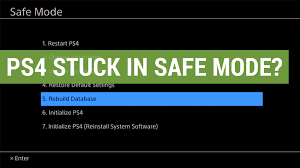
- Press the power button to turn it back on in safe mode.
- Connect your DualShock controller via a USB cable.
- Select option 7 from the menu (using the directional arrows and the X button).
- Choose “Initialize PS4” and confirm with the X button.
Step 5: Wait For Installation
Your console will now start installing the firmware:
- This process may take several minutes, so be patient.
- Keep your PS4 plugged in and don’t turn it off.
Step 6: Set Up Your Ps4
Once installation is complete:
- Follow the on-screen instructions to set up your PS4.
- Select your language, country, and time zone.
- Choose a network connection type (Wi-Fi or LAN).
- Enter your network password.
- Select your time zone and date settings.
Step 7: Re-recover Your Data
If you have backed up your data using the Backup & Recovery feature:
- Go to Settings > System > Back Up & Recovery.
- Select “Restore PS4” and choose the backup file from your USB device.
- Confirm with the X button, and your console will restore all saved data.
Congratulations! You’ve successfully reinstalled your PS4 operating system. If you encounter any issues or have further questions, please refer to our FAQ section below.
Conclusion
Reinstalling your PS4 operating system is a straightforward process that requires some preparation and patience. By following these steps, you’ll be able to restore your console to its original settings and enjoy a smooth gaming experience once again.
Frequently Asked Questions (FAQs)
- What Happens to my Data?
- All data on your PS4 will be erased during the installation process.
- Will I Lose Any Trophies or Saved Progress?
- Yes, but you can recover them by restoring from a backup file using the Backup & Recovery feature.
- Can I Use This Method if my Ps4 is Damaged?
- No, this method is only suitable for consoles with software issues and not physical damage.
- Will Reinstalling The OS Affect Online Features?
- Yes, you will need to re-activate your online features after installation.
- Can I Use a Different Firmware Version?
- No, it’s essential to use the official firmware provided by Sony for your specific PS4 model.
- How Long Does The Installation Process Take?
- Approximately 10-15 minutes, depending on your internet connection speed and console performance.
- Will I Need to Set up my Ps4 Again?
- Yes, you will need to follow the on-screen instructions to set up your console after installation.
Final Thoughts
Reinstalling your PS4 operating system is a great way to resolve software issues or start fresh with a clean slate. Remember to back up any important data and follow these steps carefully to ensure a smooth process.


