
How to Format Your Android Device: A Step-by-step Guide
Are you planning to sell your old Android device or simply want to wipe off all the existing data on it? Before doing so, it’s essential to format your device to ensure a clean slate for the new owner or for yourself. In this article, we’ll guide you through the process of formatting your Android device, whether it’s a Samsung, HUAWEI, or any other brand.
Why Format Your Android Device?
Formatting your Android device is crucial before selling it to avoid any potential data breaches. Even if you’ve deleted all the files and apps, there’s still a chance that some sensitive information might be recovered by unauthorized parties. By formatting your device, you’ll ensure that all the existing data, including photos, videos, documents, and contacts, are completely erased.
Formatting Your Android Device: A Step-by-step Guide
Formatting Your Android Device Using The Settings App
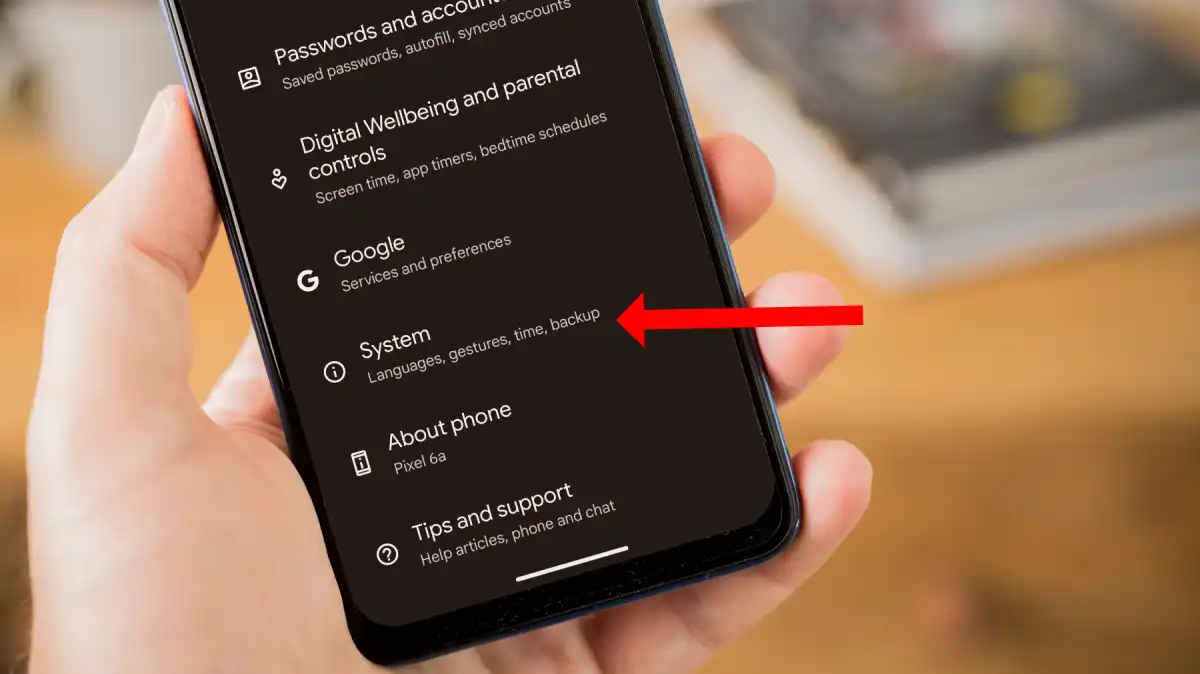
- Open The Settings App: On your Android device, go to the Settings menu. You can usually find it on the home screen or in the app drawer.
- Navigate to System > Options of Recovery: Scroll down and select “System” followed by “Options of Recovery.”
- Select Erase All Data (factory Reset): In this section, you’ll see several options for resetting your device. Choose “Erase all data (factory reset).”
- Confirm The Operation: To proceed with the formatting process, tap on “Erase all data” and enter your device’s PIN or password to confirm.
Formatting Your Android Device Using The Recovery Mode
Note: This method might vary depending on your device brand.
- Turn Off Your Device: Completely shut down your Android device.
- Press And Hold The Power Button + Volume Below (-) Key: For most devices, this combination will boot you into recovery mode. If it doesn’t work, try searching for specific instructions for your device model.
- Select Wipe Data/factory Reset: Using the volume buttons, navigate to “Wipe data/factory reset” and select it using the Power button.
- Confirm The Operation: Choose “Yes” or “Delete all user data” to confirm the formatting process.
How to Format Your Samsung Android Device
If you’re planning to sell your Samsung device, follow these steps:
- Open The Settings App: Navigate to General Management > Reset.
- Select Factory Data Reset: In this section, choose “Factory Data reset.”
- Confirm The Operation: To proceed with the formatting process, tap on “Reset” and enter your device’s PIN or password to confirm.
How to Format Your Huawei Android Device
For HUAWEI devices:
- Open The Settings App: Navigate to System and updates > Reset.
- Select Execute The Reset of The Phone: In this section, choose “Execute the reset of the phone.”
- Confirm The Operation: To proceed with the formatting process, tap on “Reset” and enter your device’s password to confirm.
How to Format a Dead Android Device
If your device is stuck in boot loop or won’t turn on:
- Charge Your Device: Make sure your device has sufficient battery life or try charging it.
- Boot Into Recovery Mode: Press and hold the Power button + Volume below (-) key for 10 seconds or until you see the logotype of your device’s brand on the screen.
- Select Wipe Data/factory Reset: Using the volume buttons, navigate to “Wipe data/factory reset” and select it using the Power button.
How to Format Your SD Card on Android
If your SD card is full or contains unnecessary data:
- Insert Your SD Card: Place your SD card into your device.
- Open The Settings App: Navigate to File/Blank of storage.
- Select Format SD Card: Choose “Format SD card” and confirm the operation.
Conclusion
Formatting your Android device is a crucial step before selling it or simply giving it a fresh start. By following these steps, you’ll ensure that all existing data are completely erased, leaving your device in pristine condition. Remember to always back up your important files and data before formatting your device.


