
How to Erase Password Memorized: A Step-by-step Guide
Are you tired of remembering passwords for various accounts, but worried that someone might access your sensitive information? Don’t worry; we’ve got you covered! In this article, we will guide you through the process of erasing password memorized on different browsers and platforms.
Why Erase Password Memorized?
Before we dive into the steps, let’s talk about why erasing password memorized is essential. When you save passwords in a browser or app, it can be convenient, but it also poses a significant risk. If someone gains access to your device or account, they can use those saved passwords to access sensitive information like bank accounts, social media profiles, and more.
How to Erase Password Memorized on Chrome
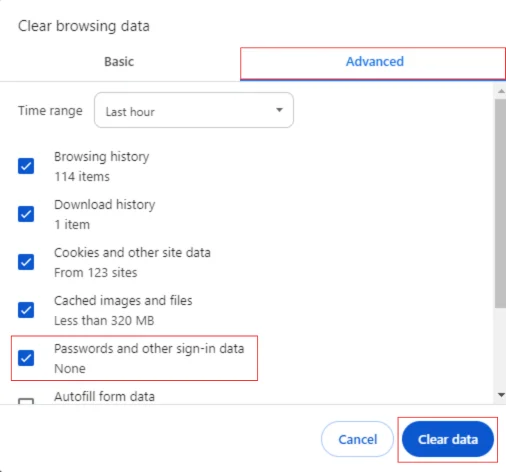
If you want to erase password memorized in Google Chrome for PC and Mac, follow these steps:
- Open Chrome: Initiate the program by clicking on the icon in the menu bar.
- Go to Settings: Click on the three vertical dots in the upper right corner and select “Settings” from the dropdown menu.
- Navigate to Passwords: In the settings page, click on the “Advanced” tab and scroll down to the “Passwords saved” section.
- Delete a Password: Click on the three vertical dots next to the password you want to delete and select “Stir up.” Repeat this process for each password you want to delete.
How to Erase Password Memorized on Chrome For Android
To erase password memorized in Google Chrome for Android:
- Open Chrome: Initiate the app by tapping on its icon.
- Go to Settings: Tap on the three vertical dots in the upper right corner and select “Settings” from the dropdown menu.
- Navigate to Passwords: Scroll down to the “Passwords saved” section.
- Delete a Password: Tap on the three vertical dots next to the password you want to delete and select “Stir up.” Repeat this process for each password you want to delete.
How to Erase Password Memorized on Chrome For Ios/ipados
To erase password memorized in Google Chrome for iOS and iPadOS:
- Open Chrome: Initiate the app by tapping on its icon.
- Go to Settings: Tap on the three vertical dots in the upper right corner and select “Settings” from the dropdown menu.
- Navigate to Passwords: Scroll down to the “Passwords saved” section.
- Delete a Password: Tap on the three vertical dots next to the password you want to delete and select “Stir up.” Repeat this process for each password you want to delete.
How to Erase Password Memorized on Edge
If you use Microsoft Edge, follow these steps:
- Open Edge: Initiate the program by clicking on its icon.
- Go to Settings: Click on the three horizontal dots in the upper right corner and select “Settings” from the dropdown menu.
- Navigate to Profiles: In the settings page, click on the “Profiles” tab and then select “Password.”
- Delete a Password: Click on the three vertical dots next to the password you want to delete and select “Stir up.” Repeat this process for each password you want to delete.
How to Erase Password Memorized on Firefox
If you use Mozilla Firefox, follow these steps:
- Open Firefox: Initiate the program by clicking on its icon.
- Go to Settings: Click on the three horizontal lines in the upper right corner and select “Settings” from the dropdown menu.
- Navigate to Privacy & Security: In the settings page, click on the “Privacy & Security” tab and scroll down to the “Saved Logins” section.
- Delete a Password: Click on the three vertical dots next to the password you want to delete and select “Stir up.” Repeat this process for each password you want to delete.
How to Erase Password Memorized on Safari
If you use Apple’s Safari browser, follow these steps:
- Open Safari: Initiate the program by clicking on its icon.
- Go to Settings: Click on the three horizontal lines in the upper right corner and select “Settings” from the dropdown menu.
- Navigate to Passwords: In the settings page, click on the “Passwords” tab and then select the password you want to delete.
- Delete a Password: Click on the minus (-) button next to the password you want to delete.
How to Erase Password Memorized on Android
If you use an Android device, follow these steps:
- Open Settings: Initiate the app by tapping on its icon.
- Navigate to Accounts: Scroll down to the “Accounts” section and select the account for which you want to erase password memorized.
- Delete a Password: Tap on the three vertical dots next to the password you want to delete and select “Stir up.” Repeat this process for each password you want to delete.
How to Erase Password Memorized on Iphone/ipad
If you use an iOS or iPadOS device, follow these steps:
- Open Settings: Initiate the app by tapping on its icon.
- Navigate to Accounts: Scroll down to the “Accounts” section and select the account for which you want to erase password memorized.
- Delete a Password: Tap on the three vertical dots next to the password you want to delete and select “Stir up.” Repeat this process for each password you want to delete.
How to Erase Password Memorized on Facebook
If you want to erase password memorized on Facebook, follow these steps:
- Open Facebook: Initiate the app by tapping on its icon.
- Go to Settings: Tap on the three horizontal lines in the upper right corner and select “Settings” from the dropdown menu.
- Navigate to Accounts: Scroll down to the “Accounts” section and select the account for which you want to erase password memorized.
- Delete a Password: Tap on the minus (-) button next to the password you want to delete.
How to Erase Password Memorized on Outlook
If you use Microsoft Outlook, follow these steps:
- Open Outlook: Initiate the app by tapping on its icon.
- Go to Settings: Click on the three horizontal lines in the upper right corner and select “Settings” from the dropdown menu.
- Navigate to Accounts: Scroll down to the “Accounts” section and select the account for which you want to erase password memorized.
- Delete a Password: Tap on the minus (-) button next to the password you want to delete.
How to Erase Password Memorized on Teams
If you use Microsoft Teams, follow these steps:
- Open Teams: Initiate the app by tapping on its icon.
- Go to Settings: Click on the three horizontal lines in the upper right corner and select “Settings” from the dropdown menu.
- Navigate to Accounts: Scroll down to the “Accounts” section and select the account for which you want to erase password memorized.
- Delete a Password: Tap on the minus (-) button next to the password you want to delete.
Conclusion
Erasing password memorized is an essential step in maintaining your online security and privacy. By following these steps, you can ensure that your sensitive information remains protected from unauthorized access. Remember to always follow best practices for managing passwords, such as using strong and unique passwords for each account.
Faqs
- Why Erase Password Memorized?
Erasing password memorized is essential for maintaining online security and privacy. - How do I Erase Password Memorized on Chrome?
To erase password memorized on Chrome, follow the steps outlined in this article. - Can I Erase Password Memorized on Other Browsers?
Yes, you can erase password memorized on other browsers like Edge, Firefox, and Safari by following similar steps. - How do I Erase Password Memorized on Android?
To erase password memorized on Android, follow the steps outlined in this article. - Can I Erase Password Memorized on Iphone/ipad?
Yes, you can erase password memorized on iPhone/iPad by following similar steps. - How do I Erase Password Memorized on Facebook?
To erase password memorized on Facebook, follow the steps outlined in this article. - Why is it Important to Use Strong And Unique Passwords?
Using strong and unique passwords is essential for maintaining online security and privacy. - Can I Use a Password Manager to Store my Passwords?
Yes, you can use a password manager to store your passwords securely.


