
Blocking Videos on Facebook: A Step-by-step Guide
Are you tired of videos automatically playing on Facebook, taking up precious data and battery life? Look no further! In this article, we’ll guide you through the process of blocking videos on Facebook across various platforms.
Why Block Videos on Facebook?
Before we dive into the nitty-gritty, let’s quickly discuss why you might want to block videos on Facebook. Maybe you’re concerned about data usage, or perhaps you just can’t stand the sound of auto-playing videos disrupting your online experience. Whatever the reason, we’ve got you covered.
Blocking Videos on Android Devices
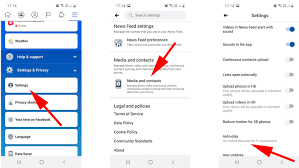
If you use an Android device, follow these simple steps to block videos on Facebook:
- Open the Facebook app and navigate to the menu (☰) in the top-right corner.
- Scroll down until you find the “Settings & Privacy” section and tap on it.
- Tap on “Settings” and then select the “Multimedia and Contacts” option.
- Look for the “Videos in News Feed Start with Sound” setting and toggle it off (green switch).
- Alternatively, if you prefer to block all video auto-play, tap on the “Video Autoplay” setting and choose “Off” or “Only Wi-Fi”.
Blocking Videos on Iphone Devices
If you’re an iPhone user, follow these steps:
- Open the Facebook app and navigate to the menu (☰) in the top-right corner.
- Scroll down until you find the “Settings & Privacy” section and tap on it.
- Tap on “Settings” and then select the “Video and Photo” option.
- Look for the “Videos in News Feed Start with Sound” setting and toggle it off (green switch).
- To block all video auto-play, tap on the “Video Autoplay” setting and choose “Off” or “Only Wi-Fi”.
Blocking Videos on Facebook Web
If you use Facebook exclusively through your browser, follow these steps:
- Log in to your Facebook account and navigate to the settings (☰) in the top-right corner.
- Click on “Settings” and then select the “Video” option.
- Look for the “Videos in News Feed Start with Sound” setting and toggle it off (green switch).
- To block all video auto-play, click on the “Video Autoplay” setting and choose “Off”.
How to Disable Video Auto-play on Other Devices
If you use Facebook on other devices or platforms, follow these steps:
- On iPad: Follow the same steps as iPhone.
- On Desktop (PC/Mac): Follow the same steps as the web browser.
What Happens if My Battery Level is Low?
Don’t worry! If your battery level falls below 20%, video auto-play will be automatically disabled on all devices.
Additional Settings to Consider
Take some time to explore Facebook’s settings and consider the following options:
- Video Autoplay: Choose whether videos should autoplay with sound or without.
- Video Quality: Select a lower video quality to save data usage.
- Audio: Turn off audio for videos in your News Feed.
Conclusion
Blocking videos on Facebook is an easy and straightforward process, regardless of the device you use. By following these steps, you can enjoy a more personalized experience on the platform without worrying about data usage or auto-playing videos disrupting your online journey.
Frequently Asked Questions (FAQs)
- Why Are Videos Automatically Playing on Facebook?
Videos autoplay to enhance user engagement and provide a more immersive experience. - How do I Block Videos on Facebook?
Follow the step-by-step guide provided in this article for each device type. - Will Blocking Videos Affect my Data Usage?
Yes, disabling video auto-play will help reduce your data usage. - Can I Turn Off Audio For Individual Videos?
No, turning off audio is a global setting that applies to all videos on Facebook. - How do I Disable Video Autoplay For Specific Users or Groups?
Currently, this feature is not available; however, you can report spam or abuse content.
Stay informed and enjoy your customized Facebook experience!


