
How to Forward Emails on Gmail
Are you tired of dealing with multiple email accounts? Do you want a simple way to forward emails from one account to another without having to manually copy and paste them? Look no further than Gmail’s forwarding feature.
In this article, we will show you how to forward emails on Gmail, including how to forward individual messages, entire conversations, and even create filters to automatically forward emails based on the sender. We’ll also cover some common questions and answers related to email forwarding.
Why Forward Emails on Gmail?
Forwarding emails on Gmail can be useful in a variety of situations. For example:
- You have multiple email accounts and want to consolidate your messages into one account.
- You’re going out of town and don’t want to miss important emails, but you also don’t want to check your work email from your phone.
- You’re trying to declutter your inbox by getting rid of unnecessary emails.
Forwarding Individual Messages
To forward an individual message on Gmail:
- Open the message you want to forward in a new tab or window.
- Click on the three vertical dots in the upper right corner of the message.
- Select “Forward” from the dropdown menu.
- Type in the email address you want to forward the message to, and click on the blue “Forward” button.
Forwarding Entire Conversations
To forward an entire conversation on Gmail:
- Open the conversation you want to forward by clicking on it in your inbox or searching for it.
- Click on the three vertical dots in the upper right corner of the conversation.
- Select “Forward all messages in this conversation” from the dropdown menu.
- Type in the email address you want to forward the conversation to, and click on the blue “Forward” button.
Creating Filters to Automatically Forward Emails
To create a filter to automatically forward emails based on the sender:
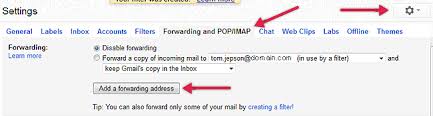
- Click on the gear icon in the upper right corner of your inbox.
- Select “See all settings.”
- Scroll down to the “Filters and Blocked Addresses” section.
- Click on the blue “Create a new filter” button.
- Type in the email address you want to automatically forward emails from, and click on the blue “Create filter” button.
- Choose the action you want to take with the filtered emails (e.G., Forward them to another account).
- Click on the blue “Save changes” button.
Tips And Tricks
- You can also create filters based on other criteria, such as keywords in the subject or body of the email.
- If you’re forwarding emails from one Gmail account to another, make sure that both accounts are logged into your Google account.
- If you’re experiencing issues with forwarding emails, try clearing your browser cache and cookies.
Common Questions And Answers
Q: How do I forward emails on Gmail?
A: To forward individual messages or entire conversations, follow the steps outlined above. To create filters to automatically forward emails based on the sender, follow the steps outlined in the “Creating Filters” section.
Q: Can I forward emails from one Gmail account to another Gmail account?
A: Yes, you can forward emails from one Gmail account to another Gmail account by following the same steps as forwarding emails within an account.
Q: Will forwarding emails affect my email count?
A: No, forwarding emails will not affect your email count. However, be aware that if you’re creating filters to automatically forward emails based on certain criteria, you may end up with a large number of forwarded emails in your account.
Conclusion
Forwarding emails on Gmail can be a useful tool for consolidating messages into one account or avoiding cluttered inboxes. By following the steps outlined above, you can easily forward individual messages, entire conversations, and even create filters to automatically forward emails based on the sender. Remember to clear your browser cache and cookies if you’re experiencing issues with forwarding emails.
Frequently Asked Questions
Q: How do I forward emails on Gmail?
A: To forward individual messages or entire conversations, follow the steps outlined above.
Q: Can I forward emails from one Gmail account to another Gmail account?
A: Yes, you can forward emails from one Gmail account to another Gmail account by following the same steps as forwarding emails within an account.
Q: Will forwarding emails affect my email count?
A: No, forwarding emails will not affect your email count.
Q: How do I create filters to automatically forward emails based on certain criteria?
A: To create filters, follow the steps outlined in the “Creating Filters” section above.


