
Connecting Your Samsung TV to Devices Via Hdmi: A Step-by-step Guide
Are you excited about taking advantage of the various features of your new Samsung TV? Do you want to connect it to other devices like gaming consoles, Blu-ray players, or computers? If so, this guide is for you! In this article, we will walk you through the process of connecting your Samsung TV to devices via HDMI.
What You Need to Know Before Starting
Before we dive into the step-by-step instructions, let’s talk about some essential things to consider. First and foremost, you’ll need a cable that supports the resolution and frequency of the image you want to display. The cables have different versions, with the latest being HDMI 2.1. This version can support resolutions up to 8K at 120 Hz.
How to Select The Correct Source
When connecting your TV to devices via HDMI, it’s essential to select the correct source on your TV. To do this, follow these steps:
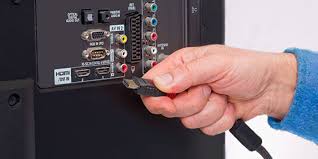
- Insert one end of the HDMI cable into the TV and the other end into the device.
- On your TV, go to Settings > Source > HDMI.
- Select the input that corresponds to the device you want to connect.
How to Set Up Arc (Audio Return Channel) on Your Samsung TV
The Audio Return Channel (ARC) is a feature that allows audio signals to be sent from the TV back to an external speaker or soundbar. To set up ARC on your Samsung TV, follow these steps:
- Make sure your speakers or soundbar support ARC.
- Connect the HDMI cable to the correct input on both devices.
- On your TV, go to Settings > Sound > External Devices.
- Select the option for Anynet+ and press Enter.
How to Set Up Cec (Consumer Electronics Control) on Your Samsung TV
CEC is a feature that allows multiple devices to be controlled with one remote. To set up CEC on your Samsung TV, follow these steps:
- Make sure your device supports CEC.
- Connect the HDMI cable to the correct input on both devices.
- On your TV, go to Settings > Sound > External Devices.
- Select the option for Anynet+ and press Enter.
Other Useful Functions
Your Samsung TV has several other useful functions related to HDMI. Here are a few:
- To optimize the quality of images from a gaming console or Blu-ray player, select the Modality Gambling function in the menu.
- To enhance the color quality of images from devices with 4K UHD resolution, select the HDMI UHD Color function.
- To regulate the contrast levels of images displayed on your TV via HDMI, select the Level of Black HDMI function.
How to Connect Your Samsung TV to a PC Via Hdmi
If you want to connect your Samsung TV to a PC or laptop, follow these steps:
- Make sure both devices are turned off and connected via HDMI.
- On your PC, go to Settings > Display > HDMI.
- Select the input that corresponds to the TV.
- On your TV, select the source as the PC.
Conclusion
Connecting your Samsung TV to devices via HDMI is a straightforward process. By following these step-by-step instructions, you’ll be able to take advantage of the various features of your new TV and enjoy high-quality images and audio from your favorite devices. Happy viewing!
Frequently Asked Questions (FAQs)
- What Type of Cable do I Need For my Samsung Tv?
A: You’ll need an HDMI 2.1 Cable or higher to support resolutions up to 8K at 120 Hz. - How do I Select The Correct Source on my Samsung Tv?
A: Go to Settings > Source > HDMI and select the input that corresponds to the device you want to connect. - What is Arc (Audio Return Channel) And How do I Set it up on my Samsung Tv?
A: ARC allows audio signals to be sent from the TV back to an external speaker or soundbar. To set it up, follow the steps outlined in this guide. - What is Cec (Consumer Electronics Control) And How do I Set it up on my Samsung Tv?
A: CEC allows multiple devices to be controlled with one remote. To set it up, follow the steps outlined in this guide. - How do I Connect my Samsung TV to a PC Via Hdmi?
A: Follow the steps outlined in this guide to connect your TV to a PC or laptop via HDMI. - What Other Useful Functions Does my Samsung TV Have Related to Hdmi?
A: Your TV has several other useful functions, including optimizing image quality from gaming consoles and Blu-ray players, enhancing color quality from devices with 4K UHD resolution, and regulating contrast levels of images displayed on your TV via HDMI. - What if I’m Not Sure Which Source to Select on my Samsung Tv?
A: Consult the manual user guide for your device or contact our support team for assistance. - Can I Use Any Type of Hdmi Cable With my Samsung Tv?
A: No, you’ll need an HDMI 2.1 Cable or higher to support resolutions up to 8K at 120 Hz.
Note: The information provided in this article is accurate as of the date of publication and may be subject to change based on future updates or revisions.


