
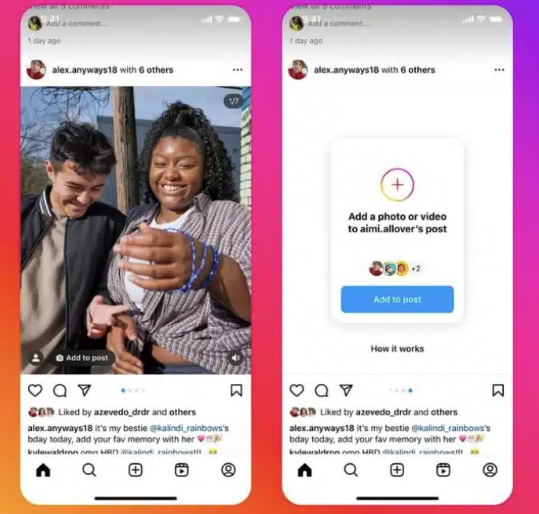
How to Invite a Collaborator on Instagram After Publication
Are you struggling to figure out how to invite a collaborator on Instagram after publishing a post? You’re not alone! Many users face this challenge, especially when they want to add someone as a co-author after the fact.
In this article, we’ll guide you through the process of inviting a collaborator on Instagram, both before and after publication. We’ll also explore alternative methods using native features like the tag functionality.
Why Invite a Collaborator on Instagram?
Inviting a collaborator on Instagram can be beneficial in several ways:
- Shared Responsibility: By adding someone as a co-author, you’re sharing the responsibility of managing the post’s comments and messages.
- Increased Engagement: Collaborators can help drive engagement by responding to comments and messages, which can lead to more interactions and a stronger online presence.
- Improved Content Quality: With multiple authors, you can tap into their expertise and ideas, resulting in higher-quality content.
How to Invite a Collaborator on Instagram Before Publication
Before publishing a post, you can invite collaborators using the “Invite Collaborators” feature. Here’s how:
- Open the Instagram app and access your profile.
- Tap on the “+” icon to create a new post.
- Select the “Collaborate with others” option.
- Choose the collaborators you want to add by searching for their usernames or selecting them from your friends list.
- Once you’ve added all desired collaborators, tap “Share” to publish the post.
How to Invite a Collaborator on Instagram After Publication
Unfortunately, if you forgot to invite collaborators before publishing a post, there’s no direct way to do so within the app. However, you can use the tag functionality as an alternative:
- Open the Instagram app and access your profile.
- Tap on the three dots (…) next to the post you want to edit.
- Select the “Edit” option.
- In the editing menu, tap on the “Tag people” option.
- Search for the collaborator’s username or select them from your friends list.
- Once they’ve been tagged, their profile will be linked to the post.
How to Invite a Collaborator Using The Tag Functionality
Using the tag functionality is a great way to invite collaborators after publication:
- Open the Instagram app and access your profile.
- Tap on the three dots (…) next to the post you want to edit.
- Select the “Edit” option.
- In the editing menu, tap on the “Tag people” option.
- Search for the collaborator’s username or select them from your friends list.
- Once they’ve been tagged, their profile will be linked to the post.
Tips And Tricks
Here are some additional tips and tricks to keep in mind when inviting collaborators on Instagram:
- Use The Tag Functionality Wisely: Remember that tagged users can see the post and interact with it. Be mindful of who you tag and why.
- Collaborate With Careful: When working with collaborators, make sure to communicate clearly about expectations, responsibilities, and content ownership.
Conclusion
Inviting a collaborator on Instagram can be a powerful way to enhance your online presence and drive engagement. By following the steps outlined in this article, you’ll be able to invite collaborators both before and after publication, using the native features of the app.
Remember to use caution when inviting collaborators, especially if you’re working with sensitive content or have specific requirements for collaboration.
Frequently Asked Questions
Here are some frequently asked questions related to inviting collaborators on Instagram:
- Q: Can I Remove a Collaborator After They’ve Been Added?
A: Yes, you can remove a collaborator by editing the post and selecting the “Remove” option next to their username. - Q: Will Collaborators Receive Notifications When Someone Comments on or Messages The Post?
A: Yes, collaborators will receive notifications when someone interacts with the post.
References
The information in this article is based on official Instagram documentation and guidelines. If you have any further questions or concerns, please refer to the Instagram Help Center for more detailed explanations.


