
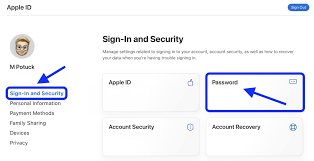
How to Modify ID Apple on Iphone And Ipad: A Step-by-step Guide
Are you tired of using an outdated ID Apple on your iPhone or iPad? Do you want to upgrade to a new email address or modify other personal details associated with your account? Look no further! In this article, we will guide you through the simple process of modifying your ID Apple on your iPhone and iPad.
Why Modify ID Apple?
Modifying your ID Apple is an essential step in maintaining your online security and privacy. By updating your email address, password, or other personal details, you can prevent unauthorized access to your account and ensure that your information remains confidential.
How to Modify Email ID Apple on Iphone And Ipad
To modify the email associated with your ID Apple on your iPhone or iPad, follow these steps:
- Open the Settings app on your device.
- Tap on your name at the top of the screen.
- Select “Access and Safety.”
- Choose “Modify” beside the section “Email and phone numbers.”
- Tap on the red circle icon next to your current ID Apple.
- Enter a new email address in the text field provided.
- Tap on “Continue” to confirm the changes.
How to Modify Password ID Apple on Iphone And Ipad
To modify the password associated with your ID Apple on your iPhone or iPad, follow these steps:
- Open the Settings app on your device.
- Tap on your name at the top of the screen.
- Select “Access and Safety.”
- Choose “Modify Password.”
- Enter your current password in the text field provided.
- Create a new password by following the guidelines (at least 8 characters, including numbers, letters, and special characters).
- Tap on “Modify” to apply the changes.
How to Modify Personal Information ID Apple on Iphone And Ipad
To modify personal information associated with your ID Apple on your iPhone or iPad, follow these steps:
- Open the Settings app on your device.
- Tap on your name at the top of the screen.
- Select “Informations Personali.”
- Choose the section you want to modify (Name, Date of Birth, or Preferences).
- Enter the new information in the text field provided.
How to Modify Payment Methods ID Apple on Iphone And Ipad
To modify payment methods associated with your ID Apple on your iPhone or iPad, follow these steps:
- Open the Settings app on your device.
- Tap on your name at the top of the screen.
- Select “Payment and shipping.”
- Choose “Add form of payment” to add a new payment method (Apple Pay, Card, PayPal, or Debit Phone).
- Enter the required information in the text field provided.
How to Modify ID Apple on Mac
Modifying your ID Apple on a Mac is similar to modifying it on an iPhone or iPad. To modify the password associated with your ID Apple on a Mac:
- Click on the Apple menu at the top left corner of the screen.
- Select “System Preferences.”
- Click on the “Apple ID” icon.
- Enter your current password in the text field provided.
- Create a new password by following the guidelines (at least 8 characters, including numbers, letters, and special characters).
- Tap on “Modify” to apply the changes.
How to Modify Personal Information ID Apple on Mac
To modify personal information associated with your ID Apple on a Mac:
- Click on the Apple menu at the top left corner of the screen.
- Select “System Preferences.”
- Click on the “Apple ID” icon.
- Choose the section you want to modify (Name, Date of Birth, or Preferences).
- Enter the new information in the text field provided.
How to Modify Payment Methods ID Apple on Mac
To modify payment methods associated with your ID Apple on a Mac:
- Click on the Apple menu at the top left corner of the screen.
- Select “System Preferences.”
- Click on the “Apple ID” icon.
- Choose “Payment and shipping.”
- Select “Modify” to apply the changes.
How to Modify ID Apple on Browser
To modify your ID Apple on a browser:
- Log in to your Apple account using your current ID Apple and password.
- Click on your name at the top right corner of the screen.
- Choose “Access and Safety.”
- Select “Modify” beside the section “Email and phone numbers.”
- Enter a new email address in the text field provided.
Conclusion
Modifying your ID Apple is an essential step in maintaining your online security and privacy. By following these simple steps, you can update your email address, password, or other personal details associated with your account. Remember to always keep your information confidential and up-to-date to ensure that your online experience remains secure and enjoyable.
Frequently Asked Questions
- Q: How do I Modify my ID Apple on Iphone And Ipad?
A: To modify your ID Apple on iPhone and iPad, follow the steps outlined in this article. - Q: Can I Modify my Email Address Associated With my ID Apple?
A: Yes, you can modify your email address associated with your ID Apple by following the steps outlined in this article. - Q: How do I Modify my Password Associated With my ID Apple?
A: To modify your password associated with your ID Apple, follow the steps outlined in this article. - Q: Can I Modify Personal Information Associated With my ID Apple?
A: Yes, you can modify personal information associated with your ID Apple by following the steps outlined in this article. - Q: How do I Modify Payment Methods Associated With my ID Apple?
A: To modify payment methods associated with your ID Apple, follow the steps outlined in this article. - Q: Can I Modify my ID Apple on Mac?
A: Yes, you can modify your ID Apple on a Mac by following the steps outlined in this article. - Q: How do I Modify Personal Information Associated With my ID Apple on Mac?
A: To modify personal information associated with your ID Apple on a Mac, follow the steps outlined in this article. - Q: Can I Modify Payment Methods Associated With my ID Apple on Mac?
A: Yes, you can modify payment methods associated with your ID Apple on a Mac by following the steps outlined in this article.


