
How to Augment The Luminosity of Your Pc: A Step-by-step Guide
Are you tired of struggling to see what’s on your computer screen? Do you find yourself squinting or adjusting the brightness of your monitor multiple times a day? If so, you’re not alone. Many people face this issue, especially when working long hours in front of their computers.
In this article, we’ll show you how to augment the luminosity of your PC, making it easier and more comfortable to use for extended periods. We’ll cover the best practices for Windows, macOS, and Linux operating systems, as well as provide tips on how to adjust the brightness of your monitor and keyboard.
Understanding Your Computer’s Display
Before we dive into the nitty-gritty of adjusting your PC’s luminosity, it’s essential to understand how your computer’s display works. Most modern computers have a Liquid Crystal Display (LCD) or Light Emitting Diode (LED) screen, which uses a backlight to illuminate the image.
The brightness of your monitor is controlled by the amount of light emitted from this backlight. If you’re having trouble seeing what’s on your screen, it may be due to:
- Insufficient Backlight: The light emitted from the backlight might not be strong enough to illuminate the image.
- Incorrect Display Settings: Your computer’s display settings might be set too low or too high, affecting the overall brightness.
Adjusting Luminosity on Windows
If you’re using a Windows PC, adjusting the luminosity is relatively straightforward. Here are the steps:
- Click on The Start Button: Located at the bottom left corner of your screen.
- Select Settings: Click on the gear icon to open the Settings app.
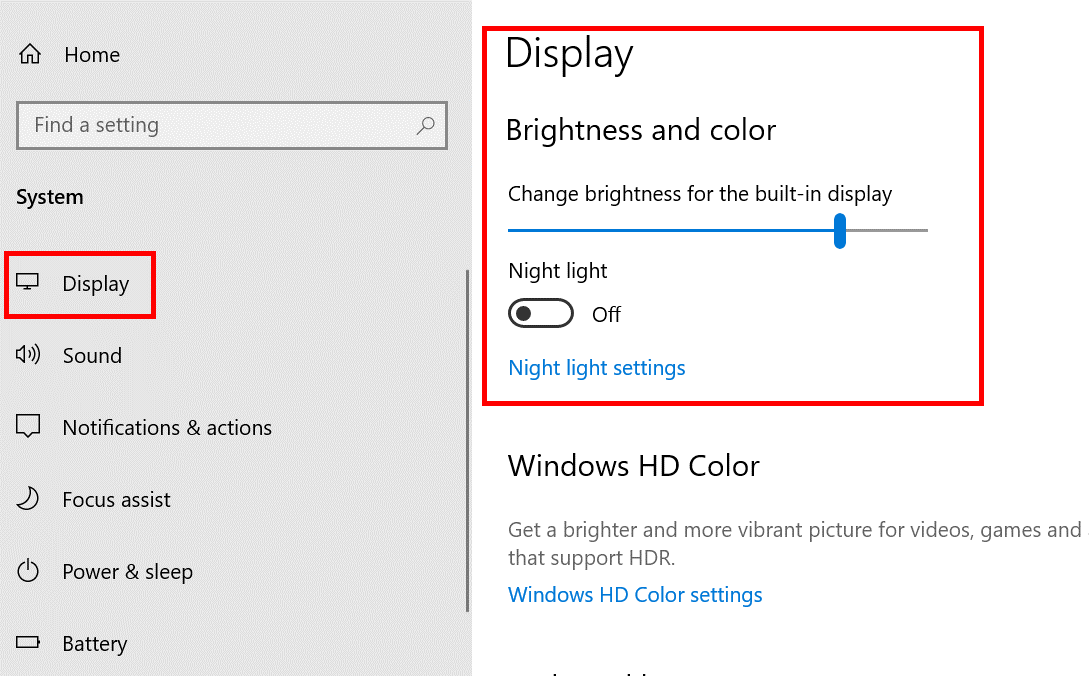
- Choose Display: In the Settings window, select the “Display” option.
- Adjust Brightness: Use the slider to adjust the brightness level to your liking.
Additional Tips For Windows
- Use The Keyboard Shortcuts: Pressing the “Fn” key and then pressing the “F2”, “F8”, or “F12” keys can help you adjust the brightness.
- Customize Your Display Settings: You can also customize your display settings by clicking on the “Advanced Display Settings” option in the Display menu.
Adjusting Luminosity on Macos
If you’re using a Mac, adjusting the luminosity is just as easy:
- Click on The Apple Menu: Located at the top left corner of your screen.
- Select System Preferences: Click on the gear icon to open the System Preferences app.
- Choose Displays: In the System Preferences window, select the “Displays” option.
- Adjust Brightness: Use the slider to adjust the brightness level to your liking.
Additional Tips For Macos
- Use The Keyboard Shortcuts: Pressing the “F2” key can help you adjust the brightness.
- Customize Your Display Settings: You can also customize your display settings by clicking on the “Display” tab in the Displays menu.
Adjusting Luminosity on Linux
If you’re using a Linux distribution, adjusting the luminosity might be slightly more complex:
- Open The Display Settings: Click on the “Settings” or “Preferences” icon to open the display settings.
- Choose Brightness: In the display settings window, look for the brightness slider and adjust it to your liking.
Tips For Adjusting Luminosity
Here are some additional tips to keep in mind when adjusting the luminosity of your PC:
- Be Gentle: Adjust the brightness gradually, as sudden changes can cause eye strain.
- Test Different Settings: Experiment with various brightness levels to find what works best for you.
- Consider a Monitor Upgrade: If you’re still struggling with visibility, it might be time to consider upgrading your monitor.
Conclusion
Adjusting the luminosity of your PC is an essential step in ensuring comfort and productivity while working or gaming on your computer. By following these simple steps, you can easily adjust the brightness level to suit your needs.
Whether you’re using Windows, macOS, or Linux, adjusting the luminosity is a straightforward process that will improve your overall computing experience.
Frequently Asked Questions
- Q: How do I Adjust The Luminosity of my Monitor?
A: The steps for adjusting luminosity vary depending on your operating system. For Windows, click on Start > Settings > Display > Brightness. For macOS, click on Apple Menu > System Preferences > Displays > Brightness. - Q: Can I Adjust The Luminosity Using Keyboard Shortcuts?
A: Yes, you can use keyboard shortcuts to adjust the brightness on both Windows and macOS systems. - Q: How Often Should I Adjust The Luminosity of my Monitor?
A: It’s a good idea to adjust the brightness level every hour or so, depending on your work environment. - Q: Can Adjusting The Luminosity Affect my Computer’s Performance?
A: Adjusting the luminosity will not impact your computer’s performance in any way. - Q: What if I’m Still Experiencing Eye Strain Despite Adjusting The Luminosity?
A: If you’re still struggling with eye strain, consider consulting an eye care professional or upgrading to a more comfortable monitor. - Q: Can I Adjust The Luminosity of my Keyboard?
A: Yes, you can adjust the luminosity of your keyboard by using the keyboard’s built-in brightness controls or adjusting the backlight setting in your operating system. - Q: How do I Know if my Computer is Producing Too Much Light?
A: If your eyes feel uncomfortable or you’re experiencing eye strain, it may be due to excessive light emission from your monitor. - Q: Can I Adjust The Luminosity of Multiple Monitors at Once?
A: Yes, on most operating systems, you can adjust the brightness level for multiple monitors simultaneously.
We hope this article has provided you with a clear understanding of how to adjust the luminosity of your PC and offered some useful tips along the way!


