
Create a Video With Photo And Music Free: A Comprehensive Guide
Are you looking for ways to create engaging videos without breaking the bank? Look no further! In this article, we’ll explore the best methods to make a video with photo and music free, using various software and online tools.
Why Create Videos With Photos And Music?
Before we dive into the how-to’s, let’s quickly discuss why creating videos with photos and music is such a great idea. With the rise of social media, videos have become an essential part of online content marketing. They help to:
- Engage audiences
- Tell stories
- Showcase products or services
- Establish brand identity
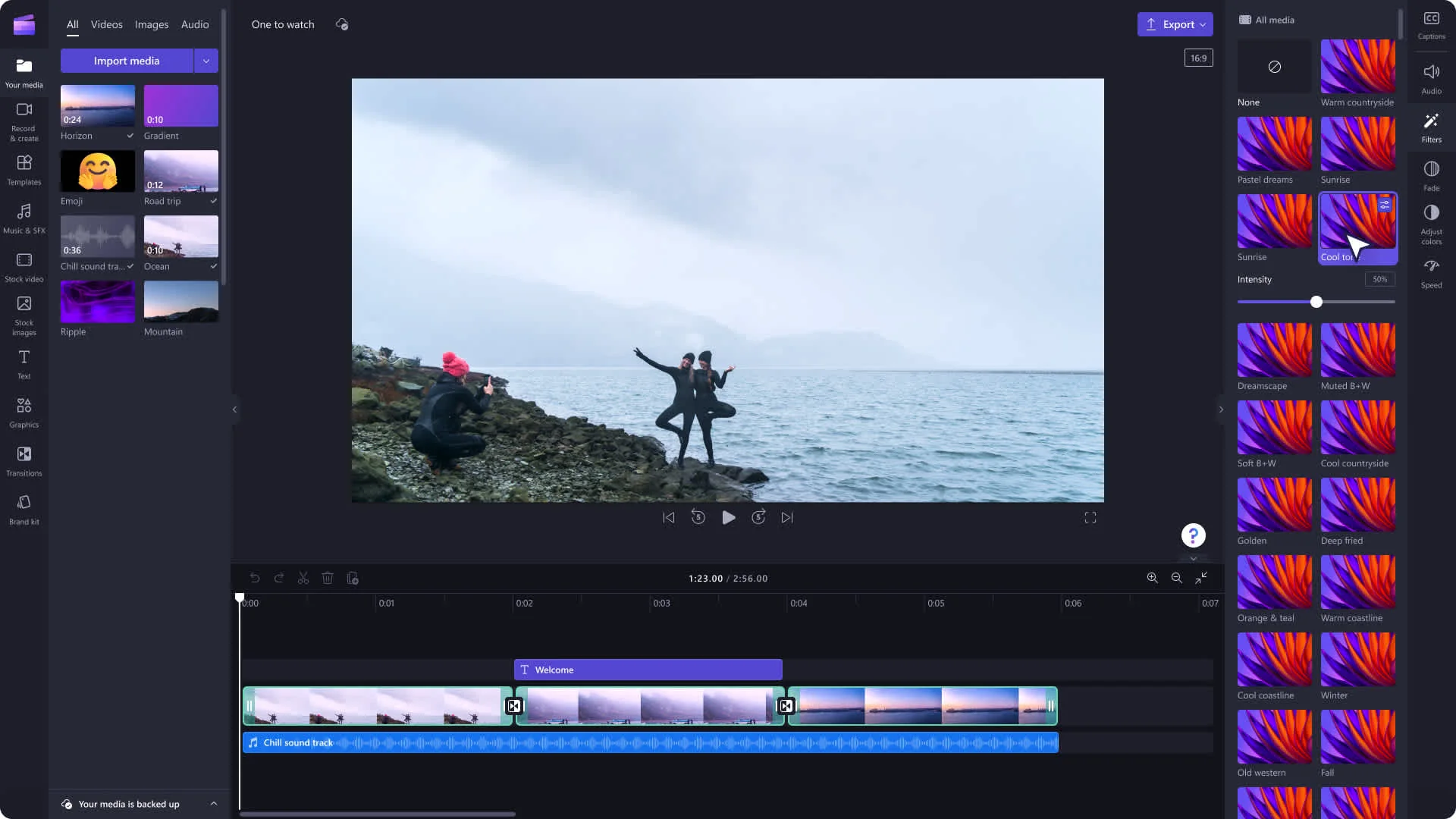
Method 1: Using Microsoft Clipchamp (Windows)
If you’re using a Windows device, Microsoft Clipchamp is an excellent choice for creating videos with photos and music free. This user-friendly software offers a range of features, including:
- A library of pre-made templates and effects
- Support for various file formats
- Integration with other Microsoft tools
To get started, follow these steps:
- Download and install Microsoft Clipchamp from the Windows Store.
- Launch the app and sign in with your Microsoft account.
- Select a template or create a new project from scratch.
- Add photos and music to your video by dragging and dropping them into the timeline.
- Use the editor’s intuitive interface to customize your video, including adjusting speed, transitions, and volume.
Method 2: Using Photo (macOS)
If you’re using a macOS device, Photo is an excellent choice for creating videos with photos and music free. This built-in app offers:
- A simple and intuitive interface
- Support for various file formats
- Integration with other Apple tools
To get started, follow these steps:
- Open the Photo app on your Mac.
- Select a photo or create a new project from scratch.
- Click on the “Rows” tab and select “Presentation.”
- Choose a template or add your own photos to the video.
- Use the editor’s intuitive interface to customize your video, including adding music and effects.
Method 3: Using Online Tools (e.G., Canva)
If you prefer not to download software or want a more flexible option, online tools like Canva are an excellent choice for creating videos with photos and music free. This web-based platform offers:
- A user-friendly interface
- Support for various file formats
- Integration with social media platforms
To get started, follow these steps:
- Sign in to your Canva account or create a new one.
- Select the “Create Your Video” option.
- Choose a template or add your own photos and music to the video.
- Use the editor’s intuitive interface to customize your video, including adjusting speed, transitions, and volume.
Method 4: Using Mobile Apps (e.G., Splice)
If you prefer to create videos on-the-go, mobile apps like Splice are an excellent choice for creating videos with photos and music free. This app offers:
- A user-friendly interface
- Support for various file formats
- Integration with social media platforms
To get started, follow these steps:
- Download and install the Splice app from the App Store (iOS) or Google Play Store (Android).
- Launch the app and sign in with your account.
- Select a template or create a new project from scratch.
- Add photos and music to your video by dragging and dropping them into the timeline.
- Use the editor’s intuitive interface to customize your video, including adjusting speed, transitions, and volume.
Conclusion
Creating videos with photos and music free is easier than ever, thanks to the various software and online tools available. Whether you’re using Microsoft Clipchamp, Photo, Canva, or Splice, these methods will help you create engaging videos that showcase your brand’s identity. Don’t forget to experiment with different templates, effects, and features to make your video truly stand out.
Frequently Asked Questions
- What Software Can I Use to Create Videos With Photos And Music Free?
- Microsoft Clipchamp (Windows), Photo (macOS), Canva (online), Splice (mobile apps)
- How do I Add Music to my Video?
- Use the editor’s intuitive interface to drag and drop music files into your timeline.
- Can I Export my Video in Various Resolutions?
- Yes, most software and online tools allow you to export videos in different resolutions.
- How Can I Share my Video on Social Media?
- Most software and online tools offer integration with popular social media platforms.
- What if I Want to Add More Advanced Features to my Video?
- Consider upgrading to a paid version or using a dedicated video editing software like Adobe Premiere Pro or Final Cut Pro X.
- Can I Create Videos With Photos And Music Free on my Mobile Device?
- Yes, Splice and other mobile apps allow you to create videos on-the-go.
- How do I Customize The Look of my Video?
- Use the editor’s intuitive interface to adjust speed, transitions, and volume, as well as add effects and templates.
- Can I Use Royalty-free Music in my Video?
- Yes, most software and online tools offer access to royalty-free music libraries.


