
How to Set Up Alarms on Your Devices: A Comprehensive Guide
Are you tired of missing important appointments or reminders because your alarm didn’t go off? Do you struggle with setting up alarms on your devices? Look no further! In this article, we’ll show you how to set up alarms on various devices, including smartphones, tablets, computers, and smartwatches.
Why Set Up Alarms?
Setting up alarms is an essential feature that can help you stay organized and punctual. Whether it’s a reminder for an important meeting or a wake-up call for a busy day ahead, having an alarm system in place can make all the difference.
Setting Up Alarms on Smartphones (Android And Ios)
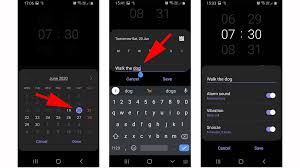
If you have a smartphone, setting up an alarm is a straightforward process. Here are the steps:
- On Android devices:
- Open the Google Clock app.
- Tap on the “+” icon to create a new alarm.
- Set the time and duration of the alarm.
- Choose from various alarm sounds or use your own custom sound.
- Set up any additional features, such as repeating alarms or snooze settings.
- On iOS devices (iPhone and iPad):
- Open the Clock app.
- Tap on the “+” icon to create a new alarm.
- Set the time and duration of the alarm.
- Choose from various alarm sounds or use your own custom sound.
- Set up any additional features, such as repeating alarms or snooze settings.
Setting Up Alarms on Computers (Windows And Mac)
If you’re using a computer, setting up an alarm is also relatively easy:
- On Windows devices:
- Open the Clock app (for Windows 11) or Alarm and clock (for Windows 10).
- Tap on the “+” icon to create a new alarm.
- Set the time and duration of the alarm.
- Choose from various alarm sounds or use your own custom sound.
- Set up any additional features, such as repeating alarms or snooze settings.
- On Mac devices:
- Open the Calendar app.
- Create a new event with an alarm set to remind you at the desired time.
- Choose from various alarm sounds or use your own custom sound.
Setting Up Alarms on Apple Watch
If you’re using an Apple Watch, setting up an alarm is also relatively easy:
- Tap on the Alarm app.
- Tap on the “+” icon to create a new alarm.
- Set the time and duration of the alarm.
- Choose from various alarm sounds or use your own custom sound.
Setting Up Alarms With Alexa
If you have an Amazon device with Alexa integration, setting up an alarm is also easy:
- Say “Alexa, set an alarm for [time]” to create a one-time alarm.
- Say “Alexa, set an alarm for [time] every day” or “Alexa, set an alarm for [time] each [day of the week]” to create a recurring alarm.
- Say “Alexa, set an alarm for [time] on [music genre or song]” to play music at the desired time.
Common Features And Tips
While setting up alarms on different devices has its variations, there are some common features and tips to keep in mind:
- Repeating Alarms: Many devices allow you to set repeating alarms, which can be useful for regular reminders.
- Custom Sounds: You can often choose from a variety of alarm sounds or use your own custom sound.
- Snooze Settings: Some devices allow you to set snooze settings, so you can temporarily silence the alarm and wake up later.
- Additional Features: Depending on the device, you may be able to set additional features, such as reminders or calendar events.
Conclusion
Setting up alarms on your devices is an essential feature that can help you stay organized and punctual. By following these steps and tips, you can ensure that you never miss an important appointment or reminder again.
Frequently Asked Questions (FAQs)
- Q: How do I Set up an Alarm on my Android Device?
A: Open the Google Clock app, tap on the “+” icon to create a new alarm, and set the time and duration. - Q: Can I Set up Multiple Alarms on One Device?
A: Yes, you can often set up multiple alarms on one device, depending on the specific features of your device. - Q: How do I Customize my Alarm Sound?
A: You can often choose from a variety of pre-set alarm sounds or use your own custom sound. - Q: Can I Schedule an Alarm For a Specific Day And Time?
A: Yes, you can usually set up alarms to recur on specific days and at specific times. - Q: How do I Cancel or Delete an Alarm?
A: Depending on the device, you may be able to cancel or delete an alarm by going into the settings menu or deleting it from a list of previously set alarms. - Q: Can I Use my Smartwatch to Wake me Up?
A: Yes, many smartwatches allow you to set up alarms and wake-up notifications. - Q: How do I Reset my Alarm Settings After a Power Outage?
A: This may vary depending on the device, but in general, you can often reset your alarm settings by going into the clock app or settings menu. - Q: Can I Integrate Multiple Devices to Set up a Single Alarm?
A: Yes, some devices allow you to integrate with other devices, such as smartwatches or speakers, to create a unified alarm system.


