
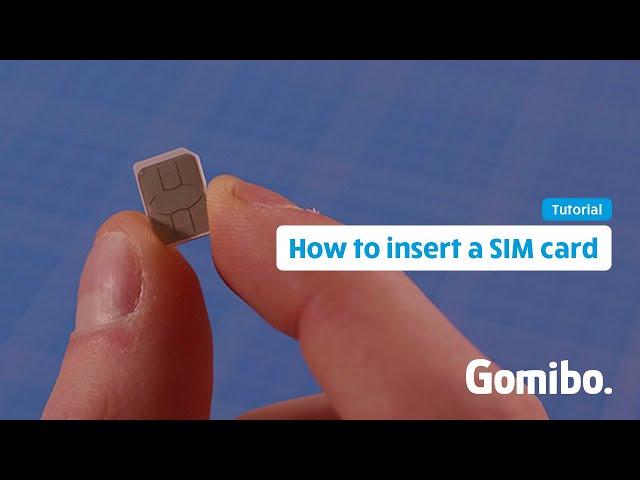
How to Insert a Sim Card in Your Samsung Tablet
As soon as you bought a tablet from Samsung with cellular support, you’re probably eager to get started and contact your loved ones, but being an newbie user can be daunting, especially when it comes to inserting the SIM card. Don’t worry; I’m here to guide you through this process step-by-step.
Precautions Before Inserting The Sim Card
Before we dive into the instructions, let’s take a look at some essential information first. Make sure you have the correct type of SIM card for your tablet by checking the package or manual provided with the device. In most cases, Samsung tablets use either Micro-SIM (3FF) or Nano-SIM (4FF), but some models may require Mini-SIM (2FF). If your SIM card doesn’t match the required format, you can contact your mobile operator to swap it.
Types of Sim Cards And Adapters
To ensure compatibility, it’s essential to know that the formats of SIM cards most commonly used with Samsung tablets are:
- Micro-SIM (3FF) – 15mm x 12mm x 0.76Mm
- Nano-SIM (4FF) – 12.3Mm x 8.8Mm x 0.67Mm
If you need a different format, consider using adapters or consulting your mobile operator for assistance.
How to Insert The Sim Card
Now that we’ve covered the basics, let’s move on to the actual process of inserting the SIM card:
- Turn Off Your Tablet: Ensure it’s powered down completely before proceeding.
- Locate The Sim Card Slot: Find the dedicated spot for the SIM card on the right side of your tablet (when viewed in vertical orientation).
- Remove The Tray: Use a paper clip or SIM ejector tool to pull out the tray, taking care not to damage it.
- Insert The Sim Card: Place the SIM card into the designated area with the gold contacts facing downwards, ensuring they’re aligned properly.
- Replace The Tray: Put the tray back in its original position and gently push it until you feel a click.
- Turn on Your Tablet: Press and hold the power button for a few seconds to turn on your device.
Additional Tips
If you encounter any issues or have further questions, refer to the official Samsung community forum or contact their customer support service directly.
Conclusion
With this guide, you should now be able to insert your SIM card with confidence. Don’t hesitate to reach out if you need additional help or clarification on any step of the process.
Frequently Asked Questions (FAQs)
Q: What type of SIM card do I need for my Samsung tablet?
A: Check the packaging or manual provided with your device, or consult your mobile operator for assistance.
Q: How do I insert a Nano-SIM into my Galaxy Tab View?
A: Follow the same steps as above, but note that the insertion process is slightly different due to the smaller size of the Nano-SIM card.
Q: Can I use an adapter to convert my SIM card format?
A: Yes, consider using adapters if your SIM card doesn’t match the required format for your tablet. However, be aware that this may compromise the integrity of the card.
Q: What if I encounter issues during the insertion process?
A: Refer to the official Samsung community forum or contact their customer support service directly for assistance.
Q: How do I check which type of SIM card my Samsung tablet uses?
A: Check the packaging or manual provided with your device, or consult your mobile operator for guidance.
Q: Can I use a Mini-SIM (2FF) in my Galaxy Tab S, Tab To, or other models?
A: Some Samsung tablets may require a Mini-SIM (2FF), but others might not. Consult your device’s documentation or contact your mobile operator to confirm compatibility.
Q: What if I lose or damage the SIM card tray?
A: Contact your mobile operator for assistance in obtaining a replacement tray or for guidance on how to proceed.
Q: How do I activate my cellular connection after inserting the SIM card?
A: Turn on your tablet, and follow the prompts to complete the activation process.


