
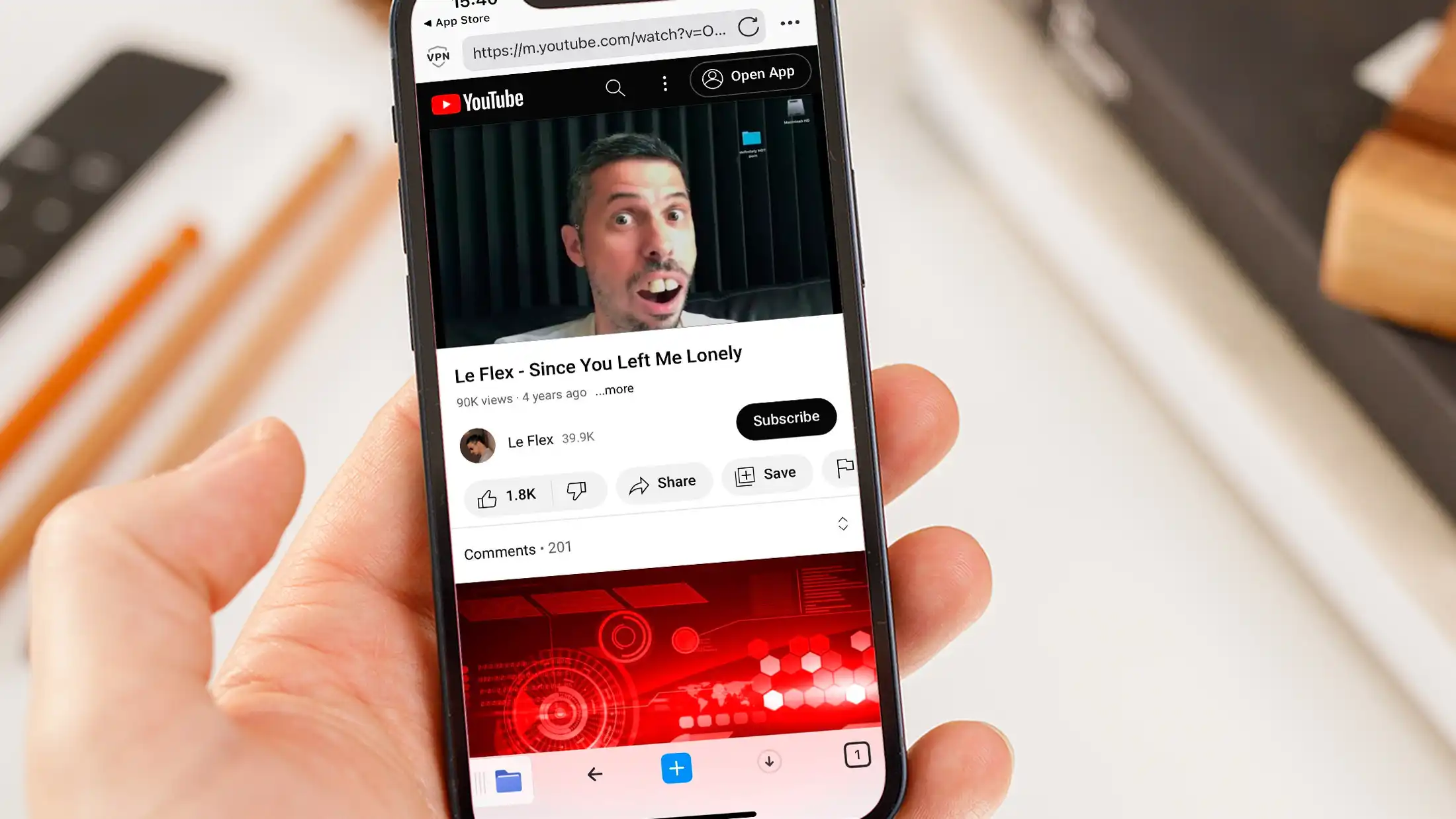
How to Save Youtube Videos on Your PC
Are you tired of watching YouTube videos only online? Do you want to save your favorite videos on your computer for offline viewing? Look no further! In this article, we will guide you through the process of saving YouTube videos on your PC using various methods.
Why Can’t I Download Youtube Videos Directly?
YouTube has a policy against direct downloading of its videos. This is because they want to ensure that users are not sharing copyrighted content without permission. However, there are some workarounds that can help you save YouTube videos on your computer.
Method 1: Using Youtube Premium
The first method to save YouTube videos on your PC is by using the YouTube Premium service. This paid subscription allows you to download videos for offline viewing on your computer or mobile device. To use this method, follow these steps:
- Sign up for a YouTube Premium account (free trial available)
- Open the YouTube app on your computer
- Find the video you want to save and click on it
- Click on the “Download” button below the video player
- Select the quality of the download
Method 2: Using Youtube-dl
Another method to save YouTube videos on your PC is by using a third-party software called youtube-dl. This free and open-source tool allows you to download YouTube videos in various formats, including MP4, FLV, and more.
- Download the youtube-dl software from its official website
- Install the software on your computer (follow the installation instructions)
- Open a command prompt or terminal window
- Type
youtube-dland press Enter to start the download process
Method 3: Using Notube
NoTube is another online service that allows you to save YouTube videos on your PC. This method is simple and easy to use.
- Open the noTube website in a web browser
- Copy and paste the video URL into the input field
- Select the format of the download (e.G., MP4, FLV)
- Click on the “Download” button
Method 4: Using Savefrom
SaveFrom is another online service that allows you to save YouTube videos on your PC. This method is also easy and straightforward.
- Open the SaveFrom website in a web browser
- Copy and paste the video URL into the input field
- Select the format of the download (e.G., MP4, FLV)
- Click on the “Download” button
Saving Youtube Videos on Android Devices
If you’re using an Android device, you can save YouTube videos using the following methods:
- Youtube Premium: This method is similar to the one described above for PC users.
- Newpipe: NewPipe is a third-party app that allows you to save YouTube videos for offline viewing. You can install it from the Google Play Store or by downloading an APK file directly.
Saving Youtube Videos on Ios Devices
If you’re using an iOS device, you can save YouTube videos using the following methods:
- Youtube Premium: This method is similar to the one described above for PC users.
- Shortcuts: Shortcuts is a feature in iOS that allows you to create custom shortcuts. You can use this feature to download YouTube videos by creating a shortcut with the “Save video” action.
Tips And Tricks
Here are some additional tips and tricks to help you save YouTube videos:
- Quality of The Download: When saving YouTube videos, make sure to select the correct quality of the download (e.G., 1080P, 4K).
- Format of The Download: Choose the format that suits your needs (e.G., MP4, FLV, AVI).
- Resolution of The Download: If you want a higher resolution video, make sure to select it during the download process.
Conclusion
Saving YouTube videos on your PC or mobile device is possible using various methods. Whether you choose to use YouTube Premium, youtube-dl, noTube, SaveFrom, NewPipe, or Shortcuts, you can enjoy watching your favorite videos offline. Just remember to follow the tips and tricks outlined above to ensure that you get the best quality download.
Faqs
Here are some frequently asked questions (FAQs) related to saving YouTube videos:
- Q: Why Can’t I Download Youtube Videos Directly?
A: YouTube has a policy against direct downloading of its videos to prevent copyright infringement. - Q: Which Method is The Best For Saving Youtube Videos?
A: The best method depends on your specific needs and preferences. - Q: How do I Save Youtube Videos in High Quality?
A: Choose the correct quality of the download (e.G., 1080P, 4K) when using methods like youtube-dl or SaveFrom.
Disclaimer
The methods described above are for educational purposes only and may be subject to change. Always follow applicable laws and regulations regarding copyright infringement and intellectual property rights.


