
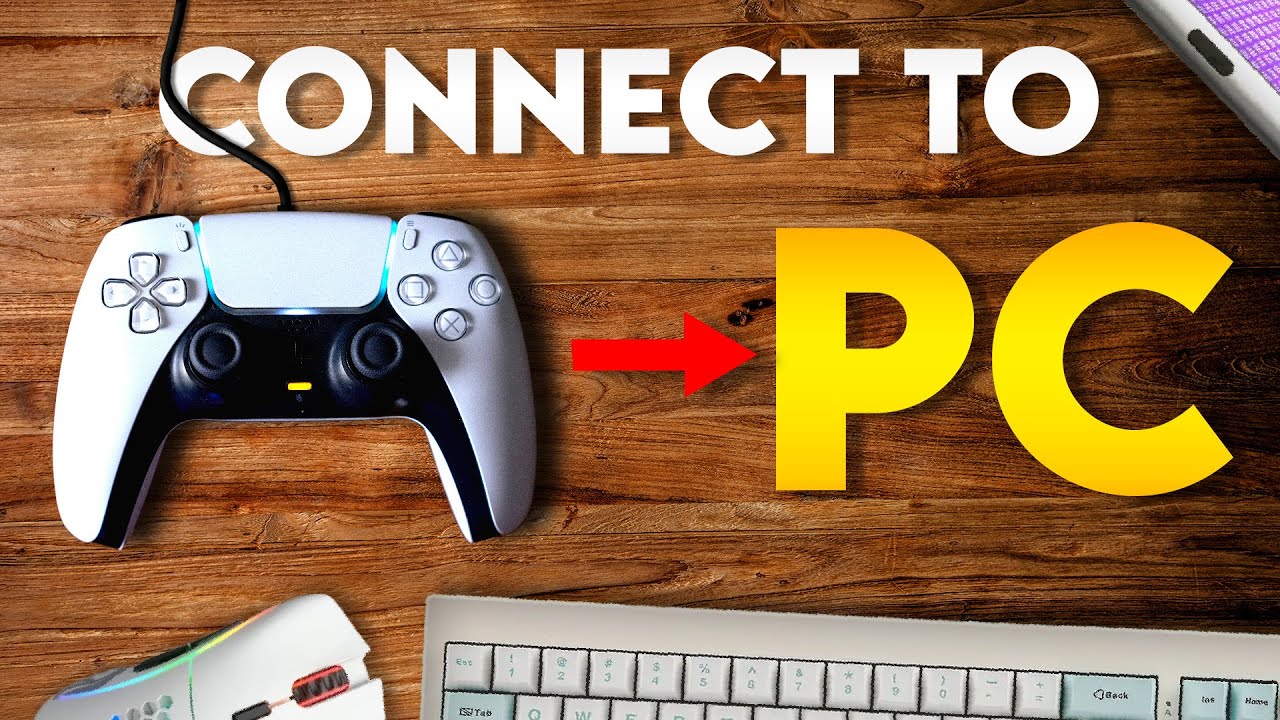
How to Connect Your Ps5 to a Pc: A Step-by-step Guide
Are you ready to take your gaming experience to the next level by connecting your PS5 to a PC? Look no further! In this article, we’ll guide you through the process of linking your console to a computer, exploring various methods and solutions to ensure a seamless experience.
Why Connect Your Ps5 to a Pc?
Before we dive into the nitty-gritty details, let’s discuss why connecting your PS5 to a PC is a great idea. By doing so, you can:
- Stream games from your console to your computer
- Access a wider range of games through PlayStation Now
- Enhance your gaming experience with improved graphics and sound quality
Method 1: Using Remote Play
The first method we’ll explore is using Remote Play, a feature provided by Sony that allows you to stream your PS5 gameplay to your PC. This solution is the most straightforward and doesn’t require any additional hardware.
To connect your PS5 to a PC using Remote Play:
- Ensure your PS5 is connected to the internet.
- Download and install the Remote Play app on your PC.
- Launch the app and sign in with your PlayStation Network account.
- On your PS5, go to Settings > System > Remote Procreation, and select “Qualify Remote Procreation.”
- On your PC, launch the Remote Play app and connect to your PS5.
Method 2: Using a Capture Card
If you prefer a more traditional method or need higher video quality, using a capture card is an excellent option. A capture card connects directly to your PS5 and allows you to stream gameplay to your PC.
To connect your PS5 to a PC using a capture card:
- Purchase a suitable capture card (e.G., Elgato HD60X or AVerMedia).
- Connect the capture card to your PS5’s HDMI output.
- Connect the other end of the capture card to an available port on your PC (HDMI, USB, etc.).
- Install and launch the necessary software for your capture card.
- Configure the settings to match your desired resolution and quality.
Method 3: Using a Playstation Plus Subscription
If you’re already a subscriber to PlayStation Plus, you can use this service to stream games from your PS5 to your PC. This method requires a stable internet connection and a compatible device.
To connect your PS5 to a PC using PlayStation Plus:
- Ensure your PS5 is connected to the internet.
- Download and install the PlayStation Plus app on your PC.
- Sign in with your PlayStation Network account.
- Access the available games for streaming, downloading, or online gaming.
Method 4: Using a Usb-c Cable And Hdmi Switch
For those with a more complex setup or needing to connect multiple devices, using a USB-C cable and an HDMI switch is an option. This method requires additional hardware but provides flexibility and convenience.
To connect your PS5 to a PC using a USB-C cable and HDMI switch:
- Purchase a suitable USB-C cable (e.G., 3M certified cable) and HDMI switch.
- Connect the USB-C cable from your PS5’s controller to the switch.
- Connect the other end of the USB-C cable to your PC’s available port.
- Use the HDMI switch to select the input source from your PS5.
Conclusion
In conclusion, connecting your PS5 to a PC is an exciting way to enhance your gaming experience. By exploring various methods and solutions, you can choose the best option for your needs. Whether you prefer Remote Play, a capture card, PlayStation Plus, or a USB-C cable and HDMI switch, we’ve got you covered.
Frequently Asked Questions
- Q: What are the system requirements for streaming games from my PS5 to my PC?
A: A stable internet connection (at least 5 Mbps) and a compatible device are necessary. - Q: Can I use a capture card with any type of PS5 game?
A: Yes, but ensure the game is optimized for streaming. - Q: Do I need a separate subscription to stream games from my PS5 to my PC?
A: No, if you have PlayStation Plus, you can use this service to stream games. - Q: Can I connect multiple devices using a USB-C cable and HDMI switch?
A: Yes, but ensure the switch supports the required resolution and quality.
Additional Tips
- Ensure your PS5 is running on the latest firmware for optimal performance.
- Use high-quality cables and adapters to prevent signal degradation.
- Experiment with different settings and resolutions to find the best compromise between quality and performance.


