
Organizing Your Smartphone’s Apps: A Step-by-step Guide
Are you tired of looking at a cluttered home screen on your Android or iOS device? Do you wish there was an easier way to organize your apps? Look no further! In this article, we’ll guide you through the process of organizing your smartphone’s apps, providing step-by-step instructions for both Android and iOS devices.
Why Organize Your Apps?
Organizing your apps can have several benefits. Firstly, it makes your home screen look more organized and visually appealing. Secondly, it allows you to quickly access the apps you use most frequently. Lastly, organizing your apps can also help improve your productivity by giving you a clear idea of what’s installed on your device.
Organizing Apps on Android
If you’re using an Android device, follow these steps to organize your apps:
- Access Your Home Screen: Start by accessing your home screen. You can do this by unlocking your device and tapping on the home button.
- Select The App You Want to Move: Choose the app you want to move by tapping on its icon.
- Drag And Drop: Hold down on the app’s icon with one finger, then use another finger to drag it to the desired location on the screen. Release your finger to drop the app in place.
- Repeat For Other Apps: Repeat steps 2-3 for each app you want to move.
Tips For Organizing Apps on Android
- You can also organize apps by dragging them into folders or categories.
- To create a new folder, tap and hold on an empty space on the home screen until it becomes drag-and-drop enabled. Then, drag an icon of an app onto this empty space.
- To delete an app from a folder, long press on the folder’s icon until it starts to “dance,” then drag it out of the folder.
Organizing Apps on Ios
If you’re using an iOS device, follow these steps to organize your apps:
- Access Your Home Screen: Start by accessing your home screen.
- Tap And Hold: Tap and hold on an app’s icon until the icons start to “jiggle.”
- Drag And Drop: Use another finger to drag the app to its new location on the screen. Release your finger to drop the app in place.
- Repeat For Other Apps: Repeat steps 2-3 for each app you want to move.
Tips For Organizing Apps on Ios
- If you’re using an iPhone updated to iOS 11 or later, you can move multiple apps at once by tapping and holding on one app’s icon, then using another finger to tap on other icons.
- To delete an app from the Dock, long press on the app’s icon until it starts to “dance,” then drag it out of the Dock.
- To create a new folder, tap and hold on an empty space on the home screen until the icons start to “jiggle.” Then, drag an icon of an app onto this empty space.
Organizing Apps on Ipad
If you’re using an iPad, follow these steps to organize your apps:
- Access Your Home Screen: Start by accessing your home screen.
- Tap And Hold: Tap and hold on an app’s icon until the icons start to “jiggle.”
- Drag And Drop: Use another finger to drag the app to its new location on the screen. Release your finger to drop the app in place.
- Repeat For Other Apps: Repeat steps 2-3 for each app you want to move.
Tips For Organizing Apps on Ipad
- To disable or enable the display of suggested apps and recent apps on the Dock, go to Settings > Home Screen & Dock.
- If you’re using an iPad updated to iOS 13 or later, you can choose to organize your apps by category or alphabetical order.
Organizing Apps on Apple Watch
If you’re using an Apple Watch, follow these steps to organize your apps:
- Access Your Home Screen: Start by accessing your home screen.
- Tap And Hold: Tap and hold on an app’s icon until the icons start to “dance.”
- Drag And Drop: Use another finger to drag the app to its new location on the screen. Release your finger to drop the app in place.
Tips For Organizing Apps on Apple Watch
- To organize your apps by category or alphabetical order, go to Settings > Dock.
- If you’re using an Apple Watch updated to watchOS 6 or later, you can also choose to display only the most recently used apps on the Dock.
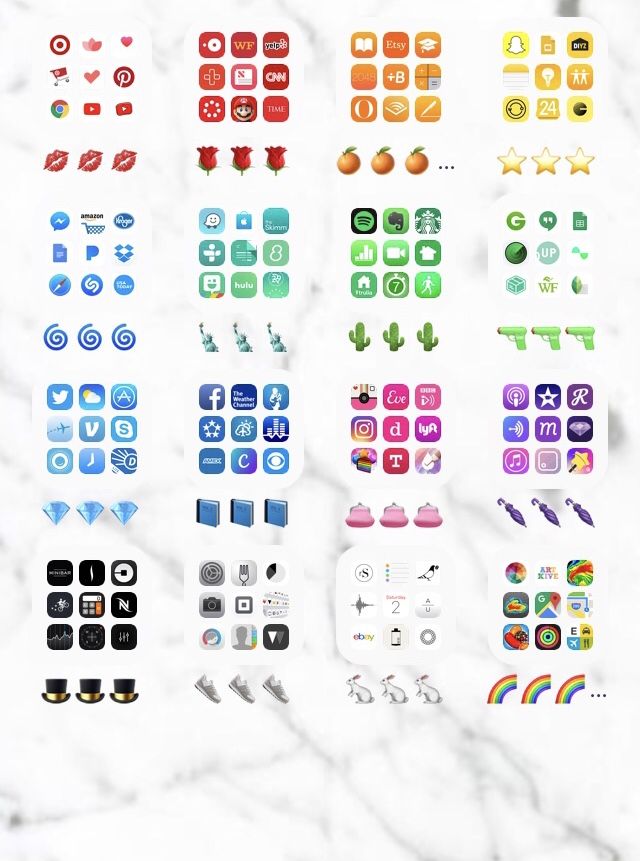
Organizing Apps in Tumblr Mode
If you’re using a device and want to organize your apps in Tumblr mode, follow these steps:
- Access Your Home Screen: Start by accessing your home screen.
- Tap And Hold: Tap and hold on an app’s icon until the icons start to “dance.”
- Drag And Drop: Use another finger to drag the app to its new location on the screen. Release your finger to drop the app in place.
Tips For Organizing Apps in Tumblr Mode
- To organize your apps by category, color, or action, go to Settings > Home Screen & Dock.
- If you’re using a device updated to iOS 14 or later, you can also choose to display only the most recent apps on the home screen.
Conclusion
Organizing your smartphone’s apps is a straightforward process that can be done in just a few steps. By following the instructions provided in this article, you can easily arrange your apps into folders, categories, or alphabetical order. Whether you’re using an Android device or an iOS device, we hope this guide has been helpful in getting your home screen looking more organized and visually appealing.
Frequently Asked Questions
Q: How do I organize my apps on my iPad?
A: To organize your apps on your iPad, follow the same steps as for Android devices. Access your home screen, tap and hold on an app’s icon until it starts to “jiggle,” then drag and drop the app to its new location.
Q: Can I delete a folder created in my home screen?
A: Yes, you can delete a folder by dragging all the icons out of the folder. The folder will automatically disappear.
Q: How do I create a new folder on my Android device?
A: To create a new folder, tap and hold on an empty space on your home screen until it becomes drag-and-drop enabled. Then, drag an icon of an app onto this empty space.
Q: Can I move multiple apps at once on my iOS device?
A: Yes, you can move multiple apps at once by tapping and holding on one app’s icon, then using another finger to tap on other icons.
Q: How do I delete a folder created in the Bookshelf app?
A: To delete a folder in the Bookshelf app, go to Settings > Home Screen & Dock, then toggle off the switch next to “Display apps suggested and recent.”
Q: Can I organize my apps by category or alphabetical order on my Apple Watch?
A: Yes, you can choose to organize your apps by category or alphabetical order on your Apple Watch. Go to Settings > Dock to make this selection.
Q: How do I move an app from the home screen to the Bookshelf app?
A: To move an app from the home screen to the Bookshelf app, go to the Home screen, tap and hold on the app’s icon until it starts to “dance,” then select the option “Move to App Library.”
Q: Can I customize the layout of my home screen on my Android device?
A: Yes, you can customize the layout of your home screen by tapping and holding on an empty space until it becomes drag-and-drop enabled. Then, drag an icon of an app onto this empty space.
Note: The steps provided in this article are based on the latest version of each operating system at the time of writing.


