
How to Save Google Maps Route: A Step-by-step Guide
Are you tired of searching for a specific route on Google Maps every time you need it? Do you want to save your favorite routes for future reference? Look no further! In this article, we will guide you through the process of saving Google Maps routes on various devices.
Why Save Google Maps Route?
Saving Google Maps route can be extremely useful in several situations. For instance, if you have a long commute or frequently travel to a specific location, saving the route can save you time and effort every day. Additionally, saving a route can also help you plan your itinerary more effectively, especially when traveling with family or friends.
Saving Google Maps Route on Smartphone And Tablet
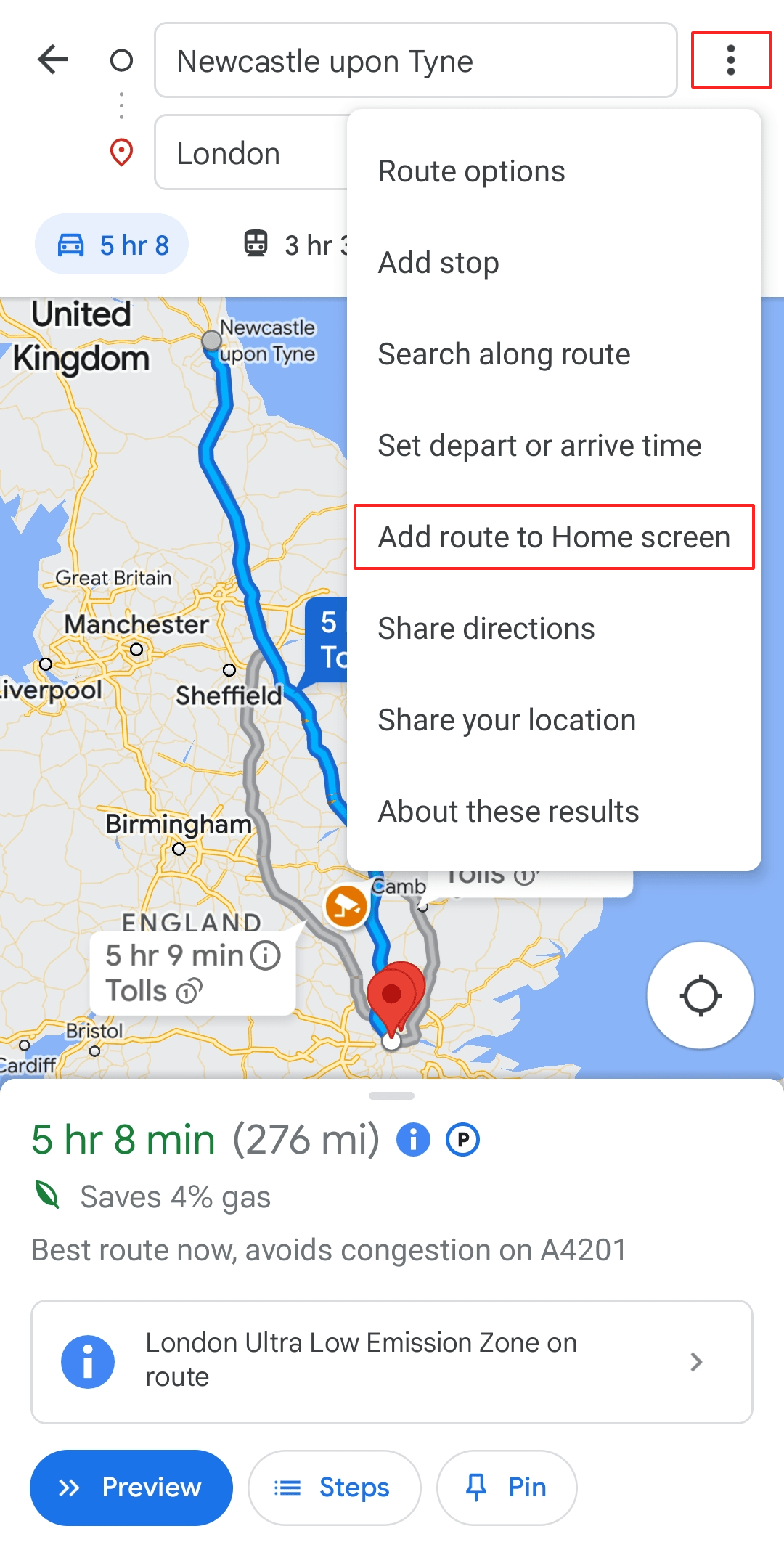
To save a route on Google Maps using your smartphone or tablet, follow these simple steps:
- Open the Google Maps app on your device.
- Search for your destination in the search bar.
- Select the desired route from the options provided.
- Tap on the “Save” button to save the route.
How to Save Google Maps Route Offline
Saving a Google Maps route offline can be particularly useful when traveling to areas with limited internet connectivity. To save a map offline, follow these steps:
- Open the Google Maps app on your device.
- Search for the area you want to save offline.
- Tap on the “Save” button to save the map.
- Choose the area size and tap on the “Download” button.
Saving Google Maps Route in Gpx Format
To save a Google Maps route in GPX format, which can be used with GPS devices like TomTom, follow these steps:
- Install the GMaps2GPX extension in your browser.
- Open the Google Maps website and search for your destination.
- Tap on the “Indications” button to generate a route.
- Tap on the “GPX” button to download the GPX file.
Saving Google Maps Route on PC
Unfortunately, saving a Google Maps route directly on PC is not possible at this time. However, you can save individual locations or use alternative methods like exporting routes from Google My Maps.
Conclusion
Saving Google Maps routes can be a game-changer for frequent travelers and commuters. By following the simple steps outlined in this article, you can save your favorite routes for future reference and make navigation easier than ever. Whether you’re saving a route on your smartphone, tablet, or PC, the process is relatively straightforward.
Frequently Asked Questions
- How do I Save a Google Maps Route?
To save a Google Maps route, open the app, search for your destination, select the desired route, and tap on the “Save” button. - Can I Save a Google Maps Route Offline?
Yes, you can save a Google Maps map offline by searching for the area, tapping on the “Save” button, choosing the area size, and downloading the map. - How do I Save a Google Maps Route in Gpx Format?
To save a Google Maps route in GPX format, install the GMaps2GPX extension, open Google Maps, search for your destination, generate a route, and tap on the “GPX” button to download the file. - Can I Save a Google Maps Route on Pc?
Unfortunately, saving a Google Maps route directly on PC is not possible at this time. However, you can save individual locations or use alternative methods like exporting routes from Google My Maps. - How do I Access my Saved Google Maps Routes?
To access your saved Google Maps routes, open the app, tap on the “Saved” button, and select the route you want to view. - Can I Edit a Saved Google Maps Route?
Yes, you can edit a saved Google Maps route by opening the app, tapping on the “Saved” button, selecting the route, and editing it as needed. - How do I Delete a Saved Google Maps Route?
To delete a saved Google Maps route, open the app, tap on the “Saved” button, select the route you want to delete, and confirm deletion. - Can I Share a Saved Google Maps Route With Others?
Yes, you can share a saved Google Maps route with others by opening the app, tapping on the “Share” button, selecting the method of sharing (e.G., Email, messaging), and sending it to the desired recipient.
I hope this article has been informative and helpful in answering your questions about saving Google Maps routes!


