
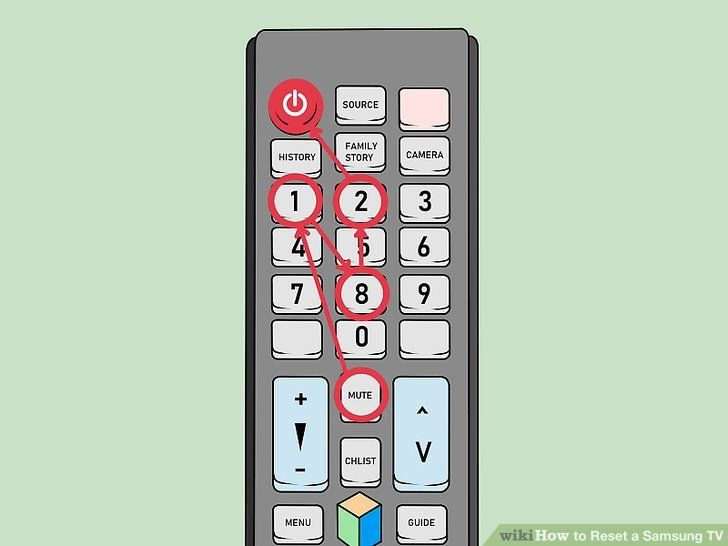
How to Reset Your Samsung Remote Control: A Step-by-step Guide
Are you tired of dealing with a faulty Samsung remote control? Do you want to know how to reset it and get it working again? Look no further! In this article, we’ll guide you through the process of resetting your Samsung remote control, whether it’s for a Smart TV or a non-Smart TV.
Why Reset Your Samsung Remote Control?
Before we dive into the steps, let’s quickly explain why you might need to reset your Samsung remote control. Sometimes, the remote control can become unresponsive due to software issues or battery drain. Resetting it can resolve these problems and get your TV working again.
Resetting Your Samsung Smart TV Remote Control
If you have a Samsung Smart TV, follow these steps to reset your remote control:
Method 1: Soft Reset
- Open the battery compartment on the back of the remote control.
- Remove the batteries for 60 seconds.
- Reinsert the batteries and try using the remote control.
If this doesn’t work, proceed to the next method.
Method 2: Hard Reset
- Remove the batteries from the remote control.
- Press and hold the Power button on the remote control for 60 seconds.
- Release the Power button and reinsert the batteries.
- Try using the remote control again.
If this still doesn’t work, try the next method.
Method 3: Advanced Reset
- Remove the batteries from the remote control.
- Press and hold the Power button on the remote control for 10 seconds.
- Release the Power button and reinsert the batteries.
- Try using the remote control again.
Resetting Your Samsung Non-smart TV Remote Control
If you have a non-Smart TV, follow these steps to reset your remote control:
- Remove the batteries from the remote control for 60 seconds.
- Reinsert the batteries and try using the remote control.
If this doesn’t work, proceed to the next method.
Method 2: Power Cycle
- Remove the batteries from the remote control.
- Press and hold the Power button on the remote control for 10 seconds.
- Release the Power button and reinsert the batteries.
- Try using the remote control again.
If this still doesn’t work, try the next method.
Method 3: Advanced Reset
- Remove the batteries from the remote control.
- Press and hold the Power button on the remote control for 10 seconds.
- Release the Power button and reinsert the batteries.
- Try using the remote control again.
Resetting Your Samsung Air Conditioner Remote Control
To reset your Samsung air conditioner remote control, follow these steps:
- Open the battery compartment on the back of the remote control.
- Remove the batteries for 30 seconds.
- Reinsert the batteries and try using the remote control.
If this doesn’t work, proceed to the next method.
Method 2: Power Cycle
- Remove the batteries from the remote control.
- Press and hold the Power button on the remote control for 10 seconds.
- Release the Power button and reinsert the batteries.
- Try using the remote control again.
If this still doesn’t work, try the next method.
Method 3: Advanced Reset
- Remove the batteries from the remote control.
- Press and hold the Power button on the remote control for 10 seconds.
- Release the Power button and reinsert the batteries.
- Try using the remote control again.
Conclusion
Resetting your Samsung remote control is a relatively simple process that can resolve software issues or battery drain problems. By following these step-by-step guides, you should be able to get your remote control working again. Remember to try each method in order before moving on to the next one.
Frequently Asked Questions (FAQs)
-
What if my Remote Control Still Doesn’t Work After Trying All The Methods?
If none of the above methods work, it’s possible that there’s a hardware issue with your remote control or TV. In this case, you may need to contact Samsung customer support for further assistance. -
How Often Should I Reset my Remote Control?
You shouldn’t need to reset your remote control frequently. However, if you experience software issues or battery drain problems regularly, it’s a good idea to try resetting the remote control every 6-12 months. -
Can I Use my Smartphone as a Remote Control Instead of Resetting Mine?
Yes, you can use your smartphone as a remote control for your Samsung TV or air conditioner. However, this may require downloading a specific app and following additional setup instructions. -
What if I’m Not Comfortable Trying to Reset my Remote Control Myself?
If you’re not comfortable trying to reset your remote control yourself, it’s always best to contact Samsung customer support for assistance. -
Will Resetting my Remote Control Affect Any Settings or Preferences on my TV or Air Conditioner?
No, resetting your remote control should not affect any settings or preferences on your TV or air conditioner. -
How do I Prevent Software Issues With my Remote Control in The Future?
To prevent software issues with your remote control in the future, make sure to update the firmware regularly and avoid exposing it to extreme temperatures or conditions. -
What if my Remote Control is Damaged Beyond Repair?
If your remote control is damaged beyond repair, you may need to contact Samsung customer support for a replacement or purchase a new one. -
Can I Reset Multiple Remotes at Once?
Yes, you can reset multiple remotes at once by following the same steps as above.


