
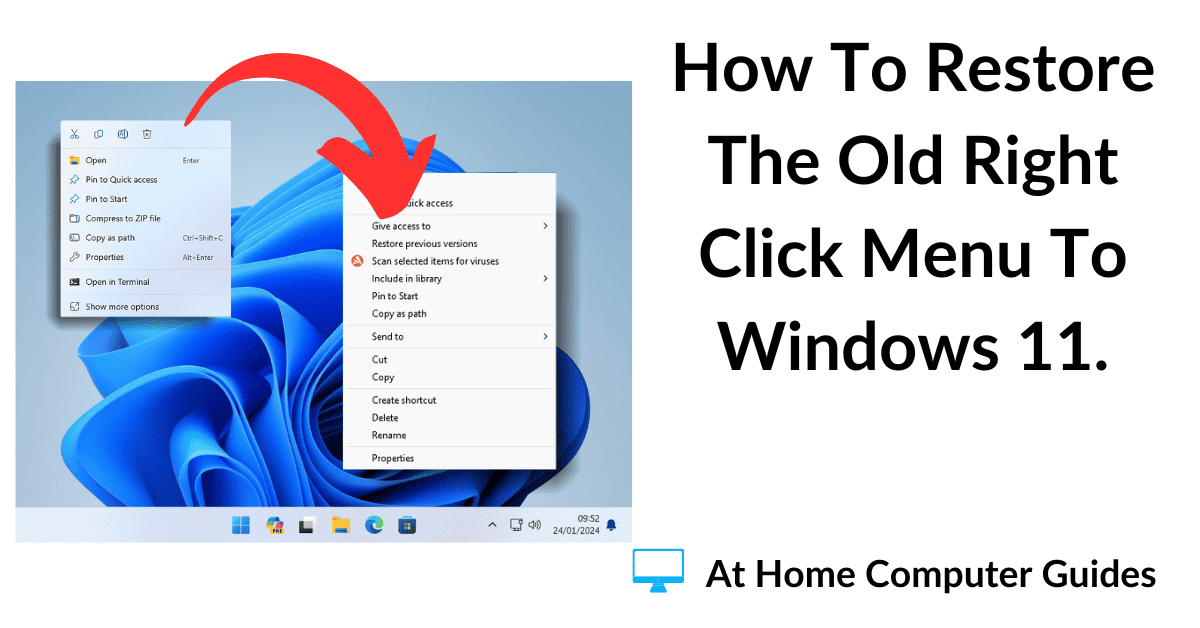
The Ultimate Guide to Deleting Voices From Contextual Menu
Are you tired of dealing with a cluttered contextual menu on your Windows computer? Do you want to free up space and improve your overall computing experience? Look no further! In this comprehensive guide, we will walk you through the steps to delete unwanted voices from your contextual menu, making it easier to navigate and more efficient.
Understanding Contextual Menu
Before we dive into the solution, let’s quickly understand what a contextual menu is. A contextual menu is a list of options that appears when you right-click on an item or folder on your Windows computer. It contains various voices, including those added by programs and applications.
Why Delete Voices From Contextual Menu?
Deleting unwanted voices from your contextual menu can help:
- Reduce clutter and improve navigation
- Increase computing speed and efficiency
- Enhance overall user experience
Method 1: Using Easy Context Menu (Windows Xp, 7, 8.X, 10, 11)
To delete voices from your contextual menu using Easy Context Menu, follow these steps:
- Download And Install: Download the Easy Context Menu software from its official website. It’s a portable program that can be downloaded without any cost and is compatible with all Windows editions.
- Launch The Program: Extract the downloaded file to a folder of your choice and execute the
EcMenu_x64.Exe(for 64-bit Windows) orEcMenu.Exe(for 32-bit Windows) file. - Clean Contextual Menu: Click on the “Cleaning contextual menu” option from the Rows menu, select the voices you want to delete, and click “Update” to apply the changes.
Method 2: Using Shellexview (Windows Xp, 7, 8.X, 10, 11)
ShellExView is another powerful tool that can help you manage your contextual menu. Here’s how to use it:
- Download And Install: Download the ShellExView software from its official website. It’s a portable program that can be downloaded without any cost and is compatible with all Windows editions.
- Launch The Program: Extract the downloaded file to a folder of your choice and execute the
shexview.Exefile. - Explore Rows (Windows 10, 11): If you’re using Windows 10 or 11, ShellExView can help you manage the Explore Rows contextual menu. To do this, follow the same steps as above.
Method 3: Deleting Voices From Contextual Menu of Macos
If you’re a macOS user, deleting voices from your contextual menu is slightly different. Here’s how to do it:
- Open Settings: Open the System Preferences panel and click on the Keyboard icon.
- Keyboard Settings: Click on the “Services” tab and select the type of rows you want to manage (e.G., Rows and folders, Images).
- Delete Unwanted Voices: Check the boxes next to the unwanted voices and click “Fine” to apply the changes.
Additional Tips
- Backup Your Files: Before making any changes, it’s essential to backup your files to avoid losing important data.
- Use a Backup Software: Consider using a backup software like EaseUS Todo Backup to create backups of your important files.
- Update Your System: Regularly update your operating system and software to ensure you have the latest security patches and features.
Conclusion
Deleting unwanted voices from your contextual menu can significantly improve your computing experience. By following these simple steps, you can free up space, increase efficiency, and enhance overall user experience. Remember to always backup your files before making any changes, and consider using a backup software like EaseUS Todo Backup for added protection.


