
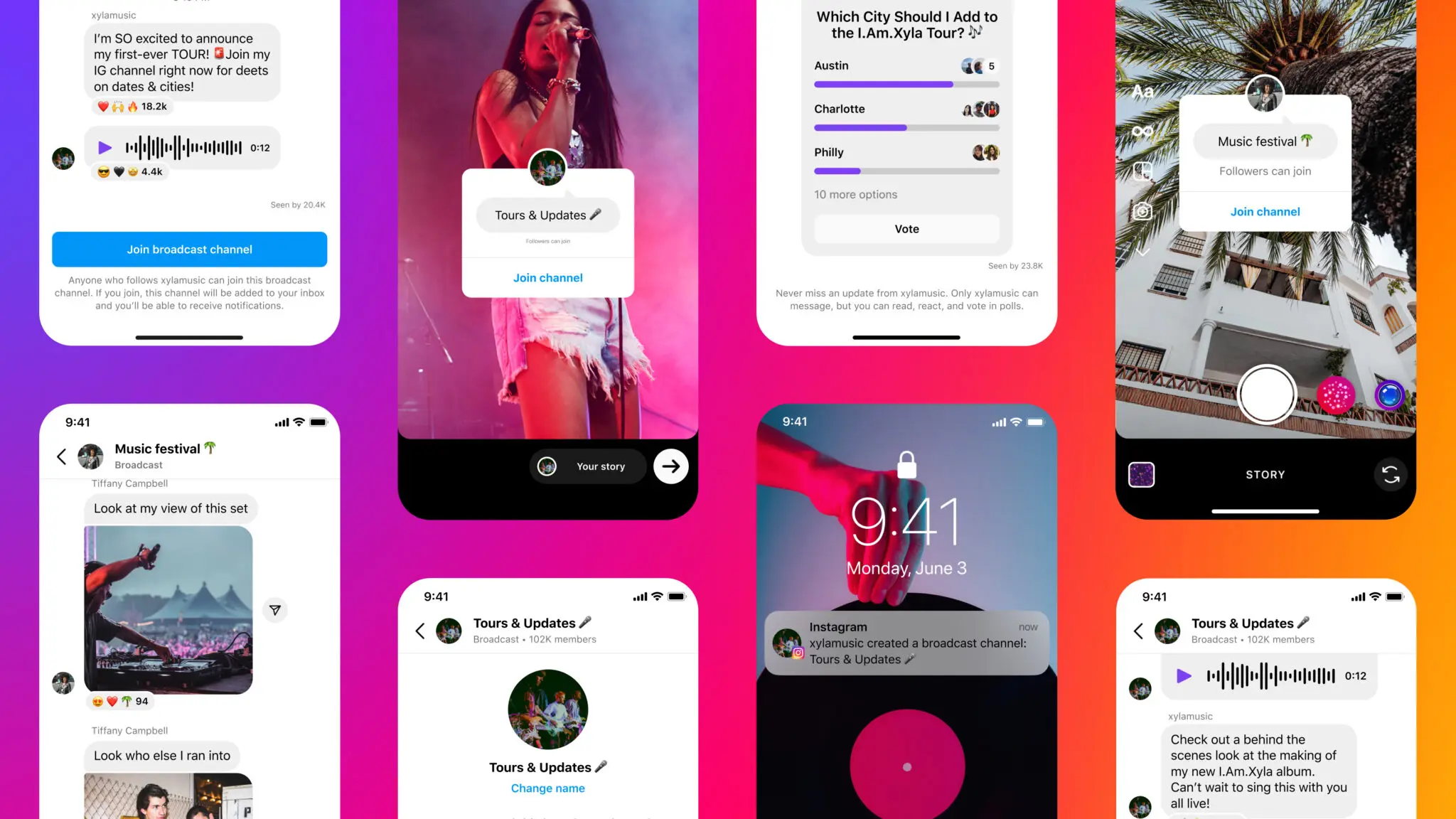
Creating a Channel Broadcast on Instagram: A Step-by-step Guide
Are you ready to take your Instagram experience to the next level? Do you want to share exclusive content with your followers and engage with them in a more meaningful way? Look no further than channel broadcasts! In this article, we’ll show you how to create a channel broadcast on Instagram, invite your followers to join, and start engaging with them like never before.
What is a Channel Broadcast?
A channel broadcast is a new feature on Instagram that allows users to share textual messages, photos, videos, and live streams with their followers. It’s a way to have a more directed conversation with your audience and create a sense of community around your brand or personality.
Benefits of Channel Broadcasts
Channel broadcasts offer several benefits for users, including:
- Increased engagement: By sharing exclusive content with your followers, you can encourage them to participate in discussions and share their thoughts and opinions.
- Improved customer service: Channel broadcasts allow you to respond to customer queries and concerns in a more timely and personalized manner.
- Enhanced brand awareness: By creating a channel broadcast, you can showcase your brand’s personality and values, which can help attract new followers and customers.
How to Create a Channel Broadcast on Instagram
Creating a channel broadcast on Instagram is easy and straightforward. Here’s how:
- Open The Instagram App: Open the Instagram app on your smartphone or tablet.
- Access Your Account: Log in to your account if you haven’t already.
- Tap The Icon of The Comic Strip: Tap the icon of the comic strip in the top-right corner of the screen.
- Select The Messages Tab: Select the messages tab from the menu.
- Tap The Create a Channel Broadcast Button: Tap the create a channel broadcast button to start creating your first message.
- Add Your Message: Type your message and add any media you’d like to include (photos, videos, etc.).
- Invite Followers to Join: Invite your followers to join by forwarding the message or sharing it with them directly.
How to Invite Followers to Join a Channel Broadcast
Inviting followers to join your channel broadcast is easy and can be done in several ways:
- Forwarding the first message: Simply forward the first message to invite your followers to join.
- Sharing the link invitation: Tap on the name of the channel broadcast, then tap on the link invitation icon. Copy the link and share it with your followers directly or via private messages.
How to Enroll in a Channel Broadcast
Enrolling in a channel broadcast is also easy! Here’s how:
- Find The Profile of The User: Find the profile of the user who created the channel broadcast.
- Tap The Follow Button: Tap the follow button to become a follower of the user.
- Look For The Channel Broadcast Link: Look for the link to the channel broadcast in the user’s profile.
- Tap on The Channel Broadcast Name: Tap on the name of the channel broadcast to join it.
How to Forward Messages in a Channel Broadcast
Forwarding messages in a channel broadcast is easy! Here’s how:
- Open The Instagram App: Open the Instagram app on your smartphone or tablet.
- Access Your Account: Log in to your account if you haven’t already.
- Tap The Icon of The Comic Strip: Tap the icon of the comic strip in the top-right corner of the screen.
- Select The Messages Tab: Select the messages tab from the menu.
- Find The Channel Broadcast Message: Find the message you want to forward and tap on it.
- Tap The Forward Button: Tap the forward button to share the message with your followers.
Tips And Tricks For Using Channel Broadcasts
Here are some tips and tricks for using channel broadcasts effectively:
- Use channel broadcasts to share exclusive content with your followers, such as behind-the-scenes insights or sneak peeks.
- Use channel broadcasts to engage with your audience and respond to their comments and questions.
- Use channel broadcasts to promote your brand’s values and personality.
Conclusion
Creating a channel broadcast on Instagram is easy and can be a great way to engage with your audience and share exclusive content. By following the steps outlined in this article, you can create a channel broadcast and start inviting your followers to join. Don’t forget to use the tips and tricks outlined above to get the most out of your channel broadcasts!
Frequently Asked Questions
Here are some frequently asked questions about channel broadcasts:
Q: What is a channel broadcast?
A: A channel broadcast is a new feature on Instagram that allows users to share textual messages, photos, videos, and live streams with their followers.
Q: How do I create a channel broadcast?
A: To create a channel broadcast, tap the icon of the comic strip in the top-right corner of the screen, select the messages tab, and tap the create a channel broadcast button.
Q: How do I invite followers to join a channel broadcast?
A: You can invite followers to join by forwarding the first message or sharing it with them directly via private messages.
Q: How do I enroll in a channel broadcast?
A: To enroll in a channel broadcast, find the profile of the user who created it, tap the follow button, look for the link to the channel broadcast, and tap on the name of the channel broadcast.
Q: How do I forward messages in a channel broadcast?
A: To forward messages in a channel broadcast, tap on the message you want to forward, then tap the forward button.


