
How to Silence Whatsapp Notifications
Are you tired of being disturbed by continuous notifications from specific contacts or clusters on WhatsApp? Do you want to disable video calls and messages without completely closing the app? If so, this tutorial is for you.
In this article, we will guide you through the steps to silence WhatsApp notifications on Android, iPhone, and computer. We will also explore other options, such as blocking specific contacts, disabling sounds, and customizing notification settings.
Why Silence Whatsapp Notifications?
Silencing WhatsApp notifications can be beneficial in various situations:
- You want to focus on work or study without distractions.
- You prefer to receive messages at a later time or don’t need immediate attention.
- You have specific contacts or clusters that send frequent messages, and you’d like to minimize these interruptions.
Silencing Whatsapp Notifications on Android
To silence WhatsApp notifications on Android:
- Open the WhatsApp app and go to the chat section.
- Select the conversation you want to silence by tapping on it.
- Tap on the three dots in the top-right corner of the screen.
- Choose “Settings” from the menu.
- Scroll down to the “Notifications” section.
- Toggle off the switch next to “Show notifications.”
- If you want to silence all messages, tap on the toggle next to “Silence for 8 hours,” “1 week,” or “Always.”
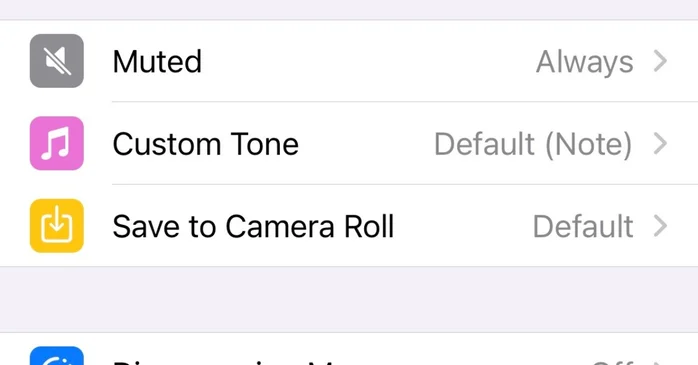
Silencing Whatsapp Notifications on Iphone
To silence WhatsApp notifications on iPhone:
- Open the WhatsApp app and go to the chat section.
- Select the conversation you want to silence by tapping on it.
- Tap on the contact’s name at the top of the screen.
- Tap on “Settings” from the menu.
- Scroll down to the “Notifications” section.
- Toggle off the switch next to “Show notifications.”
- If you want to silence all messages, tap on the toggle next to “Silence for 8 hours,” “1 week,” or “Always.”
Silencing Whatsapp Notifications on Computer
To silence WhatsApp notifications on computer:
- Open the WhatsApp app or web version.
- Go to the conversation you want to silence by clicking on it.
- Click on the three dots in the top-right corner of the screen (on Windows and WhatsApp Web) or the arrow at the bottom left (on macOS).
- Choose “Settings” from the menu.
- Scroll down to the “Notifications” section.
- Toggle off the switch next to “Show notifications.”
- If you want to silence all messages, tap on the toggle next to “Silence for 8 hours,” “1 week,” or “Always.”
Blocking Specific Contacts
To block specific contacts:
- Go to the conversation with the contact you want to block.
- Tap on the three dots in the top-right corner of the screen (on Android) or the arrow at the bottom left (on iPhone).
- Choose “Settings” from the menu.
- Scroll down to the “Privacy” section.
- Tap on “Blocked contacts.”
- Add the contact you want to block.
Disabling Sounds
To disable sounds:
- Go to Settings > Notifications and actions (on Android).
- Toggle off the switch next to “Show notifications for [app name].”
- Alternatively, go to Settings > Sounds (on iPhone) or System Preferences > Sound (on macOS).
Customizing Notification Settings
You can customize notification settings by going to:
- WhatsApp Settings > Notifications
- Android Settings > Apps > WhatsApp > Notifications
- IPhone Settings > Notifications > WhatsApp
Here you can choose which notifications to enable or disable, as well as set specific times for silencing notifications.
Conclusion
Silencing WhatsApp notifications is a simple yet effective way to minimize distractions and maintain focus. By following the steps outlined in this article, you can silence specific contacts, conversations, or even all messages. Remember to customize your notification settings according to your preferences.
Now that you know how to silence WhatsApp notifications, go ahead and try it out!
Frequently Asked Questions (FAQs)
Q: Can I Unblock a Contact After Blocking Them?
A: Yes, you can unblock a contact by going back to the conversation and tapping on the “Unblock” button.
Q: How do I Reactivate Notifications if I Have Silenced Them For Too Long?
A: To reactivate notifications, go to the WhatsApp settings and toggle on the switch next to “Show notifications.”
Q: Can I Block Specific Groups or Clusters on Whatsapp?
A: Yes, you can block specific groups or clusters by going to the conversation and tapping on the three dots in the top-right corner of the screen.
Q: How do I Disable Sounds For All Messages?
A: To disable sounds for all messages, go to WhatsApp settings > Notifications and toggle off the switch next to “Show notifications.”
Q: Can I Customize Notification Settings For Specific Contacts or Conversations?
A: Yes, you can customize notification settings for specific contacts or conversations by going to WhatsApp settings > Notifications.
Q: How do I Unblock a Contact After Blocking Them on Iphone?
A: To unblock a contact on iPhone, go back to the conversation and tap on the “Unblock” button.


