
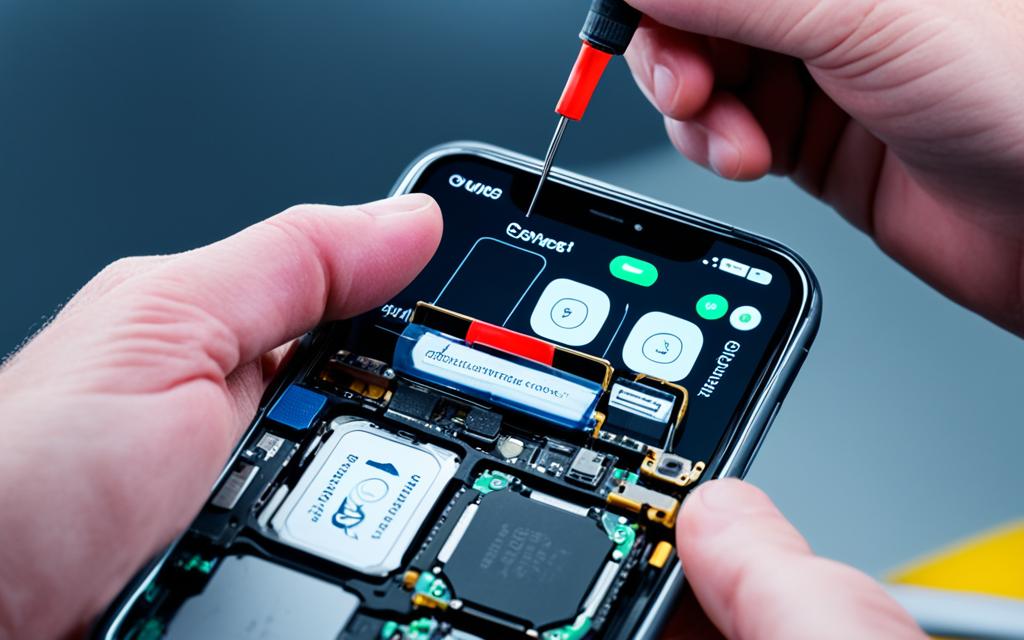
The Ultimate Guide to Activating Iphone Proximity Sensor
Are you tired of dealing with issues related to your iPhone’s proximity sensor? Do you want to learn how to activate it and resolve any problems that may arise? Look no further! In this comprehensive guide, we will walk you through the steps to activate and troubleshoot the proximity sensor on your iPhone.
Why is The Proximity Sensor Important?
The proximity sensor is a small component on your iPhone that plays a crucial role in determining whether your device should display or not. When you bring your iPhone close to your ear during a call, the proximity sensor temporarily disables the screen to prevent accidental interactions. This feature ensures that you can focus on your conversation without distractions.
How to Activate The Proximity Sensor
Unfortunately, there is no direct way to activate or deactivate the proximity sensor on your iPhone. Unlike Android devices, iOS does not provide an option to toggle this feature. However, you can try some troubleshooting steps to resolve any issues related to the proximity sensor.
Troubleshooting Steps: Checking Sensor Operation
If you’re experiencing problems with the proximity sensor, here are some steps you can take to check its operation:
- Download And Install Ez-lab – Bvitech: This free app is designed to test various sensors on your iPhone, including the proximity sensor.
- Launch The App And Follow Instructions: After downloading and installing the app, launch it and follow the instructions provided. You’ll need to cover the screen with your palm for about 10 seconds to conduct the test.
- Check Sensor Status: Once you’ve completed the test, check the status of the proximity sensor on the report or successes page.
Another App to Test Proximity Sensor
If EZ-Lab – BVITech doesn’t work for you, don’t worry! There’s another app called Phone Doctor Plus that can help you diagnose problems with your iPhone’s sensors, including the proximity sensor.
- Download And Install Phone Doctor Plus: This app is free and easy to use.
- Grant Permissions And Follow Instructions: After installing the app, grant it the necessary permissions and follow the instructions provided to conduct the test.
- Check Sensor Status: Once you’ve completed the test, check the status of the proximity sensor on the report or successes page.
Resolving Issues With Proximity Sensor
If your iPhone’s proximity sensor is not functioning correctly, here are some steps you can take to resolve the issue:
- Check For Software Updates: Ensure that your iOS version is up-to-date, as this can sometimes resolve issues with sensors.
- Clean The Frontal Part of Your Iphone: Dirt or debris on the frontal part of your iPhone can interfere with sensor operation. Clean it regularly and try again.
- Restart Your Iphone: Sometimes, a simple reboot can resolve software-related issues.
Consulting Apple Support
If none of these steps resolve the issue, it’s possible that there’s a hardware problem with your iPhone. In this case, it’s best to consult Apple support for further assistance. You can contact them online or by phone.
Conclusion
Activating and troubleshooting the proximity sensor on your iPhone may seem daunting, but with this comprehensive guide, you’ll be able to resolve any issues related to this feature. Remember to follow the steps outlined above, and don’t hesitate to consult Apple support if needed. Your iPhone will thank you!
Frequently Asked Questions (FAQs)
- Q: What is The Proximity Sensor on my Iphone?
A: The proximity sensor is a small component that determines whether your iPhone should display or not when brought close to your ear during a call. - Q: How do I Activate The Proximity Sensor?
A: Unfortunately, there’s no direct way to activate or deactivate the proximity sensor on your iPhone. However, you can try troubleshooting steps to resolve any issues related to this feature. - Q: Why is my Iphone’s Proximity Sensor Not Working?
A: Issues with the proximity sensor may be caused by software updates, dirt or debris on the frontal part of your iPhone, or hardware problems. - Q: Can I Update my Ios Version to Resolve Issues With Sensors?
A: Yes! Ensuring that your iOS version is up-to-date can sometimes resolve issues with sensors. - Q: How do I Contact Apple Support For Assistance?
A: You can contact Apple support online or by phone for further assistance. - Q: Can I Use Other Apps to Test The Proximity Sensor on my Iphone?
A: Yes! There are several apps available, such as EZ-Lab – BVITech and Phone Doctor Plus, that can help you diagnose problems with your iPhone’s sensors. - Q: What Should I do if None of These Steps Resolve The Issue?
A: If none of these steps resolve the issue, it’s possible that there’s a hardware problem with your iPhone. In this case, it’s best to consult Apple support for further assistance.
Additional Resources
For more information on troubleshooting and resolving issues related to your iPhone’s proximity sensor, be sure to check out our additional resources:
- Consult our guide on how to clean your iPhone
- Read our tutorial on updating iOS
- Visit our article on contacting Apple support


