
Connecting Discord to Twitch: A Step-by-step Guide
Are you a streamer on Twitch who wants to connect your channel to the popular communication platform, Discord? Look no further! In this article, we will guide you through the process of linking your Twitch account to Discord, both on computer and smartphone/tablet.
Why Connect Discord to Twitch?
Connecting Discord to Twitch allows you to create a server on Discord specifically for your Twitch subscribers. This means that your viewers can communicate with each other in real-time while watching your streams, creating a more engaging experience for everyone involved.
How to Connect Discord to Twitch (Computer)
To connect Discord to Twitch on computer, follow these steps:
- Open Discord: Access the official Discord website and select “Open Discord” from your browser.
- Log in: Enter your Discord account credentials in the email or phone number field and password field. Click “Access” to log in.
- Click on The Gear Icon: In the top right corner of the screen, click on the gear icon to access the Settings menu.
- Select Links: From the Settings menu, select “Links”.
- Authorize Twitch: Click on the Twitch logo to authorize the connection between Discord and Twitch. Enter your Twitch account credentials in the email or phone number field and password field. Click “Access” to log in.
- Confirm Authorization: You will receive a confirmation message indicating that your Twitch account has been linked to Discord.
How to Connect Discord to Twitch (Smartphone/Tablet)
To connect Discord to Twitch on smartphone/tablet, follow these steps:
- Open The Discord App: Open the official Discord app for Android or iOS devices.
- Log in: Enter your Discord account credentials in the email or phone number field and password field. Click “Access” to log in.
- Tap on The Profile Picture: Tap on the profile picture icon in the top right corner of the screen.
- Select Links: From the menu, select “Links”.
- Authorize Twitch: Select “Twitch” from the list of available links and enter your Twitch account credentials in the email or phone number field and password field. Click “Access” to log in.
- Confirm Authorization: You will receive a confirmation message indicating that your Twitch account has been linked to Discord.
How to Create a Server on Discord For Your Twitch Subscribers
To create a server on Discord specifically for your Twitch subscribers, follow these steps:
- Open Discord: Access the official Discord website or open the Discord app on computer.
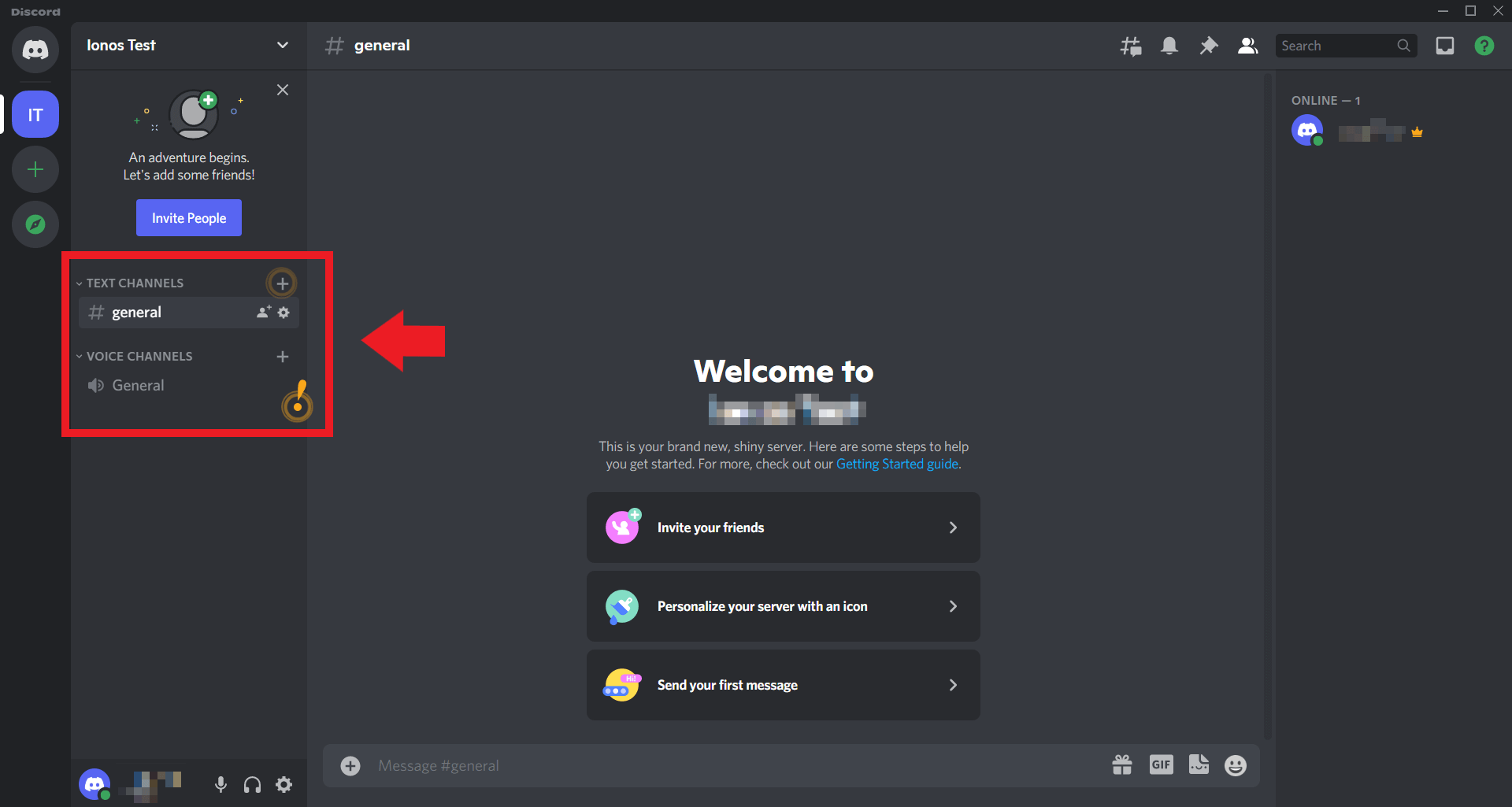
- Create a New Server: Click on the “+” icon in the top left corner of the screen to create a new server.
- Name Your Server: Enter a name for your server and click “Create” to create it.
- Authorize Twitch Integration: From the server settings, select “Integrations” and click on “Twitch”. Select the option to authorize the connection between Discord and Twitch.
- Configure Server Settings: Configure the server settings as desired, such as adding roles or setting behavior for subscribers.
Troubleshooting Common Issues
If you encounter any issues during the process, here are some common problems and their solutions:
- Linking Issue: If you receive an error message when linking your Twitch account to Discord, try checking your internet connection and ensuring that both accounts are active.
- Authorization Issue: If you encounter authorization issues when connecting your Twitch account to Discord, ensure that you have entered the correct credentials for both accounts.
Conclusion
Connecting Discord to Twitch is a simple process that allows you to create a server on Discord specifically for your Twitch subscribers. By following these steps, you can enhance the viewing experience for your audience and build a stronger community around your channel.
Frequently Asked Questions (FAQs)
- Q: Do I Need to be a Streamer on Twitch to Connect my Account to Discord?
A: Yes, you must be a streamer on Twitch with an active account to connect it to Discord. - Q: Can I Create Multiple Servers on Discord For Different Twitch Channels?
A: Yes, you can create multiple servers on Discord for different Twitch channels by following the same process outlined above.
References
- Discord official website
- Twitch official website
- A Guide to Creating a Server on Discord


