
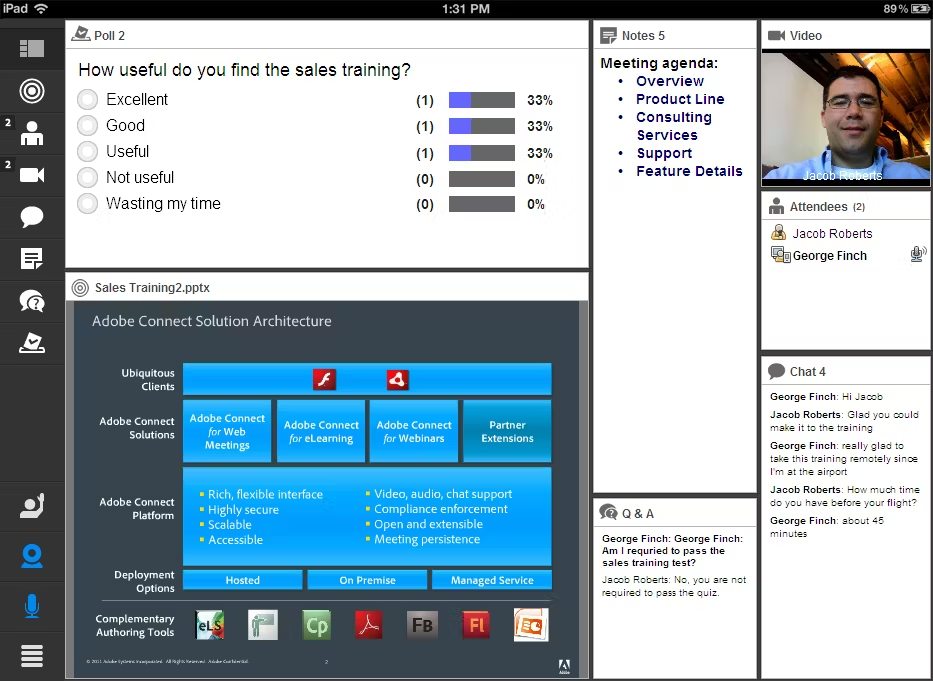
Adobe Connect: A Comprehensive Guide
As video conferencing continues to grow exponentially, numerous services have emerged to cater to this need. Among them is Adobe Connect, a robust platform designed specifically for managing online events such as webinars and web meetings. In this article, we will delve into the world of Adobe Connect, exploring its features, functionalities, and requirements.
What is Adobe Connect?
Adobe Connect is a video conferencing platform that enables users to create virtual rooms where they can share documents, monitor their computer screens, engage in audio and video conversations, and participate in interactive activities. The platform is built on the creation of virtual spaces, which can be customized according to specific needs.
Requirements For Using Adobe Connect
To access Adobe Connect, you will need:
- A PC with a supported browser (such as Google Chrome or Mozilla Firefox)
- An Adobe Connect application installed on your Windows or macOS device
- At least Windows 7 with an Intel Pentium 4 processor and 512 MB of RAM (or equivalent macOS requirements)
On smartphones and tablets, you can download the Adobe Connect app for Android or iOS devices. Compatibility is assured for devices running Android 4.4 And successive versions, as well as iOS 8.1.2 Or later.
Pricing Plans For Adobe Connect
While Adobe Connect offers a free trial period of 30 days, users who wish to continue using the service beyond this period will need to subscribe to one of three available plans:
- Meetings: €46 Per month (or €497 per year), allowing creation of meetings with up to 25 participants
- Webinars: €120 Per month (or €1,150 per year), enabling creation of webinars for up to 100 participants
- Learning: €340 Per month (or €3,220 per year), a plan specifically designed for educational institutions
Creating an Account And Accessing Adobe Connect
To create an account and access Adobe Connect, follow these steps:
- Visit the official Adobe Connect website.
- Click on the “Free Trial” button to initiate the registration process.
- Choose your preferred plan (Meetings, Webinars, or Learning) and select the duration of your free trial.
- Complete the required fields with your personal data and choose how you want to access Adobe Connect (using an existing Adobe account or Google, Facebook, or Apple credentials).
- Select the version of Adobe Connect you wish to try (Meetings, Webinars, or Learning) and click on the “Sign Up” button.
- A confirmation email will be sent to your address; open it and click on the link provided to access your account.
Using Adobe Connect on PC
Once you have created an account and accessed Adobe Connect, follow these steps:
- Open the Adobe Connect application on your Windows or macOS device.
- Click on the “Create a Room” button in the top right corner of the window.
- Select the type of room you want to create (Meeting or Webinar) from the dropdown menu.
- Fill out the required information for the room, including its title and description.
- Choose how participants will access the room (via a URL link or by sending them an email invitation).
- Click on the “Create” button to initiate the creation of your virtual room.
Joining an Adobe Connect Room
To join an existing Adobe Connect room, follow these steps:
- Obtain a link to the room from the creator or participant.
- Open the Adobe Connect application on your device (or access it through a browser).
- Enter the link to the room and click on the “Join” button.
- If required, enter your name and select how you want to join the meeting (as a guest or by logging in with your Adobe account).
Managing Participants in an Adobe Connect Room
As the creator of a room (the host), you have various tools at your disposal for managing participants:
- Assigning roles (host, presenter, or participant)
- Qualifying microphones
- Muting or removing participants
Follow these steps to manage participants:
- Open the Adobe Connect application and access the room.
- Click on the “Participants” tab in the top right corner of the window.
- Select the role you want to assign to a participant from the dropdown menu.
- Drag the participant’s name into the corresponding section (hosts, presenters, or participants).
- To modify a participant’s role, simply drag their name into a different category.
Using Adobe Connect on Smartphones And Tablets
While Adobe Connect can be accessed on smartphones and tablets, some features may not be available on these devices. Follow these steps to use Adobe Connect on your mobile device:
- Download the Adobe Connect app from the Google Play Store (for Android devices) or the Apple App Store (for iOS devices).
- Launch the app and enter your credentials.
- Click on the “Join a Meeting” button.
- Enter the link to the room and click on the “Join” button.
- If required, enter your name and select how you want to join the meeting.
Managing Participants in an Adobe Connect Room on Mobile Devices
To manage participants on mobile devices:
- Access the room by entering the link or joining via a browser.
- Click on the menu icon (three horizontal lines) in the top left corner of the screen.
- Select the “Participants” option from the dropdown menu.
- View the list of participants and select the role you want to assign to each participant.
Conclusion
Adobe Connect is a powerful video conferencing platform that offers numerous features for managing online events. By understanding its requirements, pricing plans, and functionalities, users can effectively utilize this tool for their needs.
Do you have any questions about Adobe Connect?
Frequently Asked Questions:
- What Are The System Requirements For Using Adobe Connect?
Adobe Connect requires a PC with a supported browser (such as Google Chrome or Mozilla Firefox) and an application installed on Windows or macOS devices. For smartphones and tablets, compatibility is assured for devices running Android 4.4 And successive versions, as well as iOS 8.1.2 Or later.
- What Are The Pricing Plans For Adobe Connect?
Adobe Connect offers three pricing plans: Meetings (€46 per month or €497 per year), Webinars (€120 per month or €1,150 per year), and Learning (€340 per month or €3,220 per year).
- How do I Create an Account And Access Adobe Connect?
To create an account and access Adobe Connect, visit the official website, click on the “Free Trial” button, complete the required fields with your personal data, and choose how you want to access Adobe Connect (using an existing Adobe account or Google, Facebook, or Apple credentials).
- How do I Use Adobe Connect on Pc?
To use Adobe Connect on PC, open the application, click on the “Create a Room” button, select the type of room you want to create (Meeting or Webinar), fill out the required information for the room, and choose how participants will access the room.
- How do I Join an Adobe Connect Room?
To join an existing Adobe Connect room, obtain a link to the room from the creator or participant, open the application on your device (or access it through a browser), enter the link, and click on the “Join” button.
- How do I Manage Participants in an Adobe Connect Room?
As the creator of a room (the host), you have various tools at your disposal for managing participants: Assigning roles (host, presenter, or participant), qualifying microphones, muting or removing participants.
- Can I Use Adobe Connect on Smartphones And Tablets?
While Adobe Connect can be accessed on smartphones and tablets, some features may not be available on these devices. Download the Adobe Connect app from the Google Play Store or Apple App Store to access the platform on your mobile device.
- How do I Manage Participants in an Adobe Connect Room on Mobile Devices?
To manage participants on mobile devices, access the room by entering the link or joining via a browser, click on the menu icon (three horizontal lines) in the top left corner of the screen, select the “Participants” option from the dropdown menu, and view the list of participants to assign roles.


