
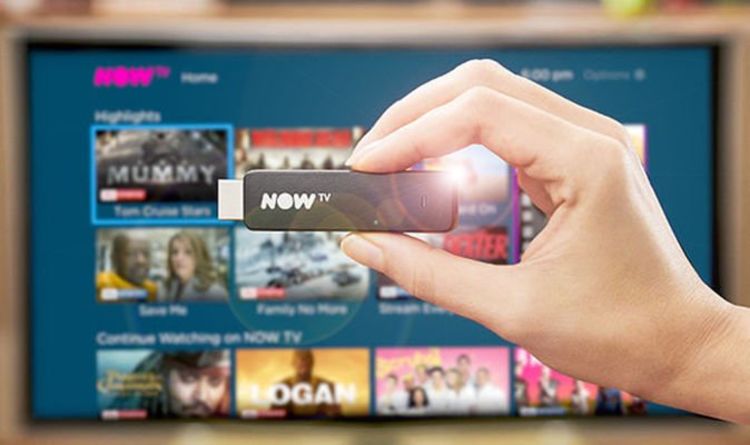
How to Download Now on Smart TV Samsung: A Step-by-step Guide
Are you tired of missing out on your favorite shows and movies? Do you want to experience the best of entertainment on your Smart TV Samsung? Look no further! In this article, we will guide you through the process of downloading NOW on your Smart TV Samsung.
What is Now?
NOW is a streaming service provided by Sky that offers a wide range of content, including TV shows, movies, and sports. With NOW, you can enjoy all your favorite entertainment on one platform, without the need for multiple subscriptions.
Why Download Now on My Smart Tv?
Downloading NOW on your Smart TV Samsung provides several benefits:
- Convenience: You can access all your favorite content in one place, without the need to switch between different devices.
- Quality: NOW streams content in high definition, ensuring that you get the best viewing experience possible.
- Availability: With NOW on your Smart TV, you can enjoy a vast library of content, including exclusive Sky Originals.
What Devices Are Compatible With Now?
NOW is compatible with a range of devices, including:
- Smart TVs (Samsung, LG, Sony)
- Chromecast
- Apple TV
- Fire TV Stick/Cube
- Vodafone TV
How to Download Now on My Smart TV Samsung: A Step-by-step Guide
Step 1: Connect Your Smart TV to The Internet
To download NOW on your Smart TV Samsung, you need to ensure that your television is connected to the internet. If your TV is not already connected, follow these steps:
- Press the “Home” button on your remote control.
- Navigate to the “Settings” menu using the directional arrows.
- Select the “Network” option and choose the type of connection you want (cable or wireless).
- Follow the prompts to complete the connection.
Step 2: Update Your Smart TV Software
Before downloading NOW, make sure that your Smart TV software is up-to-date:
- Press the “Home” button on your remote control.
- Navigate to the “Settings” menu using the directional arrows.
- Select the “Support” option and choose the “Software update” option.
- Follow the prompts to complete the update.
Step 3: Download Now
Once your Smart TV is connected to the internet and software updated, follow these steps to download NOW:
- Press the “Home” button on your remote control.
- Navigate to the “Apps” section using the directional arrows.
- Select the “Video” category and find the NOW app.
- Click the “Install” button to start the download process.
Step 4: Install And Launch Now
Once the download is complete, follow these steps to install and launch NOW:
- Press the “Home” button on your remote control.
- Navigate to the “NOW” icon in the Smart Hub section.
- Click the “Open” button to launch the app.
Troubleshooting: What If I Encounter Problems?
If you encounter any problems during the download process, don’t worry! Our guide provides solutions for common issues:
- Check your internet connection and update your Smart TV software if necessary.
- Try restarting your TV and repeating the download process.
- Contact NOW customer support for assistance.
Conclusion
Downloading NOW on your Smart TV Samsung is a straightforward process. By following our step-by-step guide, you can enjoy all your favorite content in one place, without the need for multiple subscriptions.


