
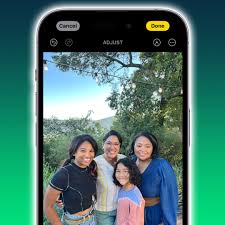
Removing Background From Photos on Iphone: A Step-by-step Guide
Are you tired of unwanted backgrounds ruining your photos? Do you want to create stunning graphics, collages, or simply enhance the image before sharing it with friends and family? Look no further! This guide will walk you through how to remove background from a photo on your iPhone using built-in features and third-party apps.
Using Iphone’s Built-in Feature: Remove Background
If you have an iPhone model that supports iOS 16 or later, you can use the built-in feature called “Remove Background” to separate the subject from the background. This feature uses artificial intelligence to detect and remove unwanted backgrounds.
To use this feature:
- Open Safari, Photos, or any other app where you want to edit a photo.
- Select the photo you want to edit.
- Tap and hold on the image for a second (if it’s an email or message, zoom in first).
- Select “Copy Subject” from the menu that appears.
- Open another app like Pages, Notes, or any other app where you can create a new document.
- Tap and hold on the document to add the subject as a sticker.
Using Third-party Apps: Removing Background With Ease
If the built-in feature doesn’t work for you or you prefer using third-party apps, there are many excellent options available in the App Store that can help you remove background from your photos. Some popular ones include:
- Rimuovi Oggetti: This free app (with in-app purchases) allows you to remove objects and backgrounds with ease.
- Download and install the app from the App Store.
- Launch the app and select the photo you want to edit.
- Tap on “Remove Background” and wait for the AI to detect the subject.
- Choose among various final outcomes, and if needed, delete or restore parts of the image that were missed by the AI.
- Apply a solid color or an image as a background for your subject.
Other Solutions: Removing Background With Ease
If you’re not satisfied with the above solutions or need more options, here are some other apps and websites that can help:
- Superimpose Studio: This app allows you to create stunning graphics by combining multiple images on different levels. It also has a built-in feature for removing backgrounds.
- Download and install Superimpose Studio from the App Store.
- Launch the app and select the photo you want to edit.
- Tap on “Remove Background” and wait for the AI to detect the subject.
Conclusion
Removing background from a photo on your iPhone can be done with ease using both built-in features and third-party apps. Whether you’re looking to create stunning graphics, collages, or simply enhance the image before sharing it with friends and family, these solutions are here to help. Just remember to explore different options and choose the one that best suits your needs.
Frequently Asked Questions (FAQs)
Q: What is the minimum iOS version required for removing background from a photo?
A: IOS 16 or later is required for using the built-in feature “Remove Background.”
Q: Can I use third-party apps if the built-in feature doesn’t work for me?
A: Yes, there are many excellent third-party apps available in the App Store that can help you remove background from your photos.
Q: How do I export my edited photo to other apps or services?
A: Once you’ve edited your photo, tap on the three dots in the top-right corner and select “Export” > “Images.” Choose the desired format and size for exporting your edited photo.


