
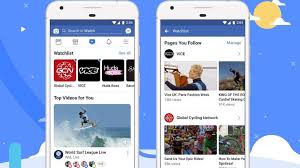
How to See a Video on Facebook: A Step-by-step Guide
Are you curious about how to see a video on Facebook? Look no further! In this article, we’ll walk you through the step-by-step process of viewing videos on Facebook, whether you’re using a smartphone, tablet, or computer.
Understanding Facebook’s Video Feature
Facebook’s video feature allows users to upload and share videos with their friends, family, and followers. With millions of hours of content being uploaded every day, it can be overwhelming to find the videos you want to watch. In this article, we’ll show you how to navigate through Facebook’s vast library of videos.
Seeing a Video on Facebook: A Step-by-step Guide
From Your Smartphone or Tablet
- Open The Facebook App: Locate and tap on the Facebook icon on your smartphone or tablet.
- Search For The Video: Type in the name of the person, page, or group that uploaded the video you want to watch.
- Find The Video: Click on the video’s image to start playing it.
- Interact With The Video: Use the playback controls (▶ and ❚❚) to pause or resume the video.
- Share The Video: Tap on the “Share” button to share the video with your friends.
From Your Computer
- Open Facebook: Navigate to the official website of Facebook.Com.
- Search For The Video: Type in the name of the person, page, or group that uploaded the video you want to watch.
- Find The Video: Click on the video’s image to start playing it.
- Interact With The Video: Use the playback controls (▶ and ❚❚) to pause or resume the video.
- Share The Video: Click on the “Share” button to share the video with your friends.
How to See Saved Videos on Facebook
Do you have a saved video that you want to rewatch? Here’s how to find it:
From Your Smartphone or Tablet
- Open The Facebook App: Locate and tap on the Facebook icon.
- Tap on The Three Horizontal Lines: Navigate to the “Elements saved” section.
- Find Your Saved Videos: Scroll through the list of saved videos.
From Your Computer
- Open Facebook: Navigate to the official website of Facebook.Com.
- Click on The “More” Button: Locate and click on the three horizontal lines.
- Find Your Saved Videos: Click on the “Elements saved” section to see a list of all your saved videos.
How to See Videos You’ve Watched on Facebook
Do you want to relive memories by watching videos you’ve already seen? Here’s how:
From Your Smartphone or Tablet
- Open The Facebook App: Locate and tap on the Facebook icon.
- Tap on The “Watch” Button: Navigate to the “Watch” section.
- Find Your Watched Videos: Tap on the “Saved” tab to see a list of all the videos you’ve already watched.
From Your Computer
- Open Facebook: Navigate to the official website of Facebook.Com.
- Click on The “More” Button: Locate and click on the three horizontal lines.
- Find Your Watched Videos: Click on the “Video watched” section to see a list of all the videos you’ve already watched.
How to See Videos You’ve Loaded on Facebook
Have you loaded a video but can’t find it? Here’s how:
From Your Smartphone or Tablet
- Open The Facebook App: Locate and tap on the Facebook icon.
- Tap on Your Profile Picture: Navigate to your profile page.
- Find Your Uploaded Videos: Tap on the “Videos” tab to see a list of all the videos you’ve uploaded.
From Your Computer
- Open Facebook: Navigate to the official website of Facebook.Com.
- Click on Your Profile Picture: Navigate to your profile page.
- Find Your Uploaded Videos: Click on the “Video loaded” section to see a list of all the videos you’ve uploaded.
Conclusion
In conclusion, seeing a video on Facebook is as simple as following these steps:
- Open the Facebook app or website
- Search for the video you want to watch
- Find and click on the video’s image to start playing it
- Interact with the video using playback controls and share buttons
We hope this guide has helped you navigate through Facebook’s vast library of videos. If you have any questions or need further clarification, please don’t hesitate to ask.
Frequently Asked Questions
Q: How do I see a video on Facebook?
A: Simply search for the video, click on its image, and start playing it.
Q: Can I save videos on Facebook?
A: Yes, you can save videos by tapping or clicking on the “Save” button.
Q: How do I see saved videos on Facebook?
A: Tap or click on the “Elements saved” section to see a list of all your saved videos.
Q: Can I share videos on Facebook?
A: Yes, simply tap or click on the “Share” button to share the video with your friends.
Q: How do I see videos I’ve watched on Facebook?
A: Tap or click on the “Watch” section and then tap or click on the “Saved” tab to see a list of all the videos you’ve already watched.
Q: Can I see who has watched my videos on Facebook?
A: Unfortunately, no. You can only see how many people have watched your video but not specifically who.
Q: How do I load videos on Facebook?
A: Simply tap or click on the “Upload” button and select a video from your device to upload it to Facebook.


