
The Ultimate Guide to Deleting Duplicate Itunes Files
Are you tired of dealing with duplicate files on your computer? Do you find yourself wondering how to get rid of them without losing any important data? Look no further! In this article, we will show you the easiest and most efficient way to delete duplicate iTunes files.
What Are Duplicate Itunes Files?
Duplicate iTunes files are identical copies of songs or playlists that have been added to your library. They can take up valuable space on your computer and make it harder to find the music you actually want to listen to.
Why Delete Duplicate Itunes Files?
Deleting duplicate iTunes files is essential for several reasons:
- It saves you time and effort by reducing the number of files you need to manage.
- It frees up disk space, allowing you to store more music or other important files.
- It improves the overall organization of your music library.
How to Delete Duplicate Itunes Files
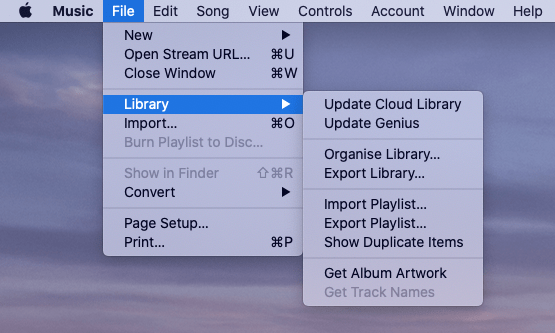
Deleting duplicate iTunes files is a straightforward process that can be completed in just a few steps:
- Open iTunes and select the “Music” tab from the top menu bar.
- Click on “Library” and then click on “View” from the drop-down menu.
- Select “Show Duplicate Items” to see a list of duplicate files.
- Select the duplicates you want to delete and click on the “Delete” button.
Using Duplicate Cleaner
Duplicate Cleaner is a free program that can help you find and delete duplicate iTunes files automatically. To use it, follow these steps:
- Download and install Duplicate Cleaner from the official website.
- Launch the program and select the folder where your music library is stored.
- Click on the “Scan” button to find any duplicate files.
- Select the duplicates you want to delete and click on the “Remove” button.
Using Duplicates Cleaner For Macos
Duplicates Cleaner is also available for macOS users. To use it, follow these steps:
- Download and install Duplicates Cleaner from the Mac App Store.
- Launch the program and select the folder where your music library is stored.
- Click on the “Scan” button to find any duplicate files.
- Select the duplicates you want to delete and click on the “Remove” button.
Tips For Avoiding Duplicate Itunes Files
To avoid having duplicate iTunes files in the future, follow these tips:
- Use a consistent naming convention for your music files.
- Make sure to update your music library regularly.
- Use a program like Duplicate Cleaner to find and delete duplicates automatically.
Conclusion
Deleting duplicate iTunes files is an essential step in keeping your music library organized. By following the steps outlined above, you can easily remove any duplicates and free up valuable disk space. Remember to also use tips for avoiding duplicate iTunes files to prevent them from accumulating in the future.
Faqs
- Q: What Are Duplicate Itunes Files?
A: Duplicate iTunes files are identical copies of songs or playlists that have been added to your library. - Q: Why Delete Duplicate Itunes Files?
A: Deleting duplicate iTunes files saves you time and effort, frees up disk space, and improves the overall organization of your music library. - Q: How do I Delete Duplicate Itunes Files?
A: To delete duplicate iTunes files, open iTunes, select the “Music” tab, click on “Library,” and then click on “View.” Select “Show Duplicate Items” to see a list of duplicate files. Select the duplicates you want to delete and click on the “Delete” button. - Q: What is Duplicate Cleaner?
A: Duplicate Cleaner is a free program that can help you find and delete duplicate iTunes files automatically. - Q: How do I Use Duplicate Cleaner?
A: To use Duplicate Cleaner, download and install it from the official website. Launch the program, select the folder where your music library is stored, click on the “Scan” button to find any duplicate files, select the duplicates you want to delete, and click on the “Remove” button. - Q: Is Duplicates Cleaner Available For Macos?
A: Yes, Duplicates Cleaner is also available for macOS users. To use it, download and install it from the Mac App Store, launch the program, select the folder where your music library is stored, click on the “Scan” button to find any duplicate files, select the duplicates you want to delete, and click on the “Remove” button. - Q: How Can I Avoid Having Duplicate Itunes Files in The Future?
A: To avoid having duplicate iTunes files in the future, use a consistent naming convention for your music files, make sure to update your music library regularly, and use a program like Duplicate Cleaner to find and delete duplicates automatically.


