
How to Remove a Private Profile on Instagram: A Step-by-step Guide
Are you tired of having a private profile on Instagram, but now want to make your account public? Look no further! In this article, we’ll guide you through the simple process of removing a private profile on Instagram, both on Android/iOS and PC.
Understanding Private Profiles on Instagram
Before we dive into the step-by-step guide, it’s essential to understand what having a private profile means. When your account is set to private, only your followers can see your posts and stories. This setting helps you maintain control over who sees your content, which is perfect for individuals who want to keep their online presence exclusive.
Why Remove The Private Profile on Instagram?
There are several reasons why you might want to remove the private profile on Instagram:
- You’ve grown your audience and want to make your account more visible.
- You’re interested in collaborating with other users or brands, which requires a public profile.
- You simply want to change your online presence and experiment with a new approach.
Step-by-step Guide: Removing The Private Profile on Instagram
On Android/ios Devices:
- Open the official Instagram app on your smartphone.
- Tap on your profile icon, located in the bottom right corner of the screen.
- Swipe up and tap on the three horizontal lines (≡) to access the settings menu.
- Scroll down and select “Settings” from the list.
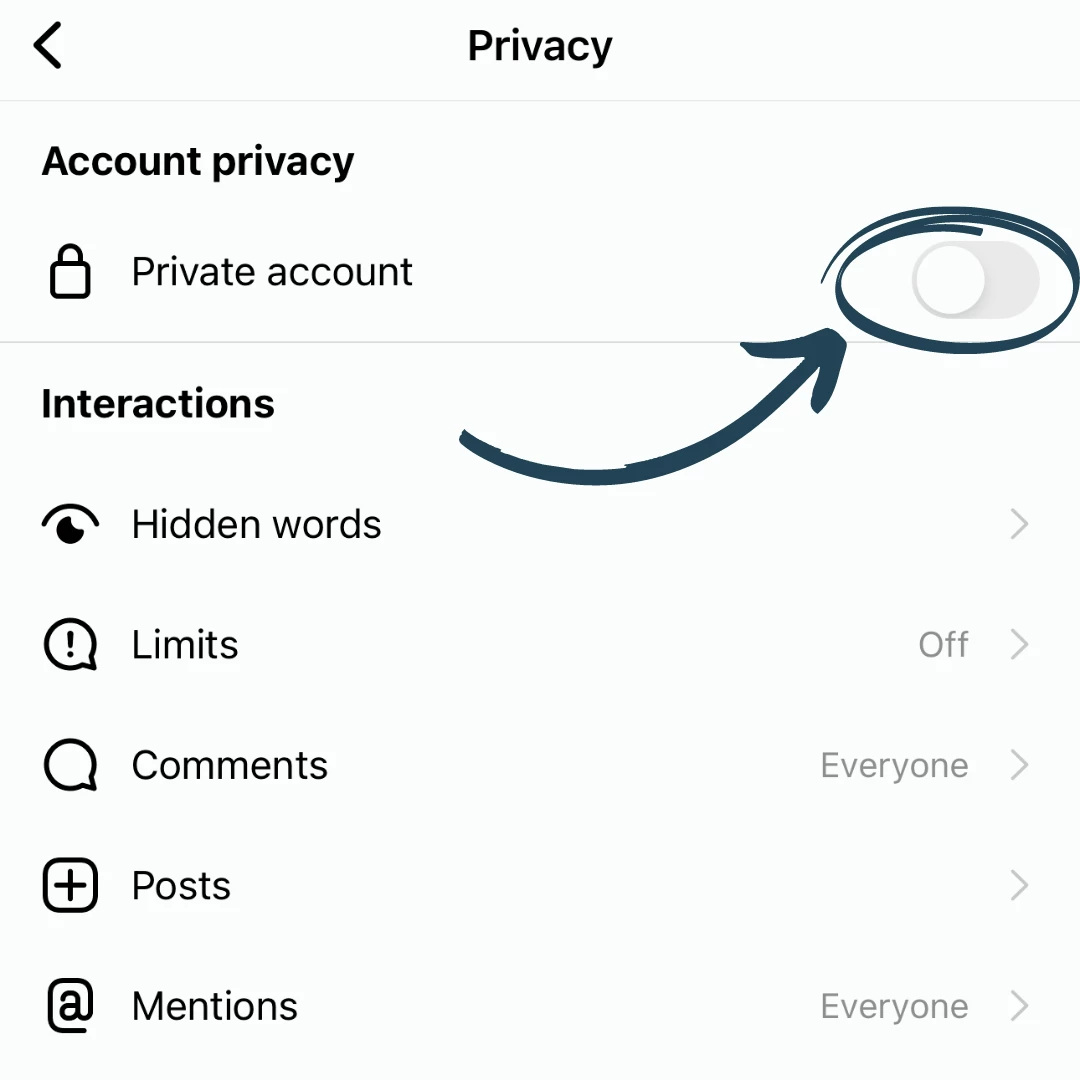
- Tap on “Account” and then toggle off the switch next to “Private Account.”
- Confirm your choice by tapping “Yes, I’m sure.”
On PC Devices:
- Log in to your Instagram account using a web browser or the desktop app for Windows.
- Click on your profile picture in the top right corner of the screen.
- Select “Settings” from the dropdown menu.
- Scroll down and click on “Privacy” from the list.
- Toggle off the switch next to “Private Account.”
- Confirm your choice by clicking “Yes, I’m sure.”
What Happens When You Remove The Private Profile on Instagram?
When you remove the private profile on Instagram:
- All your posts and stories will become visible to anyone who visits your profile.
- Your followers will automatically be accepted, but you can still choose to block or report users if needed.
Tips For a Smooth Transition:
- Be aware that making your account public means sharing your content with a wider audience.
- Review your posts and stories before removing the private profile to ensure they align with your new online presence.
Conclusion:
Removing a private profile on Instagram is a simple process, and this guide has walked you through the step-by-step instructions for both Android/iOS and PC devices. By following these easy steps, you can make your account public and take advantage of the benefits that come with it. Remember to be mindful of your online presence and adjust your content accordingly.
Frequently Asked Questions:
- Q: What happens when I remove the private profile on Instagram?
- A: Your posts and stories will become visible to anyone who visits your profile, and followers will automatically be accepted.
- Q: Can I still block or report users after removing the private profile?
- A: Yes, you can choose to block or report users if needed, but they will no longer need approval to follow your account.
- Q: Will my online presence change significantly after making my Instagram account public?
- A: Depending on how much content you share and with whom you interact, your online presence might change, but it’s ultimately up to you to manage your profile.
- Q: Is removing the private profile permanent?
- A: Yes, once you remove the private profile, there’s no going back. You’ll need to create a new account if you want to revert to a private setting.
- Q: Can I change my mind and make my Instagram account private again?
- A: Yes, you can always change your mind and toggle the private account switch on again.
Stay informed and enjoy the benefits of having a public profile on Instagram!


