
How to See The Components of Your Pc: A Comprehensive Guide
Are you curious about the inner workings of your computer? Do you want to know more about its components, such as the CPU, RAM, and storage? Look no further! In this article, we will guide you through the process of seeing the components of your PC using various tools and methods.
Understanding Your Computer’s Hardware
Before we dive into the tools, it’s essential to understand the basic hardware components of your computer. These include:
- CPU (Central Processing Unit)
- RAM (Random Access Memory)
- Storage (Hard Drive or Solid State Drive)
- Graphics Card
- Motherboard
Each of these components plays a vital role in your computer’s performance and functionality.
Tools For Seeing Components on Windows
If you’re using Windows, there are several tools that can help you see the components of your PC. Here are some of them:
System Information
One of the most straightforward ways to see the components of your PC is by using the System Information tool. To access this tool, follow these steps:
- Click on the Start button and select Settings.
- Click on System and then click on About.
- Scroll down to the System information section.
This tool will display information about your CPU, RAM, storage, and other system components.
Directx Diagnostic Tool
Another useful tool is the DirectX Diagnostic Tool. This tool can help you identify issues with your graphics card and other system components. To access this tool, follow these steps:
- Press the Windows key + R to open the Run dialog box.
- Type dxdiag in the Run dialog box and press Enter.
This tool will display information about your graphics card, CPU, RAM, and other system components.
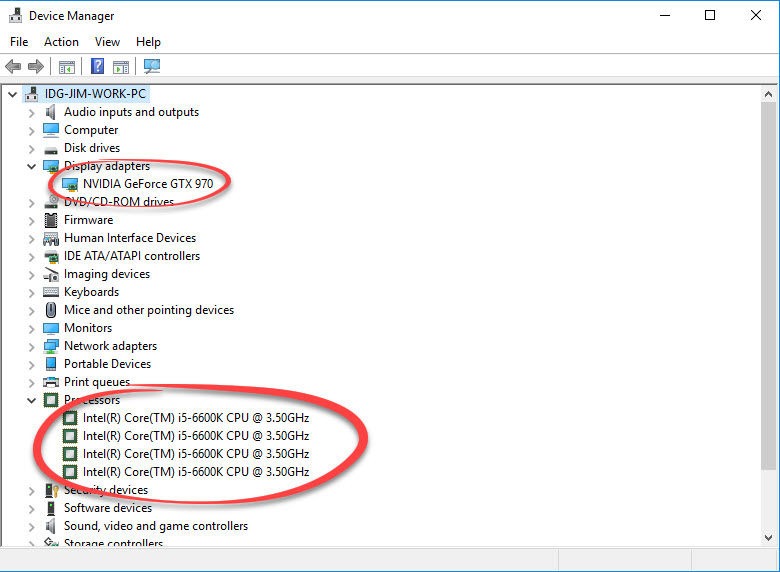
Management Devices
The Management Devices tool is another useful tool for seeing the components of your PC. This tool can help you identify issues with your hardware components and provide information about their properties. To access this tool, follow these steps:
- Click on the Start button and select Settings.
- Click on System and then click on Device Manager.
This tool will display a list of all devices connected to your computer, including their drivers, properties, and other relevant information.
Tools For Seeing Components on Mac
If you’re using a Mac, there are also several tools that can help you see the components of your PC. Here are some of them:
System Information
The System Information tool is available on Macs running macOS High Sierra or later. To access this tool, follow these steps:
- Click on the Apple logo in the top left corner of your screen.
- Select About This Mac.
- Click on System Report.
This tool will display information about your CPU, RAM, storage, and other system components.
System Report
The System Report tool is another useful tool for seeing the components of your PC. To access this tool, follow these steps:
- Click on the Apple logo in the top left corner of your screen.
- Select About This Mac.
- Click on System Report.
This tool will display a list of all system components, including their properties and other relevant information.
Other Tools
There are several other tools that can help you see the components of your PC, including:
- Cpu-z: A free tool that displays detailed information about your CPU, RAM, and other system components.
- Speccy: A free tool that displays detailed information about your hardware components, including their properties and other relevant information.
Conclusion
Seeing the components of your PC is an essential step in understanding how it works and identifying potential issues. By using the tools and methods outlined in this article, you can gain a deeper understanding of your computer’s hardware and make informed decisions about its maintenance and upgrade.
Faqs
Here are some frequently asked questions related to seeing the components of your PC:
- Q: How do I See The Components of my PC on Windows?
A: You can use various tools, including System Information, DirectX Diagnostic Tool, and Management Devices. - Q: How do I See The Components of my Mac?
A: You can use various tools, including System Information, System Report, and other built-in tools. - Q: What Are Some Other Useful Tools For Seeing PC Components?
A: Some other useful tools include CPU-Z, Speccy, and Hardware Monitor.
Table 1: Tools For Seeing Components on Windows
| Tool | Description |
|---|---|
| System Information | Displays information about system components, including CPU, RAM, storage, and more. |
| DirectX Diagnostic Tool | Helps identify issues with graphics card and other system components. |
| Management Devices | Displays a list of all devices connected to your computer, including their drivers, properties, and other relevant information. |
Table 2: Tools For Seeing Components on Mac
| Tool | Description |
|---|---|
| System Information | Displays information about system components, including CPU, RAM, storage, and more. |
| System Report | Displays a list of all system components, including their properties and other relevant information. |
**Table 3: Other Useful Tools for Seeing PC Components
| Tool | Description |
|---|---|
| CPU-Z | A free tool that displays detailed information about your CPU, RAM, and other system components. |
| Speccy | A free tool that displays detailed information about your hardware components, including their properties and other relevant information. |


