
How to Remove The Block on Telegram: A Step-by-step Guide
Are you tired of being asked for a code every time you want to access your Telegram app? Do you know how to remove the block on Telegram, especially if it’s been put in place due to an error or sensitivity reasons? In this article, we’ll guide you through the process of removing the block on Telegram, whether you’re using the app on Android, iPhone, iPad, PC, or other devices.
Understanding The Block on Telegram
Before we dive into the step-by-step instructions, let’s understand why the block is in place. The block is a security feature that requires users to input a code every time they access their Telegram account. This is usually done to prevent unauthorized access to your account and ensure that only you can use it.
Removing The Block on Android Devices
If you’re using Telegram on an Android device, here’s how you can remove the block:
- Open The Telegram App: Open the Telegram app on your Android device.
- Tap on The ≡ Pulsante: Tap on the ≡ pulsante (settings icon) in the top-right corner of the screen.
- Select Settings: Select the “Settings” option from the menu.
- Go to Privacy And Safety: Scroll down and select “Privacy and Safety”.
- Select Code of Block: Select the “Code of Block” option.
- Enter The Code: Enter the code that was previously set up.
- Disable Code: Tap on the “Disattiva Code” button to disable the code.
That’s it! You should no longer be asked for a code every time you access your Telegram account.
Removing The Block on Iphone And Ipad Devices
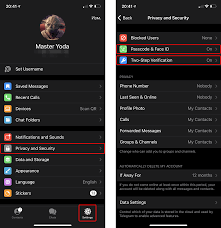
If you’re using Telegram on an iPhone or iPad device, here’s how you can remove the block:
- Open The Telegram App: Open the Telegram app on your iPhone or iPad.
- Tap on Settings: Tap on the settings icon (gear symbol) in the bottom-right corner of the screen.
- Select Code And Face ID: Select “Code and Face ID” from the menu.
- Enter The Code: Enter the code that was previously set up.
- Disable Code: Tap on the “Disattiva Code” button to disable the code.
Removing The Block on PC Devices
If you’re using Telegram on a PC device, here’s how you can remove the block:
- Open Telegram Web: Open Telegram Web in your web browser.
- Select Settings: Select the settings icon (gear symbol) from the top-right corner of the screen.
- Go to Privacy And Safety: Scroll down and select “Privacy and Safety”.
- Disable Filter: Select the “Disattiva filter” option to disable the filter.
How to Unblock an User Blocked in Precedenza
If you’ve accidentally blocked someone on Telegram, here’s how you can unblock them:
- Open The Telegram App: Open the Telegram app on your device.
- Tap on The ≡ Pulsante: Tap on the ≡ pulsante (settings icon) in the top-right corner of the screen.
- Select Settings: Select the “Settings” option from the menu.
- Go to Privacy And Safety: Scroll down and select “Privacy and Safety”.
- Find The Blocked User: Find the user you want to unblock in the list.
- Tap on Unblock: Tap on the “Unblock” button next to their name.
Removing The Block Contained Sensitive on Telegram
If you’re having trouble accessing sensitive content on Telegram, here’s how you can remove the block:
- Open Telegram Web: Open Telegram Web in your web browser.
- Select Settings: Select the settings icon (gear symbol) from the top-right corner of the screen.
- Go to Privacy And Safety: Scroll down and select “Privacy and Safety”.
- Disable Filter: Select the “Disattiva filter” option to disable the filter.
And that’s it! You should now be able to access your Telegram account without being asked for a code, or unblock users who have been accidentally blocked.
Conclusion
Removing the block on Telegram is a straightforward process that can be done in just a few steps. Whether you’re using the app on Android, iPhone, iPad, PC, or other devices, following these instructions will help you regain access to your account and communicate with your friends and family without any issues.


