
How to Save Electronic Mail on PC
Are you tired of losing important emails? Do you want to save your electronic mail on your PC, but don’t know how? Look no further! In this article, we will guide you through the process of saving electronic mail on various email providers such as Gmail, Outlook, Thunderbird, and more.
Why Save Electronic Mail?
Saving electronic mail is a great way to keep track of important messages, even when you’re offline. It’s also useful for archiving emails that are no longer in your inbox but still need to be kept for future reference.
Save Electronic Mail on Gmail
To save electronic mail on Gmail, follow these steps:
- Log in to your Gmail account.
- Click on the folder that contains the message you want to save (e.G., “Inbox” or “Sent”).
- Open the email by clicking on its trailer.
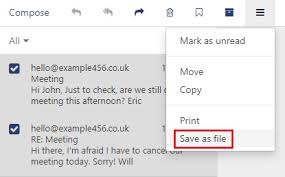
- Click on the three dots (…) At the top right corner of the window.
- Select “Save as” from the menu.
- Choose a location to save the file, such as your computer’s hard drive.
Save Electronic Mail on Outlook
To save electronic mail on Outlook, follow these steps:
- Log in to your Outlook account.
- Click on the folder that contains the message you want to save (e.G., “Inbox” or “Sent”).
- Open the email by clicking on its trailer.
- Click on the “Save as” button at the top right corner of the window.
- Choose a location to save the file, such as your computer’s hard drive.
Save Electronic Mail on Thunderbird
To save electronic mail on Thunderbird, follow these steps:
- Log in to your Thunderbird account.
- Click on the folder that contains the message you want to save (e.G., “Inbox” or “Sent”).
- Open the email by clicking on its trailer.
- Right-click on the email and select “Save as”.
- Choose a location to save the file, such as your computer’s hard drive.
Other Email Providers
If you use other email providers such as Alice Mail, Free Mail, Windows Live Mail, or smartphone/tablet apps like Gmail, Outlook, or Mail, follow these steps:
- Log in to your account.
- Click on the folder that contains the message you want to save (e.G., “Inbox” or “Sent”).
- Open the email by clicking on its trailer.
- Follow the prompts to save the email as an EML file.
Save Electronic Mail Certified
If you have certified emails, such as those from Aruba PEC, follow these steps:
- Log in to your account.
- Click on the folder that contains the message you want to save (e.G., “Inbox” or “Sent”).
- Open the email by clicking on its trailer.
- Select “Save as” and choose a location to save the file, such as your computer’s hard drive.
Transfer Saved Emails
If you have saved emails on one device but want to transfer them to another, follow these steps:
- Connect both devices to the same network.
- Use a cloud service like Google Drive or Dropbox to sync your emails across devices.
Save Electronic Mail on Smartphones And Tablets
Unfortunately, most email apps for mobile devices do not allow you to download emails directly onto your device. However, you can use the virtual printer feature to save emails as PDFs:
- Open the email app.
- Tap on the email you want to save.
- Tap on the “Share” button.
- Select “Print” and choose “Save as PDF”.
Conclusion
Saving electronic mail is a simple process that can help you keep track of important messages, even when you’re offline. By following these steps for various email providers, you can save your emails on PC, smartphone, or tablet.
Frequently Asked Questions (FAQs)
- Q: Why do I Need to Save Electronic Mail?
A: Saving electronic mail helps you keep track of important messages and archive them for future reference. - Q: Can I Save Certified Emails?
A: Yes, certified emails can be saved as EML or MBOX files. - Q: How do I Transfer Saved Emails to Another Device?
A: Use a cloud service like Google Drive or Dropbox to sync your emails across devices. - Q: Can I Save Emails on my Smartphone or Tablet?
A: Unfortunately, most email apps for mobile devices do not allow direct downloads, but you can use the virtual printer feature to save emails as PDFs. - Q: How do I Access Saved Emails on Another Device?
A: Use a cloud service like Google Drive or Dropbox to access your synced emails across devices. - Q: Can I Save Multiple Emails at Once?
A: Yes, you can save multiple emails by selecting them all and following the prompts to save them as EML or MBOX files. - Q: How do I Open Saved Emails on my Computer?
A: Saved emails can be opened using email clients like Gmail, Outlook, or Thunderbird. - Q: Can I Share Saved Emails With Others?
A: Yes, you can share saved emails by attaching them to an email or message and sending it to the recipient.


