
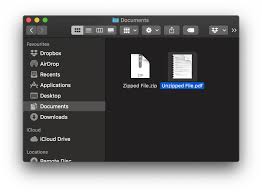
How to Decompress a Zip File: A Step-by-step Guide
Are you tired of struggling to decompress ZIP files on your computer? Look no further! In this article, we will guide you through the process of decompressing ZIP files on Windows, Mac, and Linux operating systems. We will also explore alternative methods for decompressing ZIP files online and on mobile devices.
Decompressing a Zip File on Windows
If you’re using a Windows operating system, decompressing a ZIP file is a straightforward process. Here’s how to do it:
- Method 1: Using The Built-in Compression Tool
- Right-click on the ZIP file and select “Extract all”
- Choose the destination folder where you want to extract the files
- Click “Extract” to decompress the files
- Method 2: Using 7-Zip
- Download and install 7-Zip from the official website
- Right-click on the ZIP file and select “Open with > 7-Zip”
- Choose the destination folder where you want to extract the files
- Click “Extract” to decompress the files
Decompressing a Zip File on Mac
If you’re using a Mac operating system, decompressing a ZIP file is also easy. Here’s how to do it:
- Method 1: Using The Built-in Compression Tool
- Right-click on the ZIP file and select “Open with > Archive Utility”
- Choose the destination folder where you want to extract the files
- Click “OK” to decompress the files
- Method 2: Using Keka
- Download and install Keka from the official website or Mac App Store
- Right-click on the ZIP file and select “Open with > Keka”
- Choose the destination folder where you want to extract the files
- Click “OK” to decompress the files
Decompressing a Zip File on Linux
If you’re using a Linux operating system, decompressing a ZIP file is also easy. Here’s how to do it:
- Method 1: Using The Built-in Compression Tool
- Right-click on the ZIP file and select “Open with > Archive Manager”
- Choose the destination folder where you want to extract the files
- Click “OK” to decompress the files
- Method 2: Using File Roller
- Download and install File Roller from the official website or Linux repository
- Right-click on the ZIP file and select “Open with > File Roller”
- Choose the destination folder where you want to extract the files
- Click “OK” to decompress the files
Decompressing a Zip File Online
If you don’t have access to a computer or prefer not to download software, you can also decompress ZIP files online. Here’s how to do it:
- Method 1: Using Archive Extractor
- Go to the Archive Extractor website
- Click on “Choose file” and select the ZIP file you want to decompress
- Choose the destination folder where you want to extract the files
- Click “Extract” to decompress the files
Decompressing a Zip File on Mobile Devices
If you’re using a mobile device, such as an Android or iOS device, you can also decompress ZIP files. Here’s how to do it:
- Method 1: Using The Built-in Compression Tool
- Go to the Files app
- Tap on the ZIP file and select “Extract”
- Choose the destination folder where you want to extract the files
- Tap “OK” to decompress the files
- Method 2: Using Zarchiver
- Download and install ZArchiver from the Google Play Store or Apple App Store
- Open the app and select the ZIP file you want to decompress
- Choose the destination folder where you want to extract the files
- Tap “OK” to decompress the files
Conclusion
In conclusion, decompressing a ZIP file is a straightforward process that can be done on various operating systems, including Windows, Mac, and Linux. You can also use alternative methods for decompressing ZIP files online or on mobile devices. We hope this article has been helpful in guiding you through the process of decompressing ZIP files.
Faqs
Q: What is a ZIP file?
A: A ZIP file is a compressed file format that contains one or more files or folders.
Q: How do I decompress a ZIP file on Windows?
A: You can use the built-in compression tool or 7-Zip to decompress a ZIP file on Windows.
Q: How do I decompress a ZIP file on Mac?
A: You can use the built-in compression tool or Keka to decompress a ZIP file on Mac.
Q: How do I decompress a ZIP file on Linux?
A: You can use the built-in compression tool or File Roller to decompress a ZIP file on Linux.
Q: Can I decompress a ZIP file online?
A: Yes, you can use Archive Extractor to decompress a ZIP file online.
Q: Can I decompress a ZIP file on my mobile device?
A: Yes, you can use the built-in compression tool or ZArchiver to decompress a ZIP file on your mobile device.
Q: What is the best method for decompressing a ZIP file?
A: The best method for decompressing a ZIP file depends on your operating system and personal preference.


