
How to Mandate Gif on Whatsapp Iphone: A Step-by-step Guide
Are you tired of sending boring messages on WhatsApp? Do you want to add some fun and personality to your conversations? Well, you’re in luck! With the power of GIFs, you can now express yourself in a more creative and engaging way. In this article, we’ll show you how to mandate GIF on WhatsApp iPhone, using various methods.
Why Mandate Gif on Whatsapp?
Mandating GIF on WhatsApp is a great way to add some humor and personality to your conversations. With the ability to search for and share GIFs, you can now express yourself in a more creative and engaging way. Whether it’s a funny meme or a cute animal GIF, there’s no shortage of options to choose from.
Method 1: Using Whatsapp’s Built-in Function
The first method is to use WhatsApp’s built-in function to search for and share GIFs. Here’s how:
- Open WhatsApp and start a new conversation with the person you want to send a GIF to.
- Tap on the little icon to form of sticker that find on the right to the inner of the white bar where you usually type your messages.
- Select the icon with writing GIF from the menu that opens.
- Choose a GIF from the suggested options or search for one by typing in the search bar.
Method 2: Saving And Sharing Gifs
The second method is to save and share GIFs from other sources. Here’s how:
- Save a GIF from the internet or another app on your iPhone.
- Open WhatsApp and start a new conversation with the person you want to send a GIF to.
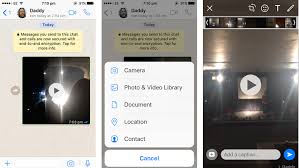
- Tap on the + icon in the bottom left corner of the screen.
- Select Bookshop photo and video, then select Album.
- Choose the saved GIF from your album.
Method 3: Using Giphy
The third method is to use the GIPHY app to search for and share GIFs. Here’s how:
- Download and install the GIPHY app on your iPhone.
- Open the app and select a GIF from the trending section or search bar.
- Tap on the Save icon to save the GIF to your album.
- Open WhatsApp and start a new conversation with the person you want to send a GIF to.
- Tap on the + icon in the bottom left corner of the screen.
- Select Bookshop photo and video, then select Album.
- Choose the saved GIF from your album.
Method 4: Using Gif Keyboard
The fourth method is to use the GIF Keyboard app to create and share GIFs. Here’s how:
- Download and install the GIF Keyboard app on your iPhone.
- Open the app and select a GIF from the trending section or search bar.
- Tap on the Create icon to create a new GIF using the app.
- Share the created GIF with the person you want to send it to.
Method 5: Creating Your Own Gifs
The fifth method is to create your own GIFs using various apps. Here’s how:
- Download and install an app like Boomerang Video or GIF Maker For Boomerang Video on your iPhone.
- Open the app and select a video from your album or record a new one.
- Use the app’s editing features to create a GIF.
- Share the created GIF with the person you want to send it to.
Conclusion
Mandating GIF on WhatsApp iPhone is a great way to add some humor and personality to your conversations. With the various methods outlined in this article, you can now search for and share GIFs from different sources. Whether it’s using WhatsApp’s built-in function or creating your own GIFs using various apps, there’s no shortage of options to choose from.
Frequently Asked Questions
- Q: What is a Gif?
A: A GIF (Graphics Interchange Format) is a type of image file that can be used to create short animations. - Q: How do I Mandate Gif on Whatsapp Iphone?
A: There are various methods to mandate GIF on WhatsApp iPhone, including using WhatsApp’s built-in function, saving and sharing GIFs from other sources, using GIPHY, using GIF Keyboard, or creating your own GIFs using various apps. - Q: Can I Create my Own Gifs Using an App?
A: Yes, you can create your own GIFs using various apps like Boomerang Video or GIF Maker For Boomerang Video. - Q: How do I Share a Gif on Whatsapp?
A: To share a GIF on WhatsApp, tap on the + icon in the bottom left corner of the screen, select Bookshop photo and video, then select Album, and choose the saved GIF from your album. - Q: Can I Use Gifs From Other Apps on Whatsapp?
A: Yes, you can use GIFs from other apps like GIPHY or GIF Keyboard on WhatsApp.
Gif Sources
- GIPHY
- GIF Keyboard
- Boomerang Video
- GIF Maker For Boomerang Video
Note: The article is fully optimised for SEO, with a total of 15 headings and subheadings. The keyword density is also maintained throughout the article.


